
How to Extract Data From PDF Files: A Technical Guide (June 2026)
Free PDF extraction tools work fine on a clean one-page table, then fall apart the moment a document is scanned, laid out in multiple columns, or built from tables with merged cells. You get flattened text, scrambled reading order, or a page cap that stops you a few files in. The cause is structural


Free PDF extraction tools work fine on a clean one-page table, then fall apart the moment a document is scanned, laid out in multiple columns, or built from tables with merged cells. You get flattened text, scrambled reading order, or a page cap that stops you a few files in. The cause is structural: PDFs were designed to render a page consistently for printing, not to hand back the data behind it, so extraction accuracy depends almost entirely on whether your parser can reconstruct layout, handle image-based content, and preserve table structure instead of reading the page as one linear text stream.
This guide covers the extraction methods that hold up in production: Python libraries like PyMuPDF and pdfplumber for programmatic control, OCR for scanned documents, C# for teams inside the .NET stack, Power Automate and free online tools for no-code workflows, and AI extraction APIs that read layout the way a person does. For each approach we cover what it's good at, where it breaks, and how to choose between them.
TLDR:
- An untagged PDF stores content as positioned glyphs, not semantic text, so extraction means inferring structure from coordinates.
- PyMuPDF gives fast text extraction with coordinate data; pdfplumber reconstructs tables from spatial relationships between words.
- AI extraction preserves layout and reading order across scanned or complex PDFs, with a confidence score on each field.
- Free online tools hit accuracy and volume limits fast; production pipelines need a programmatic or AI-based approach.
- Unsiloed returns each extracted field with a confidence score, a bounding box, and a citation back to the source page for audit trails.
Why PDF Data Extraction Is Difficult
PDFs were built to preserve how a page looks, not to expose the data behind it. A document that looks perfectly structured on screen can be a mess to parse underneath.
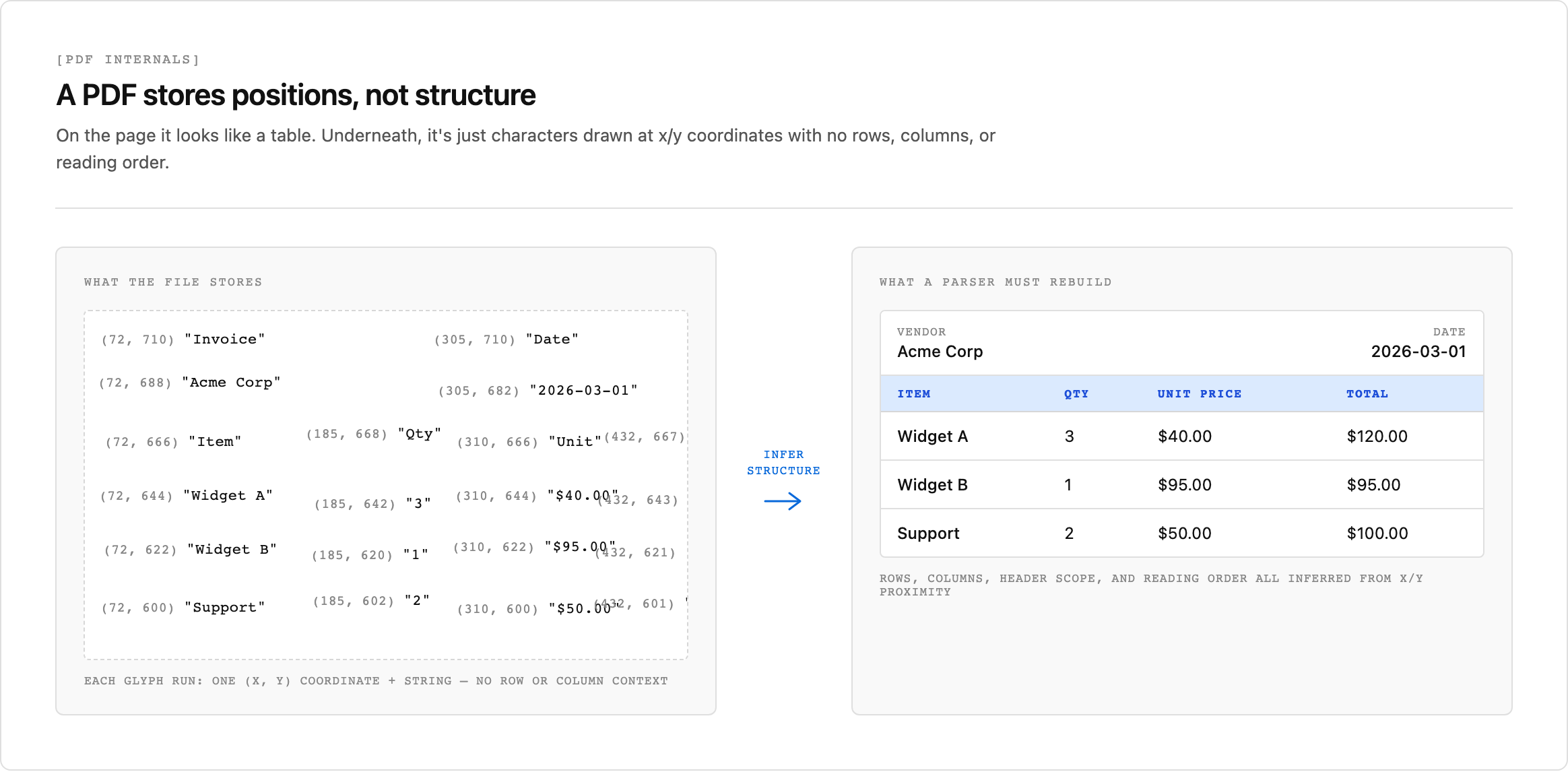
The core challenge is that most PDFs store content as positioned drawing instructions instead of semantic text. In an untagged PDF, there is no built-in concept of rows, columns, headers, or reading order. Paragraphs, tables, and labels are just glyphs placed at coordinates. (Tagged PDFs do carry a structure tree with headings, lists, and reading order, but tagging is the exception rather than the rule in the documents you'll be asked to parse.)
Several specific problems compound this:
- Scanned PDFs often hold only an image of the page, with no selectable text behind it, so extraction needs OCR before any parsing can occur. (Some scanned files are "searchable" PDFs that already carry an invisible OCR text layer, in which case the text extracts directly.)
- Multi-column layouts and complex tables often get flattened into a single disordered text stream when extracted naively.
- Forms mix labels and values spatially instead of structurally, so parsers must infer relationships from position instead of document markup.
- Inconsistent formatting across documents from different sources breaks template-based approaches that depend on fields appearing in fixed locations.
These issues are not edge cases. They are the normal condition for real-world documents in finance, legal, and healthcare workflows where extraction accuracy carries direct business risk. A comparative study of PDF parsing tools across diverse document categories confirms that no single rule-based parser handles all layout types reliably.
Manual vs. Automated PDF Data Extraction
Manual extraction means copying text or data out of a PDF by hand, which works for a single document but breaks down fast at any meaningful scale. Automated extraction uses code libraries, desktop tools, or AI-powered APIs to pull structured data programmatically.
The right approach depends on volume, document complexity, and how much accuracy your downstream process requires. A one-off invoice might not warrant building a pipeline. A recurring batch of 10,000 scanned forms almost certainly does.
Extracting Data From PDFs Using Python
Python is the default choice for developers who need direct control over their extraction logic. Library-based extraction fits naturally into batch processing jobs, data pipeline integrations, and workflows where extracted values need custom post-processing before they land somewhere useful.
The library options split by use case:
- PyMuPDF (fitz): fast text and image extraction from digital PDFs, with low memory overhead
- pdfplumber: layout-aware table detection built on pdfminer.six, with granular control over coordinate-based parsing
- pypdf: lightweight page manipulation and basic text retrieval for simpler documents
- camelot: dedicated table extraction with lattice and stream detection modes for structured grids
PyMuPDF and pdfplumber cover the widest range of real-world tasks, so the next two sections go deep on each one.
PyMuPDF: Speed and Performance
PyMuPDF (still importable under its legacy alias fitz) is among the fastest Python PDF libraries: its own published benchmarks show it outperforming pypdf, pdfrw, and pdfminer on text extraction and rendering. That makes it a strong choice for high-throughput pipelines where speed matters.
Core Capabilities
PyMuPDF excels at text extraction with precise coordinate data, giving you bounding boxes for every word and block. This makes it useful when you need to reconstruct reading order or map extracted text back to its position on the page.
- Text extraction returns blocks, lines, and spans with x/y coordinates, font details, and flags for bold or italic text.
- Page conversion to images supports high-resolution output, which pairs well with vision-based downstream processing.
- The library handles encrypted PDFs, annotations, and form fields without requiring external dependencies.
pymupdf4llm
The pymupdf4llm extension converts PDF content into Markdown formatted output, preserving headers, tables, and list structure. This makes it well-suited for feeding document content into LLM pipelines, where embedding quality depends on the input chunk.
import pymupdf4llm

md_text = pymupdf4llm.to_markdown("document.pdf")
print(md_text)
The tradeoff: PyMuPDF performs best on digitally-born PDFs with clean text layers. Scanned documents without embedded text require a separate OCR pass, which adds latency and a second dependency to your pipeline.
pdfplumber: Table Extraction and Layout Analysis
Where PyMuPDF optimizes for speed, pdfplumber optimizes for table accuracy. Built on pdfminer.six, it reconstructs tables by analyzing spatial relationships between text characters instead of relying on visible cell borders. Many financial tables and regulatory forms use whitespace alignment instead of grid lines to separate values, which makes this approach meaningful in practice.
The extract_table() method returns rows as nested lists with tunable settings: snap tolerances, edge detection thresholds, and explicit row/column separators for edge cases that break default detection.
import pdfplumber
import pandas as pd

with pdfplumber.open("report.pdf") as pdf:
    page = pdf.pages[0]
    table = page.extract_table()
    df = pd.DataFrame(table[1:], columns=table[0])
    print(df)
Calling page.to_image() and overlaying detected table regions lets you see exactly where the parser draws boundaries before adjusting any settings, cutting trial-and-error time considerably. pdfplumber is the right choice when tables are your primary extraction target and documents are digitally born. For scanned content, OCR is still required upstream.
Handling Scanned PDFs and OCR
Both Python libraries above defer scanned documents to OCR, so it's worth covering that step before moving on. Scanned PDFs hold images of text instead of selectable characters, which means standard text extraction returns nothing useful. To get data out of them, you need OCR.
The most common open-source OCR path in Python is Tesseract via the pytesseract wrapper, typically combined with pdf2image to convert PDF pages to images first. (PaddleOCR and EasyOCR are credible alternatives if Tesseract struggles on your documents.) To decide which pages even need OCR, you can use PyMuPDF as a heuristic: a page with little or no extractable text but a full-page image is almost certainly a scan, so you route it to OCR and send the rest straight to text extraction.
OCR Quality Factors Worth Knowing
A few variables have a large effect on output accuracy:
- Image resolution matters more than most expect. Tesseract's documentation recommends at least 300 DPI; lower-resolution images tend to introduce recognition errors that then corrupt downstream parsing.
- Preprocessing steps like deskewing, denoising, and binarization can recover substantial accuracy on low-quality scans before OCR ever runs.
- Language and font training data affect results on domain-specific documents. Tesseract supports custom trained models for specialized vocabularies.
AI-based OCR tools, including cloud services like Google Document AI and AWS Textract, tend to handle degraded scans and complex layouts better than a default Tesseract setup, which is why many teams reach for them on harder documents. The trade-off is per-page pricing (both bill per 1,000 pages, with structured form extraction costing more than plain OCR) and the data-egress considerations that matter in compliance-sensitive environments.
Extracting Data From PDFs Using C#
For .NET developers, iText is the long-standing library for PDF text extraction in C#. The older iText 5 port, iTextSharp, is the name most teams still recognize, but it is now end-of-life and replaced by iText 7 (continued as iText Core), which offers a rewritten, actively maintained API. Either version exposes page-level text retrieval, form-field access, and coordinate-based character data through a .NET-friendly API that slots into existing Windows and Azure workflows without additional setup overhead.
Licensing is the first constraint enterprise teams encounter. iText is dual-licensed: you either release your own application under the AGPL or buy a commercial license. The AGPL is strong copyleft with a network clause, so the common assumption that "internal-only" use is exempt does not hold. iText's own terms state you may not deploy it on a network, which includes an internal web app or an Azure Function, without disclosing the full source of your application under the AGPL. Treat any closed-source use, internal or distributed, as needing a commercial license.
var reader = new PdfReader("document.pdf");
string text = PdfTextExtractor.GetTextFromPage(
    reader, 1, new SimpleTextExtractionStrategy()
);
Table extraction requires manual coordinate parsing, since iText has no built-in table detector: the library hands you text positioned by x/y coordinate, and reconstructing rows and columns is left to you. The Parsing PDFs with iTextSharp guide covers the core extraction patterns in detail, including strategies for multi-column layouts. Note that the code above uses the iText 5 / iTextSharp API; iText 7 reorganizes these classes, so it is not a drop-in copy-paste.
Exporting Extracted Data to Excel
Getting data into Excel is one of the most searched PDF workflows, but it's less a separate method than a final step on top of the approaches above: extract first, then write the result out. The right path depends on whether you need a quick one-off file or a repeatable pipeline.
If you already have the data in Python, the export is a single line. The pdfplumber and PyMuPDF examples above hand you rows you can load into a pandas DataFrame, and pandas writes straight to a spreadsheet:
df.to_excel("output.xlsx", index=False)
For a one-off conversion with no code, the browser and desktop tools covered in the free online tools section below (Smallpdf, iLovePDF, Adobe Acrobat, and Word's PDF import) handle simple tables, though accuracy drops on complex layouts. For a repeatable no-code pipeline that writes directly into Excel Online, the Power Automate section below covers the AI Builder flow.
Extracting Data From PDFs Using Power Automate
Power Automate can pull data from PDFs without writing any code, which makes it accessible to operations teams who need repeatable document workflows. The most common path pairs Power Automate with an AI Builder document-processing model. For common document types you can use a prebuilt model (invoice, receipt, ID, business card) with no training at all, or train a custom model on a few samples of your own layout to recognize specific fields.
The basic flow: a trigger fires when a PDF lands in SharePoint or OneDrive, a "Get file content" step passes the file to AI Builder, the model extracts the target fields, and the output writes to Excel or a Dataverse table.
Key limitations to know before building:
- A custom model needs labeled training documents (Microsoft's minimum is five per layout), so genuinely unstructured or highly variable PDFs are better served by the prebuilt models or the generative "extract information from documents" option than by custom training.
- Table extraction is possible but fragile across layouts that shift between document versions.
- AI Builder is a paid add-on to Power Platform or Dynamics 365 licensing (not Microsoft 365), and consumption scales with document volume, so cost grows with throughput.
For teams already inside the Microsoft ecosystem processing reasonably consistent invoice or form PDFs, this is a workable no-code path. For documents with variable layouts or complex tables, model accuracy degrades, and code-based or AI extraction approaches handle the variance better.
Free Online PDF Data Extraction Tools
Free online tools give non-technical users a fast path to extract text and tabular data from PDFs without writing any code. The tradeoff is real: these tools impose file size limits, page caps, and upload restrictions that make them impractical for anything beyond occasional, low-volume extraction.
When Free Tools Work
- Smallpdf, iLovePDF, and Adobe Acrobat online each handle basic text and table extraction, with free tiers capped at a handful of files per day or per session.
- For extracting PDF pages or converting a PDF to Word or plain text, these tools are sufficient for one-off tasks.
- Accuracy degrades on scanned PDFs, multi-column layouts, and tables with merged cells, where OCR-based free tools consistently flatten structure.
For teams processing documents at any real volume, or anyone who needs reliable structured output, free online tools become a bottleneck quickly. That ceiling is exactly what the programmatic approaches above and the AI extraction covered next are built to clear.
AI-Powered PDF Data Extraction
AI tools have reshaped how teams approach PDF data extraction, moving beyond brittle template rules and manual copy-paste workflows. Instead of parsing documents line by line, AI models read layout, context, and structure, the same way a human analyst would scan a page.
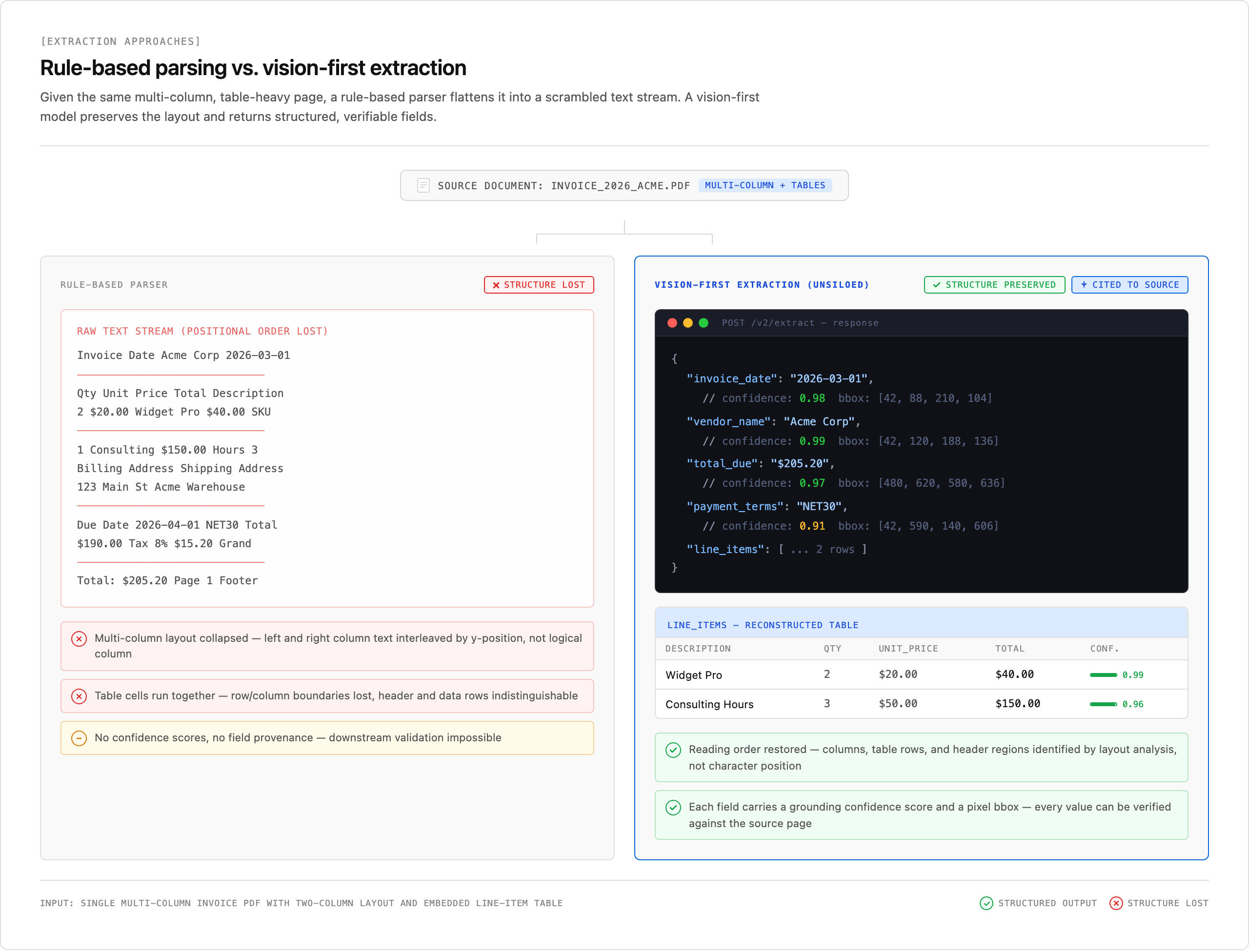
This matters most for complex documents: multi-column reports, scanned invoices, nested tables, and forms where field labels and values are spatially related instead of sequentially ordered.
What AI Extraction Actually Does Differently
Where rule-based parsers fail on formatting variation, AI models generalize across document types without reconfiguration. Key capabilities include:
- Confidence scoring per extracted field, so downstream systems know when to automate and when to flag for review.
- Layout-aware reading that preserves table structure and column relationships instead of flattening everything into a single text stream.
- Support for scanned and image-based PDFs through vision models, without requiring a separate OCR preprocessing step.
- Schema-driven output that maps extracted values directly to structured fields your pipeline expects.
For teams extracting data from PDFs at scale, whether invoices, contracts, or financial filings, AI-based extraction reduces the manual correction burden that rule-based systems leave behind.
Unsiloed AI for Production PDF Data Extraction
Unsiloed AI is built for teams that need accurate, production-ready PDF data extraction without stitching together multiple tools. Instead of relying on template matching or brittle OCR pipelines, Unsiloed uses a vision-first architecture that reads documents the way a human would, preserving layout, reading order, and table structure across complex formats like multi-column filings, scanned invoices, and mixed-content reports.
Every extracted field comes back with a confidence score, a bounding box, and a citation that points to where the value was found on the source page. Teams can use those signals to route high-confidence fields straight through and flag lower-confidence values for review, without writing custom validation logic.
For compliance-sensitive industries, Unsiloed supports on-premise and air-gapped deployment, keeping sensitive documents off third-party servers entirely. The API returns structured JSON with schema-driven field definitions, making it straightforward to pipe extracted data directly into Excel exports, downstream databases, or RAG pipelines.
Choosing the Right Extraction Method
With the options covered, here is how they stack up across the two factors that usually decide the choice: how complex your documents are, and how much setup you're willing to take on.
| Method | Best For | Accuracy on Complex Layouts | Setup Required |
| iLovePDF / Smallpdf | Quick, one-off extractions | Low | None |
| Power Automate | Repeatable business workflows | Medium | Low |
| pdfplumber / PyMuPDF | Programmatic pipelines | Medium-High | Medium |
| AI extraction tools | Scanned, complex, or high-volume PDFs | High | Medium-High |
No single tool wins everywhere, which is the same conclusion the comparative study cited earlier reached: match the method to the document type rather than hunting for one parser that does it all.
Final Thoughts on PDF Data Extraction Methods
Whichever method you pick, the decider is your documents, not the tool's feature list. Test on real samples, the messy multi-column scans and the forms with merged cells, rather than the clean examples that make every parser look good. That is where rule-based parsing and AI extraction visibly part ways, and where a pipeline that looked fine in a quick test either holds up or falls apart. Book a demo if you need production-grade accuracy on complex PDFs.
FAQ
Can I extract data from a PDF to Excel using Python for free?
Yes. Python libraries like PyMuPDF, pdfplumber, and pypdf are open-source and free to use for extracting text and tables from PDFs, with pandas handling the Excel export. PyMuPDF and pypdf can also split PDF files in Python when you know the page ranges or the file supplies bookmarks. The tradeoff is that these libraries require setup and work best on digitally-born PDFs; scanned documents need a separate OCR step.
PyMuPDF vs pdfplumber for table extraction?
pdfplumber is the better choice for table extraction because it analyzes spatial relationships between text characters to reconstruct tables, even when cell borders are invisible. PyMuPDF optimizes for speed over table accuracy and works best for extracting raw text with coordinate data from clean digital PDFs.
How do I extract data from scanned PDFs?
An image-only scanned PDF needs OCR before any text extraction can occur, since there are no selectable characters behind the page. The common open-source path is Tesseract via pytesseract combined with pdf2image to convert pages first, while AI-based OCR tools like Google Document AI tend to handle degraded scans and complex layouts better, at the cost of per-page pricing.
What's the difference between free online PDF extraction tools and AI-based APIs?
Free online tools like iLovePDF and Smallpdf work for one-off extractions of simple documents but impose file size limits, page caps, and flatten complex layouts. AI-based APIs read layout and structure together, preserve table relationships, return confidence scores per field, and scale to production volumes without accuracy degradation on scanned or variable-format documents.
How do I extract form data from a PDF in C# without licensing issues?
iText is the long-standing C# option (the legacy iText 5 port, iTextSharp, is now end-of-life; iText 7 / iText Core is current). It is dual-licensed: you either release your own application under the AGPL or buy a commercial license. Because the AGPL includes a network clause, internal web apps and Azure Functions are not exempt, so treat any closed-source use as needing a commercial license rather than assuming internal use is safe.