How to Convert PDF to CSV: Methods and Best Practices (August 2026)
PDFs preserve page layout, not CSV rows and columns. Compare online tools, Excel, Python, OCR, and vision parsing, with a tested batch script and practical accuracy checks.


PDFs preserve where text appears on a page, not the rows and columns that a CSV file needs. To convert PDF to CSV, a tool has to infer that structure from coordinates, ruling lines, and spacing. Scanned pages also need optical character recognition (OCR) to recover the text inside table cells. This guide compares browser tools, Excel, Python libraries, and a vision-first parser, then shows how to check the resulting CSV before using it downstream.
TL;DR:
- Use a browser converter for a one-off, text-based table that you can review manually.
- Use Excel Power Query when you want an immediate table preview before exporting one or more CSV files.
- Use Python when you need repeatable table extraction, batch processing, or control over table-detection settings.
- Use a vision-first parser when scans or complex layouts repeatedly produce shifted columns and broken rows.
- Compare row counts, headers, and numeric totals with the PDF before loading the CSV into another system.
Convert PDF to CSV for Free with Online Tools
To convert PDF to CSV for free without a local installation, use a browser tool for a one-off file. Zamzar converts PDF files directly to CSV. Smallpdf and iLovePDF convert PDF tables to Excel first, after which you save the spreadsheet as CSV. File size limits, conversion caps, and account requirements vary by service.
Review the output before using it because merged cells, multi-column tables, and scanned pages can produce shifted columns or split rows.
| Method | Best Use Case | Key Limitation |
|---|---|---|
| Browser converter workflows | One-off conversion of a straightforward table | Some tools require a PDF-to-Excel step, and you upload the document to a third party |
| Python libraries (tabula-py, Camelot, pdfplumber) | Repeatable extraction for multi-page documents, batch processing, and automated pipelines | Image-only table support varies by library and version |
| Excel Power Query | Single-table PDFs where you need immediate preview and one-time export to CSV on Windows | Image-only files may not yield usable tables, and multi-table PDFs require separate export passes |
| Unsiloed AI | Complex, multi-page, or scanned documents where confidence-based review matters | Requires API integration before you can produce CSV output |
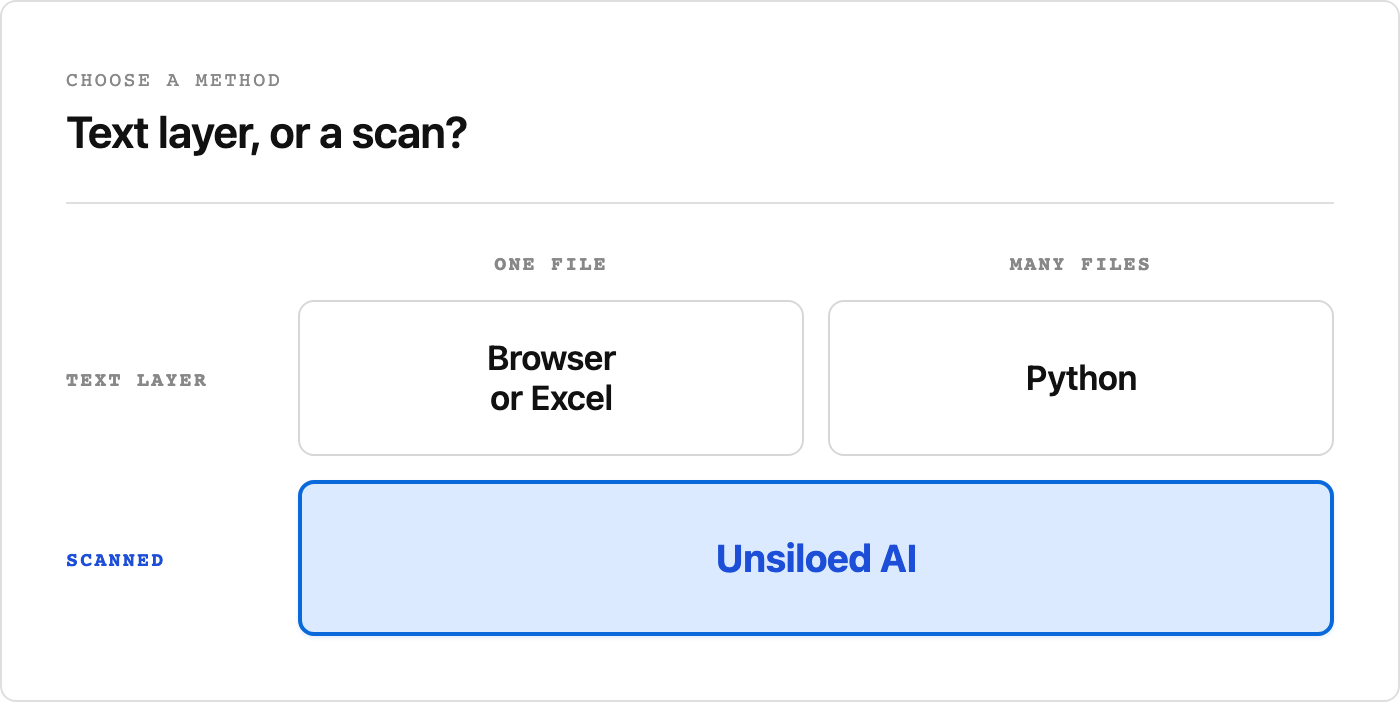
Which method fits depends on two things: whether the pages carry a text layer, and how many files you have.
Convert PDF to CSV with Python and pdfplumber
Use Python to convert PDF to CSV when you have multi-page documents, automated pipelines, or other conversions that need repeatable extraction settings.
The common libraries take different approaches:
- Tabula-py wraps the Java-based Tabula tool and returns extracted tables as pandas DataFrames.
- Camelot gives you several table parsers. Lattice targets tables with visible borders, while Stream targets tables separated by whitespace.
- pdfplumber extracts tables page by page and lets you adjust its table-detection settings.
- pypdf, formerly PyPDF2, extracts raw text rather than structured tables.
Tabula-py, pdfplumber, and pypdf rely on a text layer when extracting content. Current Camelot versions also offer optional machine learning and OCR parsing. Check the capabilities of the version you deploy, or use a document parser that works from page images.
Convert Multiple PDFs to CSV with a Python Batch Script
When the same extraction runs across a folder or on a schedule, use a Python loop to produce one CSV per detected table.
Install pdfplumber before running the example:
python -m pip install pdfplumber
Create a file named batch_extract.py with the following code. It iterates over a directory of PDFs, extracts every detected table, and writes each one to a separate CSV file.
import csv
from pathlib import Path

import pdfplumber

input_dir = Path("pdfs")
output_dir = Path("csvs")
output_dir.mkdir(parents=True, exist_ok=True)

for pdf_path in input_dir.glob("*.pdf"):
    table_index = 0
    with pdfplumber.open(pdf_path) as pdf:
        for page in pdf.pages:
            for table in page.extract_tables():
                output_path = output_dir / f"{pdf_path.stem}_table{table_index}.csv"
                with output_path.open("w", newline="", encoding="utf-8") as csv_file:
                    csv.writer(csv_file).writerows(table)
                table_index += 1
The script creates the output directory if necessary. Its output filenames include the source filename and table number so you can trace each CSV to its PDF. For a production batch, log files that return no tables and catch per-file extraction errors so one malformed PDF does not stop the run.
How to Convert PDF to CSV on Mac
On macOS, the free Tabula desktop app includes Java and lets you draw selection boxes around table regions before exporting to CSV. This workflow suits single documents that do not need a script. Adobe Acrobat can also export selected table content to CSV.
For Terminal users, pdfplumber installs with pip and does not require Java, while Tabula-py requires a Java runtime. Camelot 1.0 uses pdfium as its default image backend, so current installations do not require Ghostscript for the default setup.
How to Convert PDF to CSV in Excel
In Microsoft 365 Excel for Windows, go to Data > Get Data > From File > From PDF and select your file. Power Query detects tables and lets you preview them before loading. Multi-table PDFs appear as separate query objects, so you can choose which tables to load into the sheet.
Once the data is loaded, save via File > Save As and choose CSV (Comma delimited). Excel warns that CSV preserves the active sheet's values, not workbook formatting or features.
Check these limitations before importing a PDF:
- Image-only scans may return empty or garbled results because the PDF connector does not provide a general OCR workflow.
- Tables spanning the full page width frequently produce column misalignment, so review the preview carefully before loading.
- Only one sheet saves per CSV export, so multi-table PDFs require multiple export passes.
Why PDF-to-CSV Conversion Breaks Tables
Even after a parser recovers the text, some layouts have no unambiguous flat representation:
- Merged cells, nested headers, or irregular spacing can split rows or collapse columns.
- Multi-page tables may repeat headers or change column widths between pages.
- Cells holding line breaks arrive as one field containing a newline, which some CSV readers split into a phantom row.
Convert Scanned PDFs to CSV with OCR
Scanned PDFs store page images rather than selectable text. OCR must recover the characters and their positions before a table extractor can reconstruct rows and columns.
For degraded scans, preprocess page images with Pillow or OpenCV to correct skew and improve contrast, then pass them to an OCR engine such as pytesseract, a Python wrapper for Tesseract. Layout-aware OCR tools can retain coordinates for recovered text, giving a table extractor more evidence for reconstructing rows and columns.
What Affects OCR Accuracy?
- Resolution matters. Low-resolution scans tend to produce more errors, especially with small fonts or dense tables.
- Page orientation and skew can cause entire rows to merge or misalign during extraction.
- Handwritten fields often need handwriting-specific recognition models rather than standard printed-text OCR.
For tabular data in scanned PDFs, OCR output still needs a table-extraction step. Tabula requires a text layer, while a layout-aware parser can infer table boundaries from page images or recovered text positions.
Check PDF-to-CSV Accuracy Before Import
Compare row counts with the source table, confirm that headers landed in the first row, and recalculate visible subtotals from the extracted values.
Common issues worth scanning for:
- Columns shifted when a row has fewer cells than the header expects.
- Numeric fields arriving as strings because of currency symbols or thousands separators.
- Dates losing locale context or being interpreted inconsistently.
If documents share a consistent layout, test a representative sample from that layout. Validate every new layout separately, and route files that fail structural or numeric checks for manual review.
Convert Complex PDFs to CSV with Unsiloed AI
With Unsiloed AI, you define a JSON schema for the fields and table rows you need, then transform the returned structure into CSV. This avoids relying only on raw OCR output or fixed templates.
In a live test for this guide, a four-row invoice went through the default gamma model with enable_citations=true. Every extracted value came back with a nested score carrying separate grounding and extraction figures, alongside a citation giving the page and bounding box the value was read from. Citations are off by default, so a request that omits the flag returns citation: null for each value while the scores still populate.
Array fields include an overall score alongside scores for each extracted field, so you can gate the full table or a single CSV cell. Route uncertain values for review before writing the row, and use the bounding box to show the reviewer where the value came from.
Which PDF-to-CSV Method Should You Use?
The best PDF-to-CSV converter depends on whether the PDF has selectable text, whether its tables span pages, and how many files you need to process. Test it on representative files, then check row structure and totals before sending the CSV downstream. For workflows that need confidence-based review, book a demo to test Unsiloed on your documents.
FAQ
These answers cover choosing a conversion method and handling scanned or multi-table PDFs.
Can I convert PDF to CSV without installing software?
Yes, you can use Zamzar for direct conversion in a browser. Smallpdf and iLovePDF provide browser-based PDF-to-Excel conversion, after which you can save the spreadsheet as CSV. Review the result carefully when the PDF contains scans, merged cells, or multi-column tables.
Should I use a free PDF-to-CSV converter or a Python script?
Use a free converter for a one-off file that you can review manually. Use Python libraries such as tabula-py or pdfplumber when you need repeatable extraction, batch processing, or control over table detection.
How do I convert PDF to CSV in Excel?
In Microsoft 365 Excel for Windows, go to Data > Get Data > From File > From PDF, select your file, and preview the tables Power Query detects. Once the data loads into a sheet, save via File > Save As and choose CSV (Comma delimited). Image-only scans may need OCR first, and only one sheet exports per CSV file, so multi-table PDFs require separate export passes.
How do I convert PDF to CSV with Python?
Use pdfplumber to open the PDF and call extract_tables() on each page. Write each returned table with Python's csv.writer, as shown in the batch example. Image-only scans need OCR or a vision parser to recover the cell text.
When should I use a vision-first parser instead of traditional OCR for PDF to CSV?
Use a vision-first parser when scans, merged cells, or multi-page tables repeatedly produce broken rows and shifted columns. Unsiloed also fits workflows that use extraction and grounding scores to route uncertain values for review.