PDF to Markdown: Convert Documents Without Losing Headings and Tables
Convert PDF files to Markdown with a local Python script or the Unsiloed Parse API. Check headings, reading order, and table cells against the source before processing a batch.

A PDF report can look correct on screen while its extracted text puts a table's revenue under the wrong quarter or joins sentences from separate columns. Converting PDF to Markdown means recovering those relationships, then expressing them as headings, paragraphs, and tables. This guide walks through a local Python conversion, an Unsiloed API workflow, and the checks that tell you whether the output is usable.
Start with one representative PDF and inspect the result before converting a folder. For a document with selectable text, use the local example below as a baseline. For a managed workflow that also returns source locations, use the API example. Neither route guarantees that every heading or cell survives correctly.
What should survive PDF to Markdown conversion?
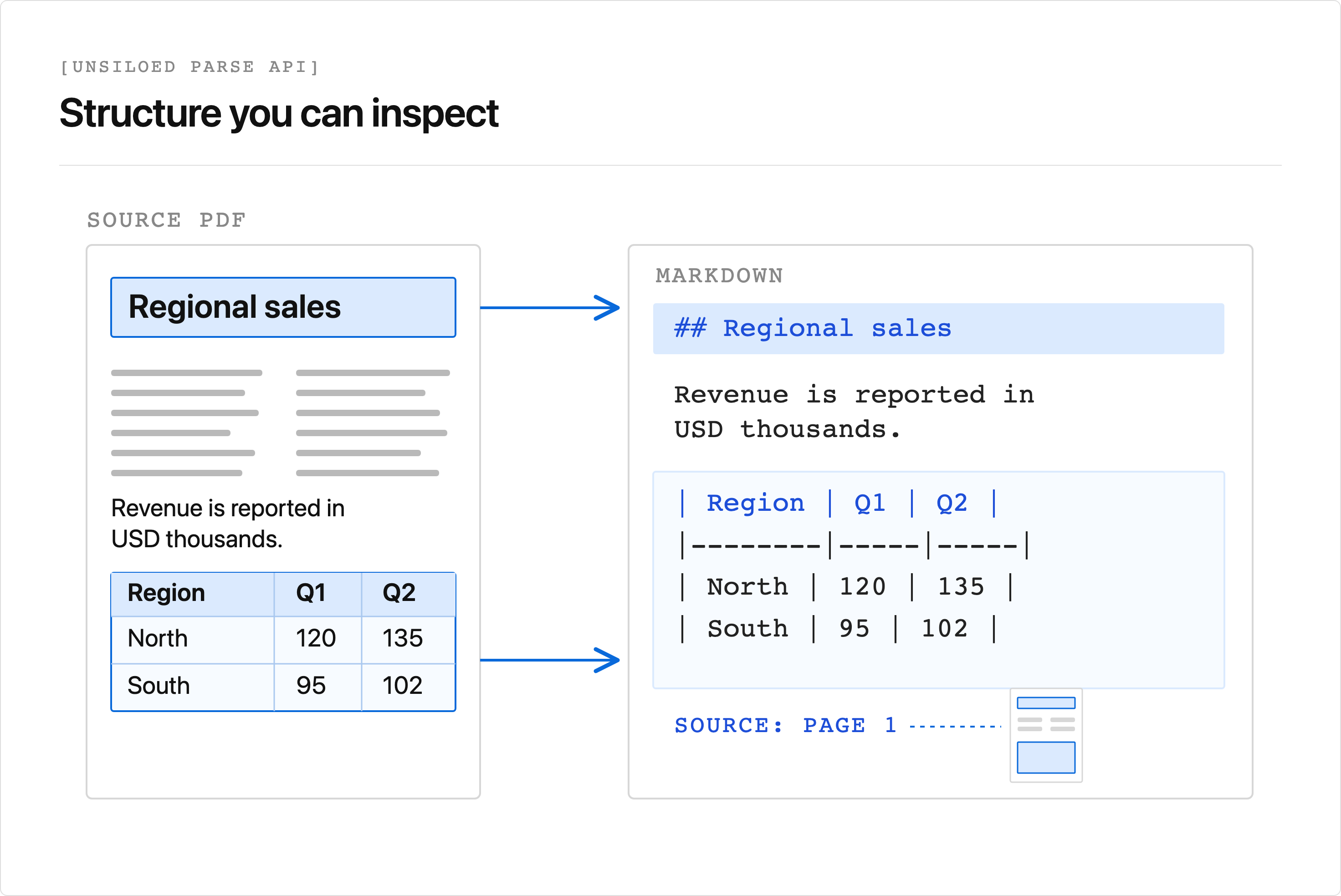
Aim for the same content and logical structure, with the presentation adapted to Markdown. A report section might become the following illustrative output:
## 2. Regional Sales

Revenue is reported in USD thousands.

| Region | Q1 revenue | Q2 revenue |
| --- | ---: | ---: |
| North | 120 | 135 |
| South | 95 | 102 |

### 2.1 Returns

Figures exclude orders returned after the reporting period.
The heading hierarchy identifies the subsection. The table keeps each number attached to its region and quarter. The sentence above it preserves the unit, and the sentence below it preserves a qualification. Losing either sentence changes how someone interprets the numbers, even when the table renders perfectly.
Exact page dimensions, fonts, and column widths aren't the target. Decide which Markdown renderer receives the file because pipe tables require a compatible extension such as GitHub Flavored Markdown tables. A plain text preview and your publishing system can display the same file differently.
Convert PDF to Markdown with Python
For an initial local conversion, PyMuPDF4LLM exposes a to_markdown() function. It supports PDF text, headings, and tables, although the quality still depends on the document. Keep the original PDF beside the result for comparison.
Use Python 3.10 or newer and save your input as document.pdf in a new working directory. On macOS or Linux, create an environment and install the package from that directory:
python3 -m venv .venv
source .venv/bin/activate
python -m pip install pymupdf4llm==1.28.2
On Windows PowerShell, activate the environment with .venv\Scripts\Activate.ps1. Review the project's AGPL or commercial licensing terms before incorporating it into an application.
Create convert_pdf.py alongside document.pdf:
from pathlib import Path
import pymupdf4llm

source = Path("document.pdf")
markdown = pymupdf4llm.to_markdown(str(source))
Path("document.md").write_text(markdown, encoding="utf-8")
print("Wrote document.md")
Run it from the same directory:
python convert_pdf.py
This example was checked with PyMuPDF4LLM 1.28.2 using the public sales report linked in the API section. It produced a heading, a paragraph, and a table with five data rows.
Open document.md in your Markdown preview and compare it with the PDF. The script produces a file but doesn't certify heading levels or table accuracy. Before changing parser settings, record one specific failure, such as “the second column interrupts the first paragraph” or “the table header is missing.”
If you need images written alongside the Markdown, the API reference documents write_images and image_path. Replace the conversion line in convert_pdf.py with:
Path("images").mkdir(exist_ok=True)
markdown = pymupdf4llm.to_markdown(
    str(source),
    write_images=True,
    image_path="images",
)
Keep the images directory with the Markdown file when moving the output. Check that the generated references resolve in the destination renderer. An exported chart image preserves its appearance but doesn't turn plotted values into an editable data table.
Once the sample passes your checks, capture the installed package versions from the active environment:
python -m pip freeze > requirements.txt
Use that environment for the rest of the collection. Treat a dependency upgrade as a reason to rerun your sample checks, since a change in layout detection can alter the output.
Convert Scanned PDFs to Markdown with OCR
Try selecting and copying a sentence from several pages. If the PDF contains only page images, the converter needs optical character recognition (OCR). If copying produces scrambled characters, the embedded text is unreliable even though selection works. A mixed PDF can contain both native text pages and scanned attachments, so don't classify the whole document from its first page.
PyMuPDF4LLM documents automatic OCR support and OCR configuration in its API reference. Check the OCR engine and language dependencies for your installed version before processing scans. Finding every word doesn't establish which table row or column it belongs to.
When the local result fails on scans or complex layouts, run the same sample through the Unsiloed workflow below and compare the specific errors. You can also evaluate Docling's local conversion. Its heading hierarchy stage is an explicit configuration option, so don't assume the default Markdown export reconstructs nested headings.
Convert PDF to Markdown with the Unsiloed API
The Unsiloed Parse API accepts a document upload and processes it asynchronously. The documented workflow returns a job ID, then exposes the result through a polling endpoint. Use it when you want Markdown you can inspect against locations on the source page:
The following example follows the official Python quickstart. You need an Unsiloed API key in the UNSILOED_API_KEY environment variable and a PDF named document.pdf. For an initial check, download the public sample PDF linked by the quickstart. Use a file you're authorized to send to the service.
Install the HTTP client in your active Python environment:
python -m pip install requests
Create parse_with_unsiloed.py and add the upload step:
import json
import os
import time
from pathlib import Path

import requests

base_url = "https://prod.visionapi.unsiloed.ai"
headers = {"api-key": os.environ["UNSILOED_API_KEY"]}

with open("document.pdf", "rb") as source:
    response = requests.post(
        f"{base_url}/parse",
        headers=headers,
        files={"file": ("document.pdf", source, "application/pdf")},
        timeout=60,
    )
response.raise_for_status()
job_id = response.json()["job_id"]
print(f"Submitted job: {job_id}")
The response acknowledges submission. Append the polling and export steps to the same file:
for attempt in range(60):
    response = requests.get(
        f"{base_url}/parse/{job_id}",
        headers=headers,
        timeout=30,
    )
    response.raise_for_status()
    result = response.json()

    if result["status"] == "Succeeded":
        break
    if result["status"] in {"Failed", "Cancelled"}:
        raise RuntimeError(result.get("message") or result["status"])
    time.sleep(5)
else:
    raise TimeoutError(f"Polling limit reached for job {job_id}")

Path("unsiloed-result.json").write_text(
    json.dumps(result, indent=2, ensure_ascii=False), encoding="utf-8"
)
markdown = "\n\n".join(chunk["embed"] for chunk in result["chunks"])
Path("unsiloed-document.md").write_text(markdown, encoding="utf-8")
print("Wrote unsiloed-document.md and unsiloed-result.json")
Run the completed script after setting your API key:
python parse_with_unsiloed.py
The loop makes up to 60 polling requests, with five seconds between unfinished results. Request time adds to that interval. Reaching the local polling limit doesn't cancel the server job. Keep the printed job ID to check its status later. For a production client, add retry handling for transient failures and rate limits before processing batches.
In a live check of the linked sample on September 29, 2026, the API returned Succeeded, an H2 heading, the introductory paragraph, and a table with five data rows. That verifies this workflow on the sample but doesn't establish accuracy for other layouts.
The documented response format includes chunks[].embed, the combined Markdown for each chunk. Segments within each chunk carry finer detail, including their Markdown and page location. Keeping the JSON allows you to inspect an incorrect paragraph or table against its source region instead of guessing from the flattened export. Don't join both the chunk text and its segment text into one output, since they represent the same content at different levels.
Check Headings and Reading Order Against the PDF
Use the document's actual outline as your reference. A line set in large type could be a title, a section heading, or a promotional callout. Repeated running headers can also look like headings. The right question is whether the exported hierarchy describes the content beneath it.
For your sample, compare the following:
| Check | Failure to look for | Correction |
|---|---|---|
| Heading text | Missing heading or text mistaken for a heading | Compare the block with the PDF and correct its classification |
| Heading depth | A subsection has the same level as its parent | Reconstruct the level from numbering, bookmarks, and surrounding sections |
| Column order | A paragraph jumps into the adjacent column | Revisit layout or reading order before editing sentences |
| Headers and footers | A page label interrupts body text | Remove confirmed running content while retaining useful source metadata |
| Lists and footnotes | A continuation becomes a new item or a note loses its marker | Match each continuation or note to its source item |
Read across a page break as well as down a page. Check whether a sentence continues, a new section starts, or a table carries on. Don't remove every short repeated line automatically because a repeated table header might be necessary to interpret a table exported in separate pieces.
For a small document, correcting a heading marker by hand can be appropriate. For repeated failures across a collection, fix the parser configuration or conversion route and rerun the sample. Broad search and replace rules can repair one report while damaging another.
Check Table Cells and Merged Headers
A table can render with neat columns and still contain incorrect data. The PDF table extraction guide shows how columns and spanning headers can be misread. Compare cell relationships, including the headers and units that explain each value. Check an entire difficult row against the PDF, then inspect cells near merged headers and page boundaries.
GFM pipe tables have a header row and body rows, but their syntax doesn't express rowspan or colspan. For a source header where “2025” spans “Revenue” and “Margin,” choose an explicit output representation. One readable conversion uses flat column names:
| Region | 2025 revenue (USD) | 2025 margin (%) |
| --- | ---: | ---: |
| North | 135000 | 18 |
This example repeats information from the source header without inventing new values. If flattening makes the table ambiguous, retain an HTML representation that supports spans when your renderer permits it, or keep a separate structured table export. Inspect that export too because changing formats doesn't repair incorrect cell detection.
For tables spanning pages, establish that the next page continues the same table before joining rows. Compare the column labels and their order. Remove a repeated header only after confirming that it is a header, and check that the final row of the first page hasn't been duplicated or truncated.
Preserve empty cells as empty unless the source specifies a value. An empty amount is not automatically zero. Preserve negative signs and footnote markers, and escape a literal pipe character inside a GFM cell as \|. These details affect either meaning or rendering.
If your next step is calculating totals or importing rows into a spreadsheet, follow the PDF to CSV conversion guide. For the broader choice of retrieval and data formats, see when to use Markdown or JSON.
Validate a Sample Before Batch Conversion
Choose examples that cover the failures you need to prevent. Include a nested section and your most difficult table. If the collection includes scans or multiple columns, include those too. A clean cover page doesn't test the same behavior as a dense financial table.
Use this check before applying the same conversion settings to a larger collection:
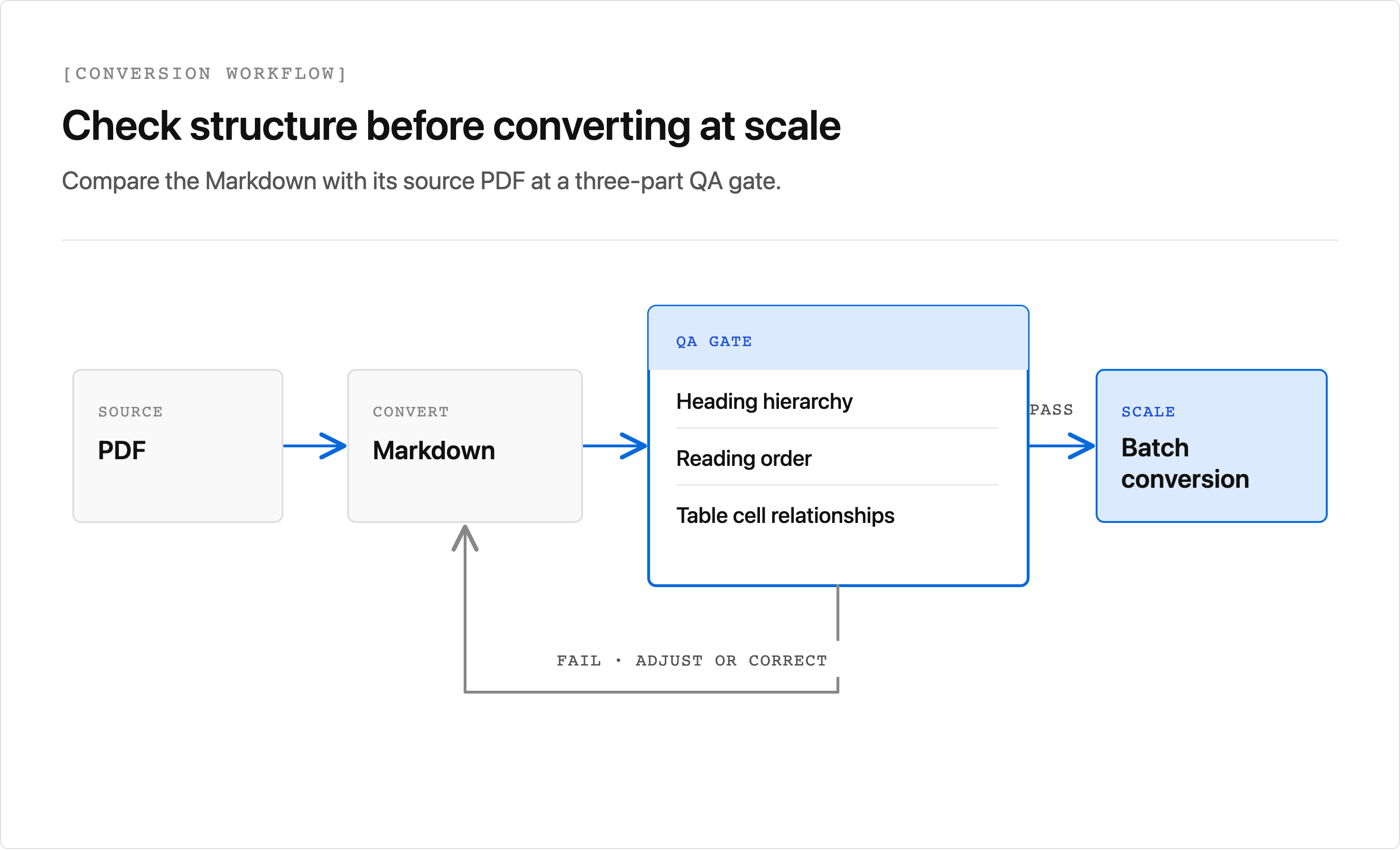
Keep a small checklist with the PDF page number and the expected content. For example, record a section title and its depth, the first and last row labels of a table, and a value whose unit appears outside the table. Compare these expectations with both the Markdown source and its rendered preview.
Automated checks can flag an empty output, missing expected text, or a broken image reference. They can't establish correctness merely by counting headings or table rows. A table with shifted columns can pass those checks while associating every number with the wrong label.
Archive the source PDF, parser version or configuration, and original output before cleanup. Record any manual changes separately. When a later conversion differs, that record helps you distinguish a new source document from a changed parser or cleanup rule.
For an API evaluation, run representative files through Unsiloed Parse and apply the same checks to the returned Markdown and source segments. The useful outcome is a conversion you can inspect and repeat on your documents.
FAQ
These answers address common conversion problems before you choose a tool or process a larger collection.
Can I convert PDF to Markdown without losing formatting?
You can preserve useful structure, including heading text, lists, and table cell relationships, but Markdown doesn't reproduce every page layout feature. Merged table cells require a deliberate representation, such as repeated header labels or HTML. Compare the converted content with the original PDF before accepting it.
Can Pandoc convert a PDF directly to Markdown?
Pandoc supports PDF output, but PDF isn't among its standard input formats. Use a PDF parser to recover the text and structure first. Pandoc can then convert a supported intermediate format if your workflow needs another Markdown dialect.
Why did my PDF headings become bold text?
The converter may have recognized visual emphasis without identifying a section heading. Check the document's numbering, bookmarks, and surrounding sections to establish the hierarchy. Reconfigure heading detection where the tool supports it, or correct the markers after comparing them with the PDF.
Can I convert a scanned PDF to Markdown?
Yes, with a conversion pipeline that includes OCR and layout analysis. Check that OCR supports the document's language, then inspect reading order and table structure in the output. A scan with blurred characters or missing page content can require a better source image before conversion succeeds.