

Looking to extract data from an
.xls or .xlsx workbook instead? You
don’t need an add-in. Upload the workbook to
POST /parse/excel, then poll
GET /parse/{job_id} until the job succeeds. Each table segment includes
cell_references that trace it back to its sheet and cell range. The
Excel parsing guide has upload examples
and configuration options.How Unsiloed Works with Excel
The connection follows this path:Excel → Task-Pane Add-in → Local Server → Unsiloed API → Add-in → Excel
The add-in is a web page loaded beside the workbook. An XML manifest tells Excel
where to load it and requests workbook access. We’ll use Vite to serve the page
with a trusted local HTTPS certificate. Vite also forwards the connection check
to Unsiloed, because the usage endpoint blocks direct browser requests from
localhost.
Requirements for the Excel Integration
Before you start, gather:- Node.js 22.12 or higher
- A Microsoft account that can upload custom add-ins in Excel for the web
- An Unsiloed API key from the Unsiloed dashboard
Create the Local Add-in
We’ll create three files: the server configuration, the task-pane page, and the manifest. Open Terminal and run:vite.config.mjs in that directory:
vite.config.mjs
api-key header to the read-only
organization usage endpoint. The key isn’t
stored in this configuration. Document-processing workflows use the separate API
at prod.visionapi.unsiloed.ai, which the cookbook calls directly from the task
pane.
The strictPort setting makes Vite stop with an error if port 3000 is busy,
instead of moving to a port the manifest doesn’t point to.
Add the Connection Check
Createindex.html beside the configuration file:
index.html
Excel.run queues a worksheet write and context.sync() applies
it. Adding a sheet leaves existing worksheets untouched. B1 uses Excel’s text
format, and names beginning with a formula-like prefix also receive a leading
apostrophe to prevent Excel from interpreting them as formulas.
Register the Add-in with Excel
Createmanifest.xml in the same directory:
manifest.xml
Run and Verify the Connection
Fromunsiloed-excel-connection, run:
1
Open the Add-ins menu
Open a blank workbook in Excel for the web. On the Home tab, click
the Add-ins button (1), a grid icon near the right of the ribbon.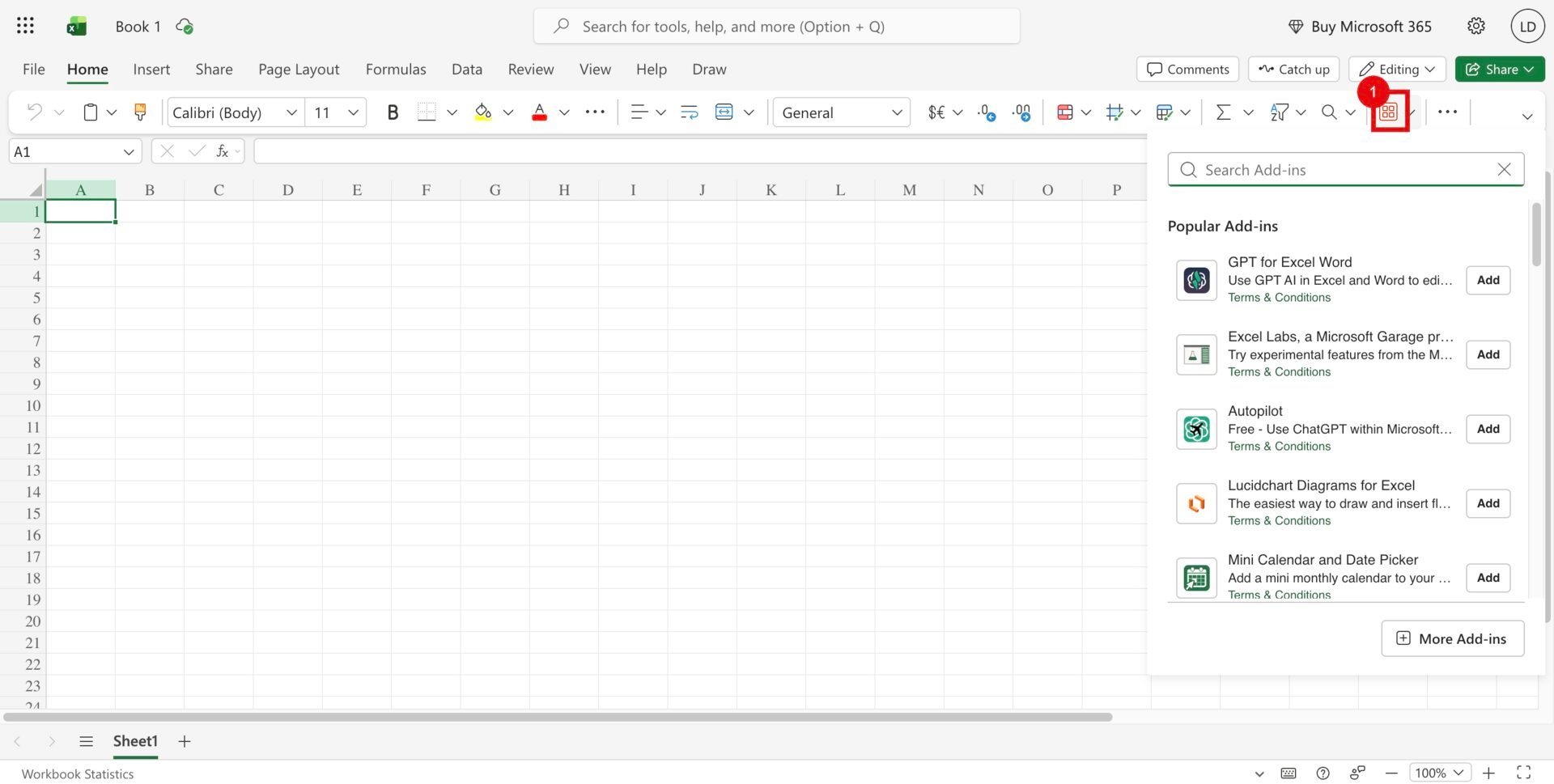
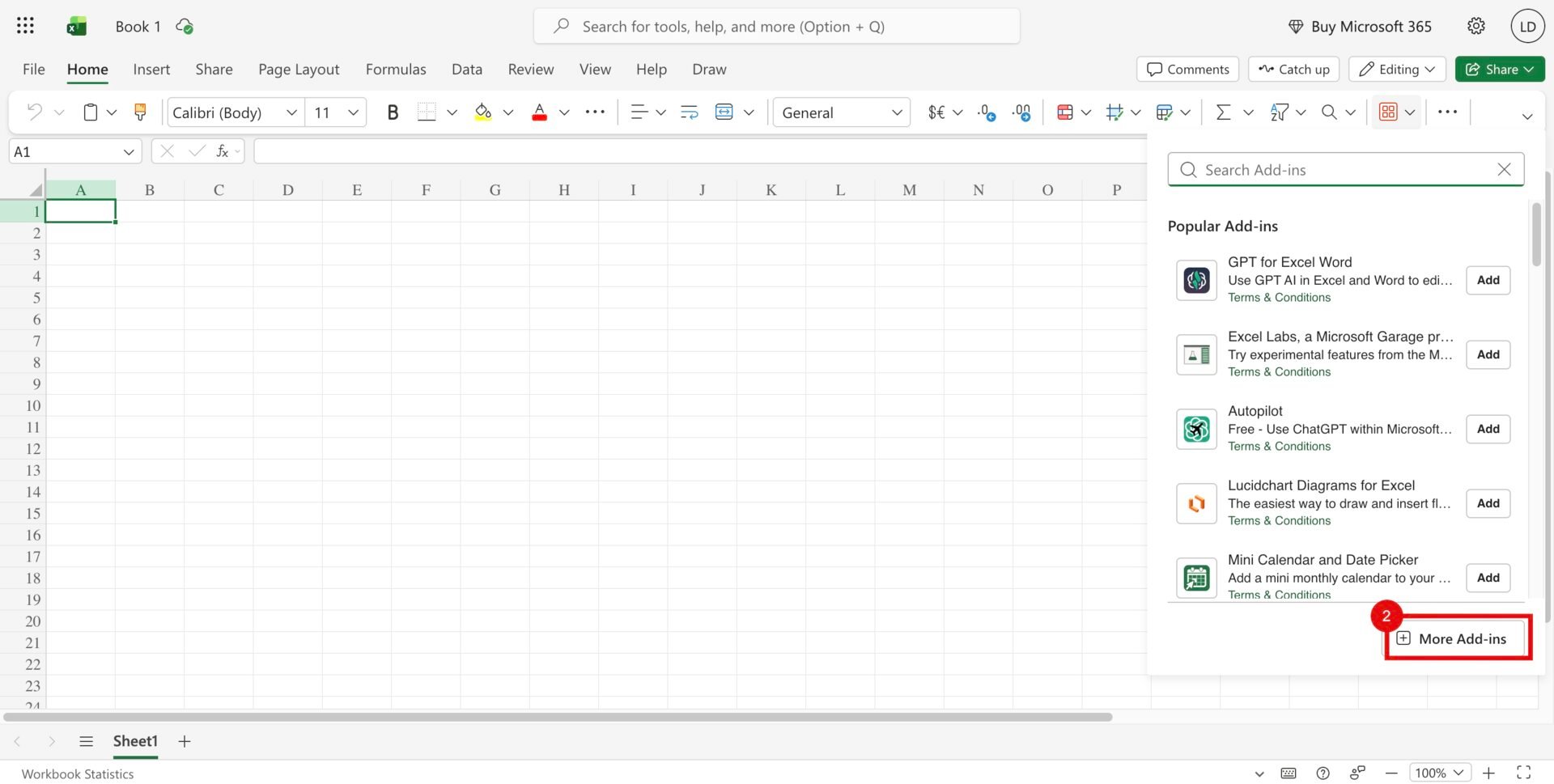
2
Upload the manifest
Open Manage My Add-ins and choose Upload My Add-in (3).
The banner shown below refers to add-ins installed by an administrator;
use the upload option for this local project.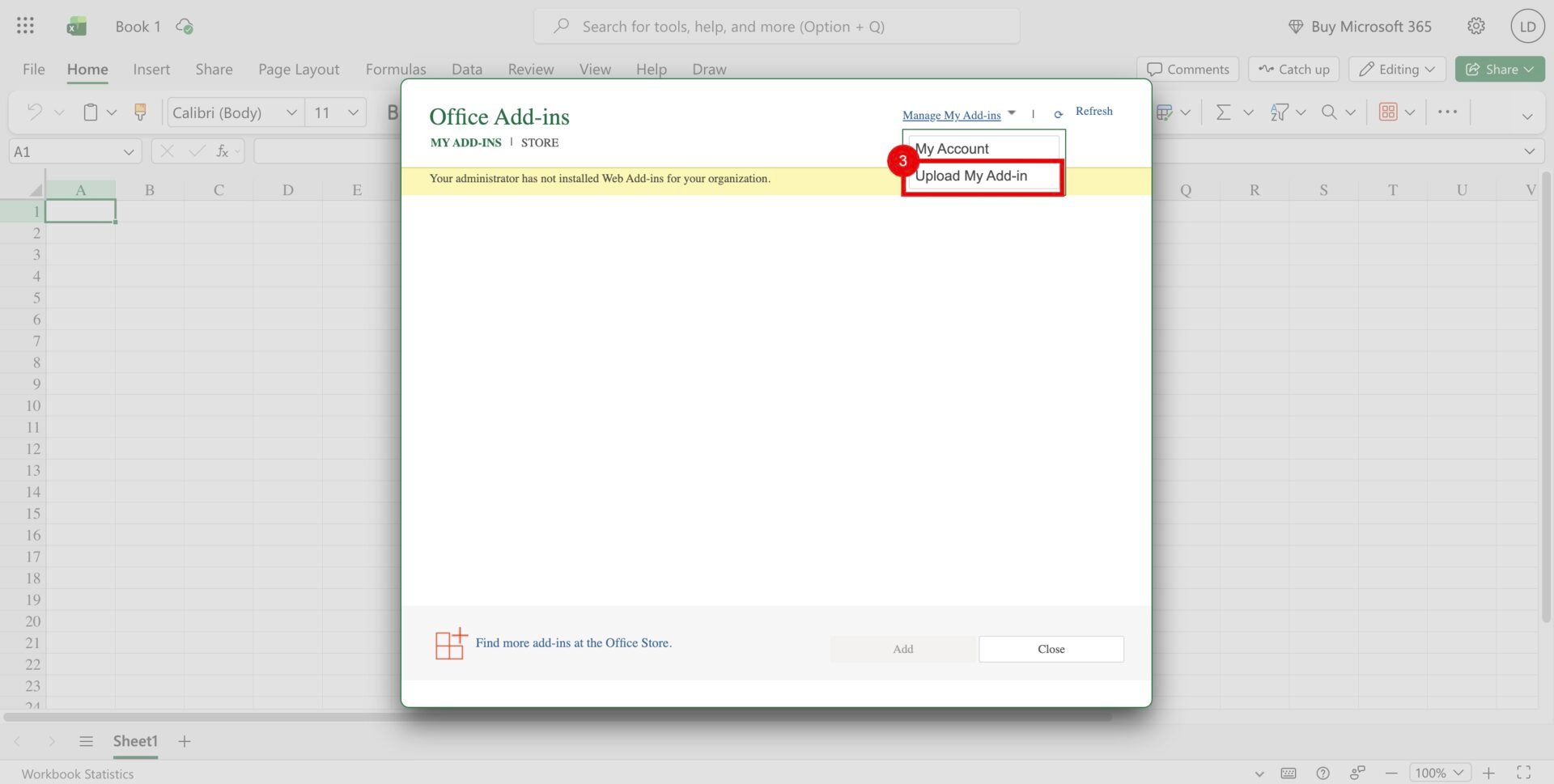
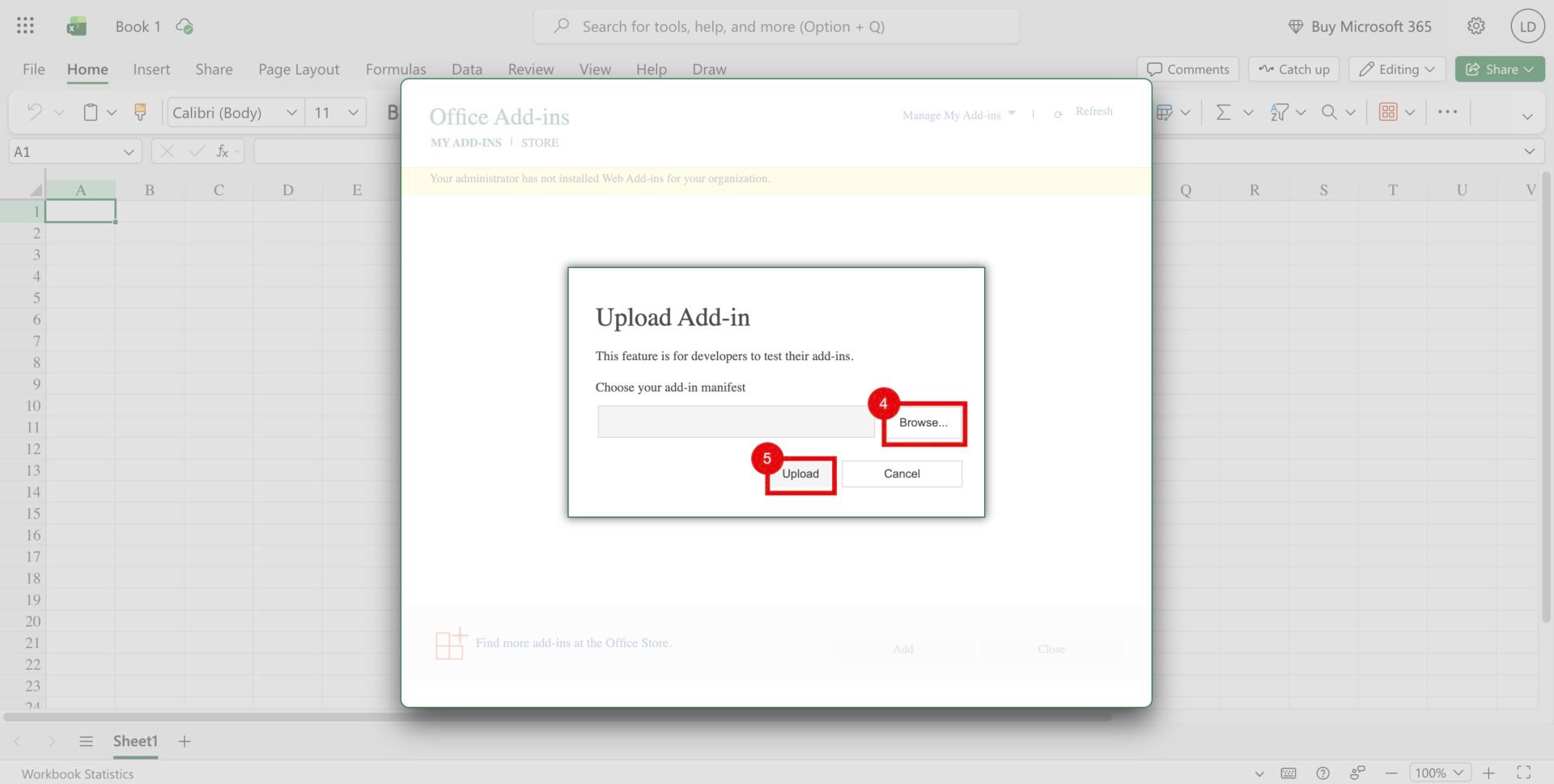
unsiloed-excel-connection/manifest.xml, and
click Upload (5).3
Check the connection
The Unsiloed Connection pane should open beside the workbook. If Chrome
asks for local network access, click Allow so Excel can load localhost.
Enter your API key and click Check connection.A new worksheet should show Unsiloed organization in A1 and your
organization name in B1. The task pane should also confirm the connection.
Each successful check creates a new sheet.
excel.cloud.microsoft, then reload the workbook.
If the task pane shows HTTP 401, re-enter your API key. For other HTTP errors,
check the Vite output in Terminal and try again. The key stays in the page’s
memory and isn’t saved to the workbook or browser storage.
Add a Document-Processing Workflow
The connection is now ready for task-specific code. Use/parse to read a PDF or
image’s existing tables, or /v2/extract to return fields defined by a JSON Schema.
These workflows submit a job and poll for its result before writing cells.
Extract a Table from a Document
Build a task pane that uploads a document, polls the parse job, and writes the first table to a worksheet.
Extract Typed Fields
Return a predictable set of fields for fixed spreadsheet columns.