

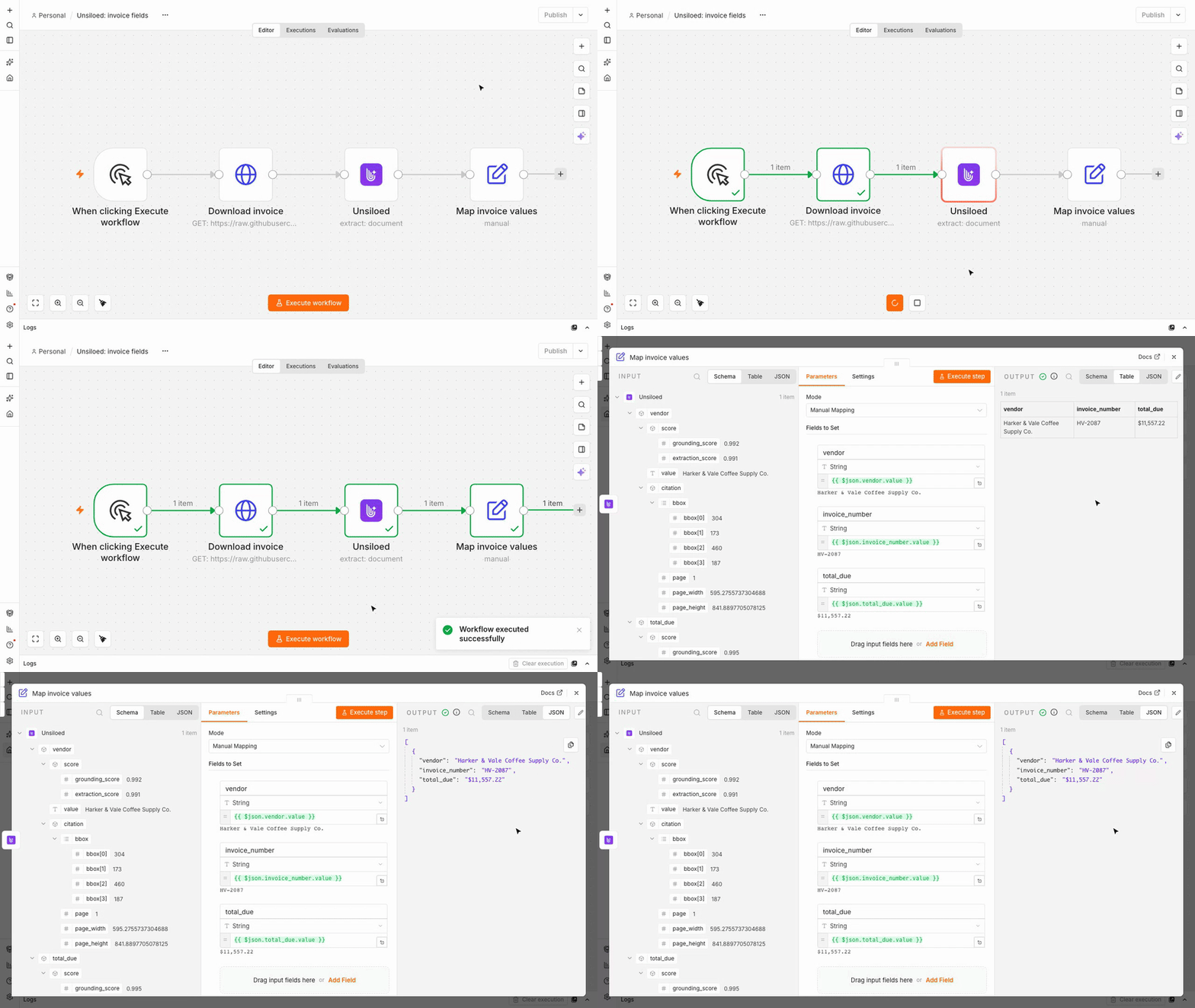
Requirements for the n8n Integration
You need:- A self-hosted n8n instance with community node installation enabled
- An Owner or Admin account on that instance
- An Unsiloed API key from the Unsiloed dashboard
This package requires self-hosted n8n. n8n Cloud only installs verified community
nodes, and the Unsiloed package is currently unverified. See the
node installation requirements.
Install the Unsiloed Node
Install the package through n8n’s settings, then add it to a workflow.1
Install the community package
Open Settings → Community nodes and click Install (or Install a
community node if no packages are installed). Enter the following npm package name:Select the community package acknowledgment and click Install. The package
should appear in the installed list with one node named Unsiloed.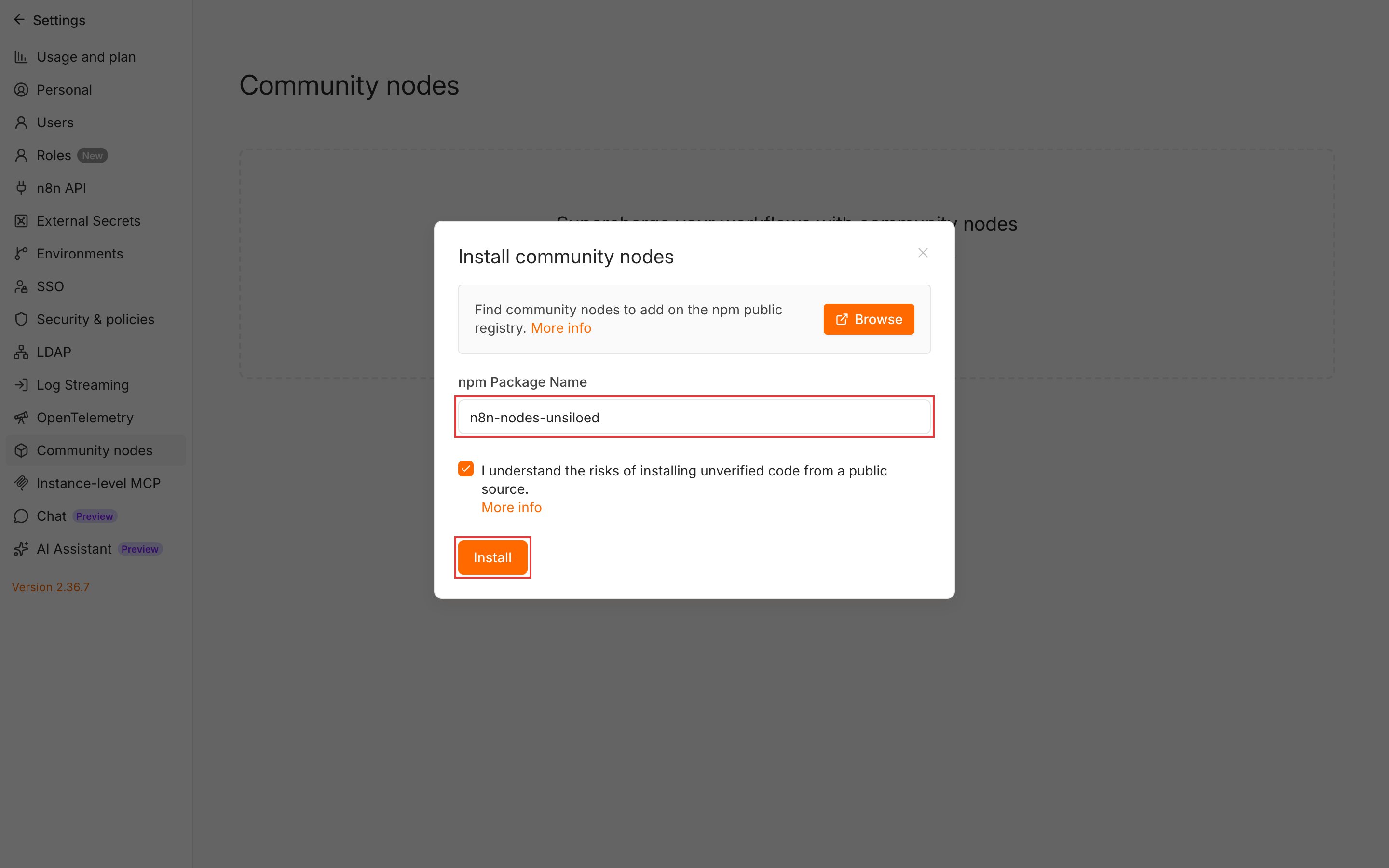
2
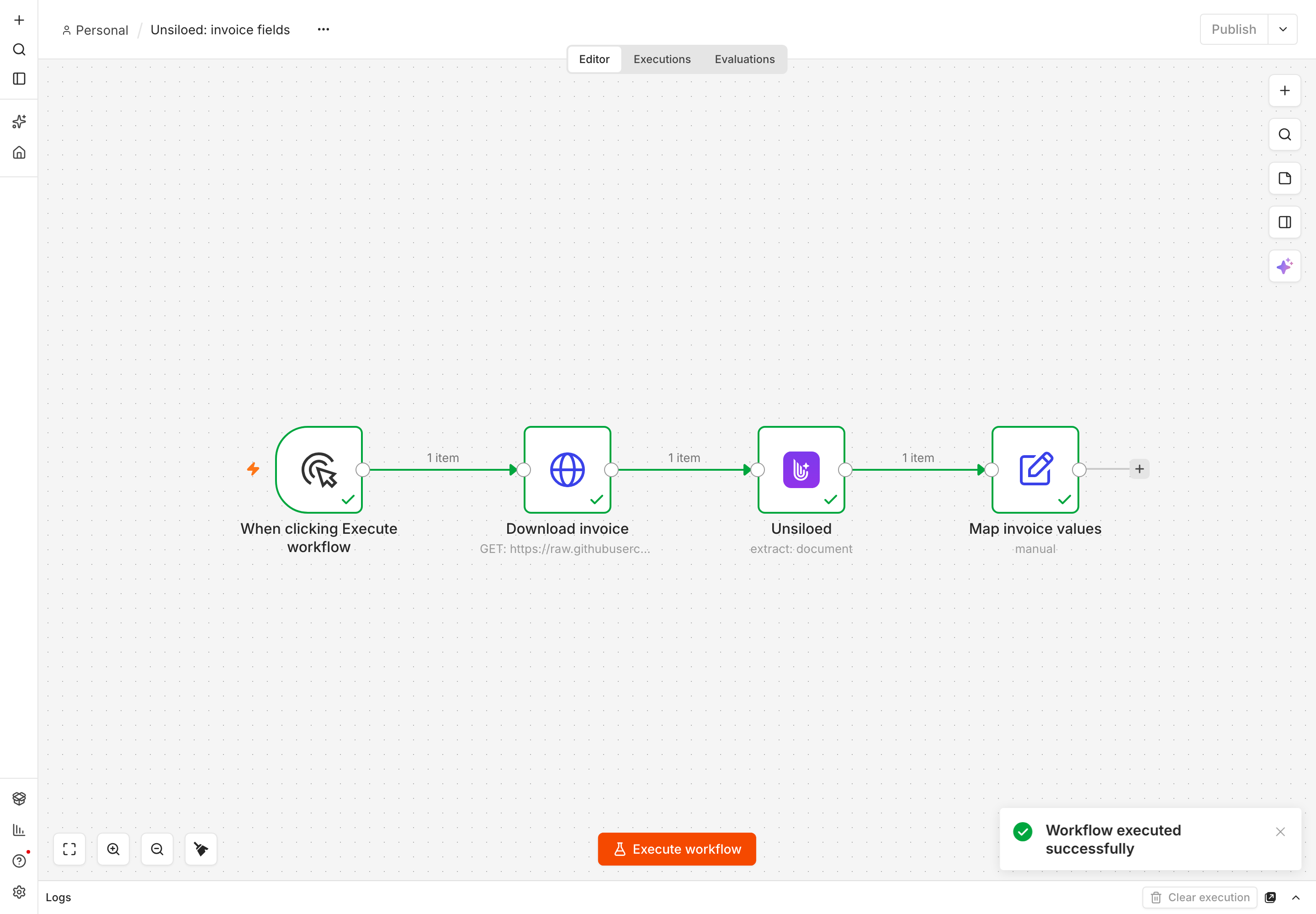
Create a workflow
Create a blank workflow and add Manual Trigger (labeled When clicking
Execute workflow on the canvas). This lets us test the
document-processing steps before connecting an email or upload trigger.
3
Download the sample invoice
Connect an HTTP Request node after the trigger. Set Method to GET
and enter the direct download URL for the sample invoice:Under Options, add Response. Set Response Format to File and
Put Output in Field to 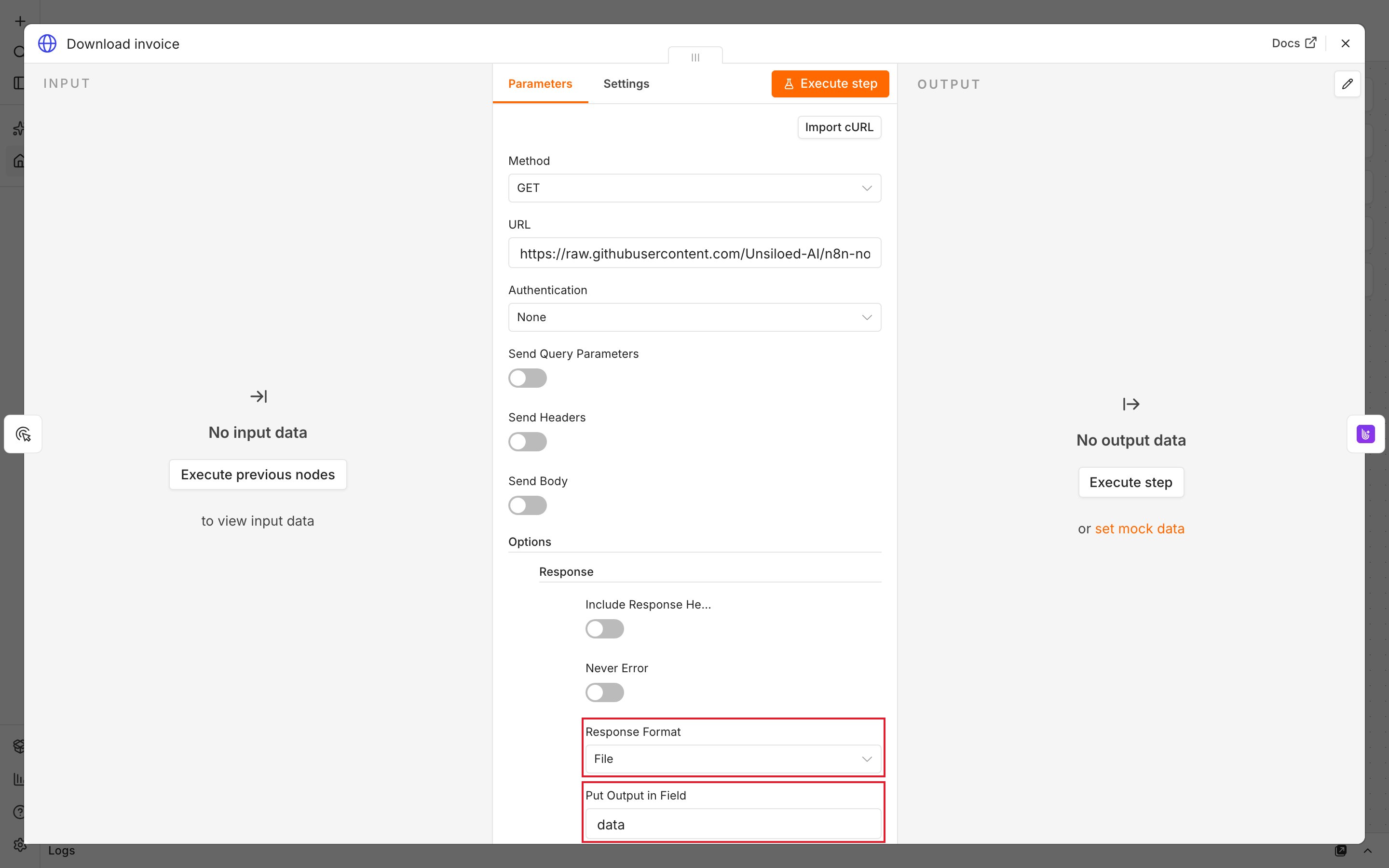
data. Rename the node Download invoice.data with
the invoice file. Unsiloed needs the file bytes, so the HTTP response must be
a file rather than text or JSON.Parse the Invoice into Markdown
The Parse operation reads the whole document without a field schema. Use it when the next step needs the document’s text and tables.1
Add Unsiloed and store the API key
Add a node after Download invoice, search for Unsiloed, and choose
Parse a document into clean markdown.In the node’s credential selector, choose Create new credential. Paste
your key into API Key and leave Base URL at its default:Click Save. n8n tests the key and should show Connection tested
successfully. Close the dialog and check that the Unsiloed node’s
Credential field shows the new credential.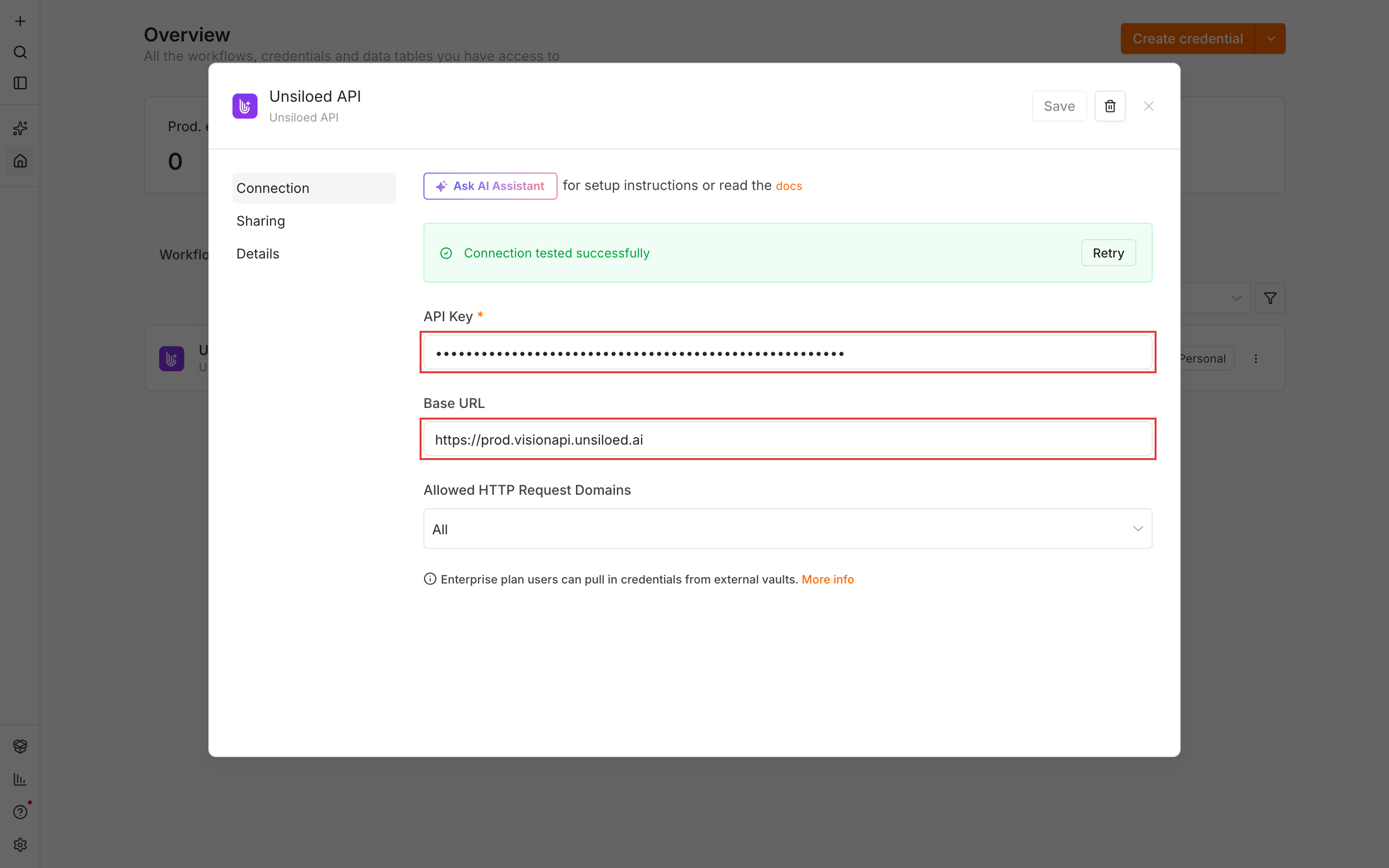
2
Configure the Parse operation
Use these settings in the Unsiloed node:
Force OCR reads the rendered page instead of relying on its embedded text
layer. Leave it on for scans and PDFs whose text layer is missing or garbled.
3
Run the workflow and inspect the result
Click Execute workflow, then open the Unsiloed node. In its output, select
JSON to inspect the 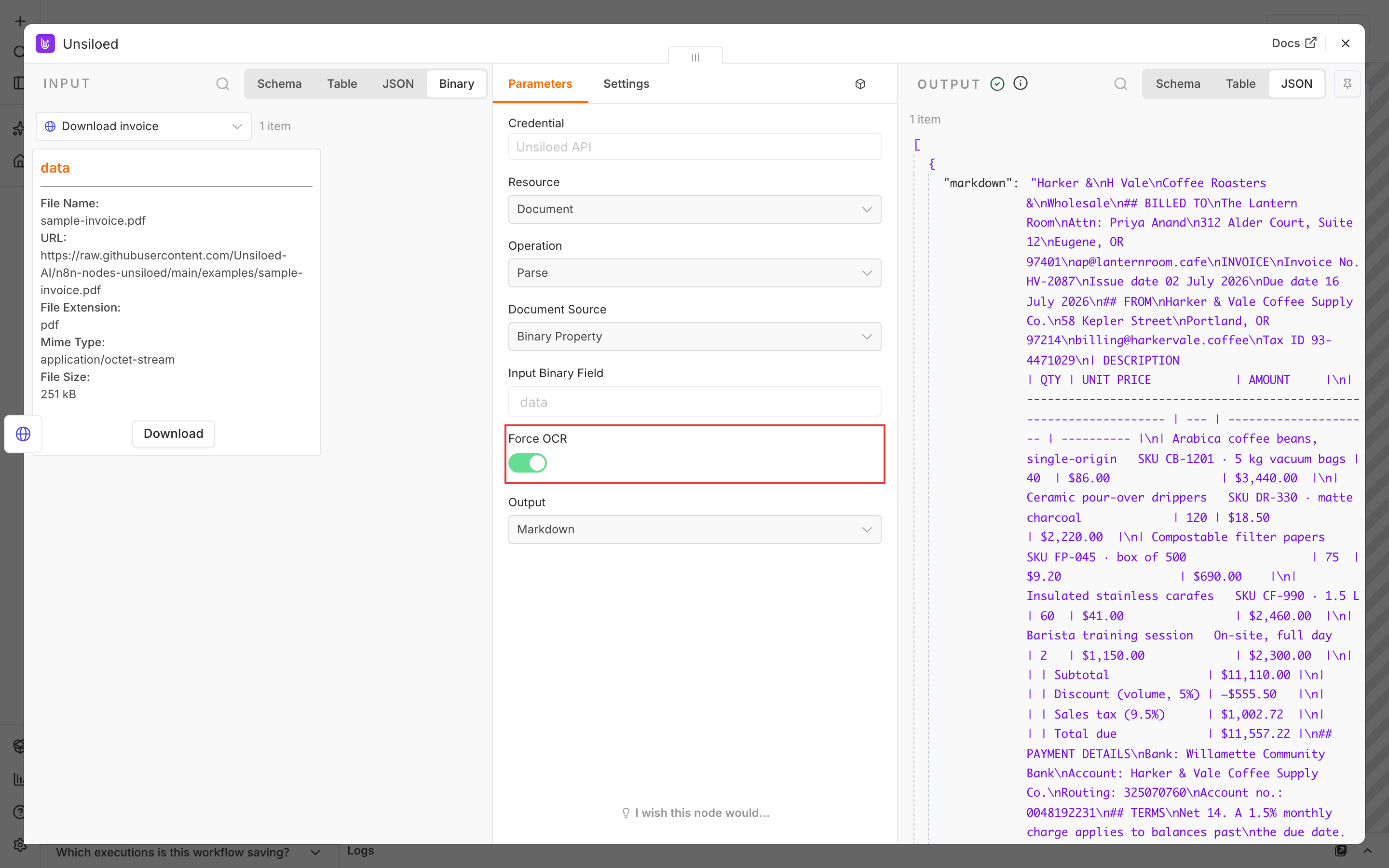
markdown field.Each run of the Unsiloed node submits a new processing job, so rerunning the
step processes the document again. For manual testing, use
data pinning
to reuse the node’s output while configuring later steps. Unpin it before
changing the operation or processing another document.Extract Invoice Fields into JSON
Use Extract when a downstream node expects specific fields. We’ll reuse the same download step and change the Unsiloed operation. Extract reads the original file from Download invoice; it doesn’t use the Markdown returned by Parse.1
Define the fields to extract
Set Operation to Extract. Keep Document Source set to Binary
Property and Input Binary Field set to The descriptions tell Unsiloed which values to read. This example keeps the
total as a string to preserve its currency symbol. The node uses the
data.Replace Schema (JSON) with this schema:gamma
extraction model and enables citations.2
Run extraction and inspect each field
Execute the workflow again and open the Unsiloed output. Each extracted field
contains a 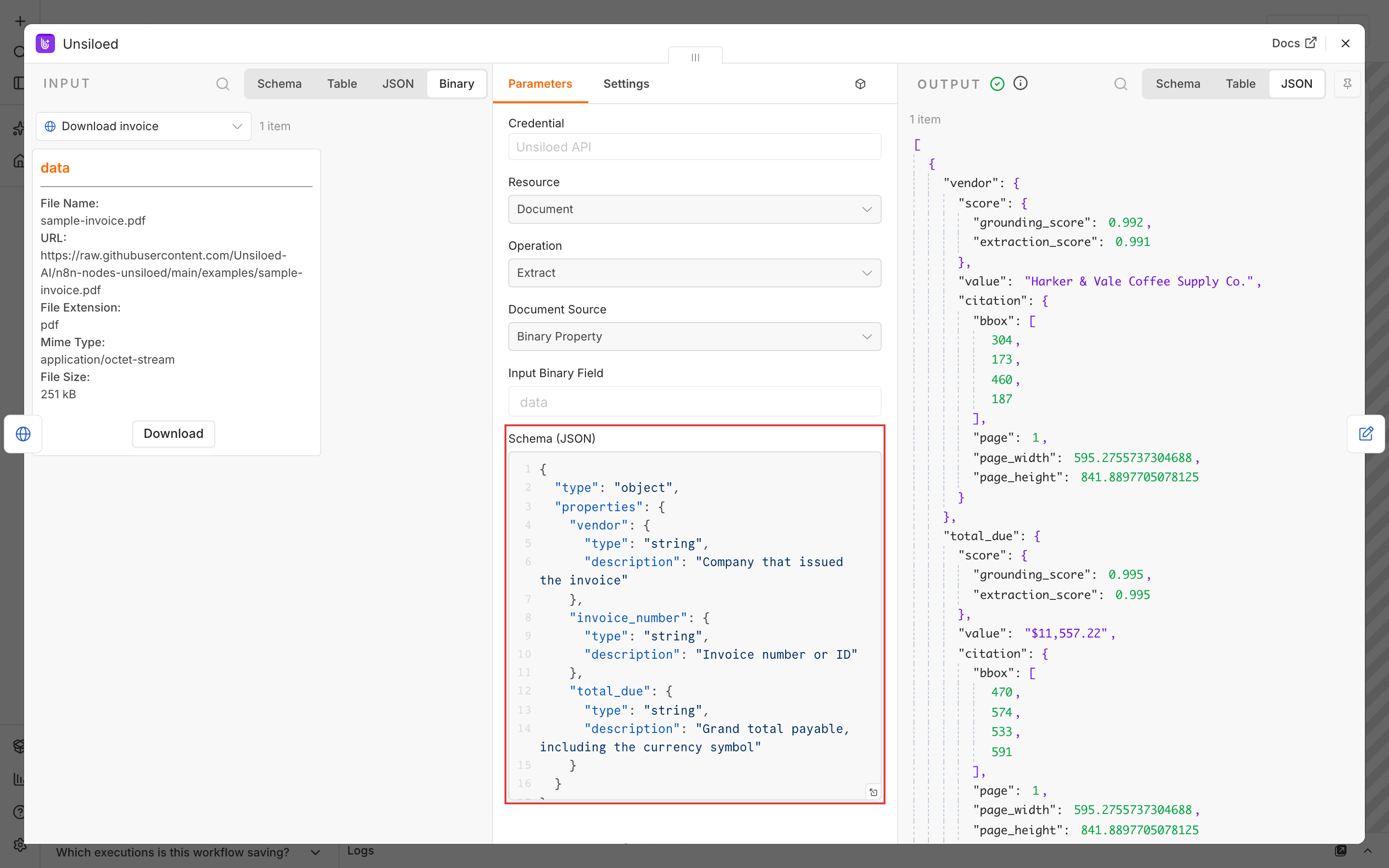
value, nested confidence scores under score, and a citation
when Unsiloed can ground the value in the document.null. Check the source invoice before using the values in
a workflow that posts payments or updates accounting records.For this sample, the invoice number should be HV-2087 and the total should
be $11,557.22. For your own documents, inspect the output for missing or
empty values before mapping it. Adjust the schema’s field descriptions if
they don’t match the document.3
Map the values for the next node
Add Edit Fields (Set) after Unsiloed and choose Manual Mapping. Rename
the node Map invoice values, then add three String fields and switch each
value to Expression: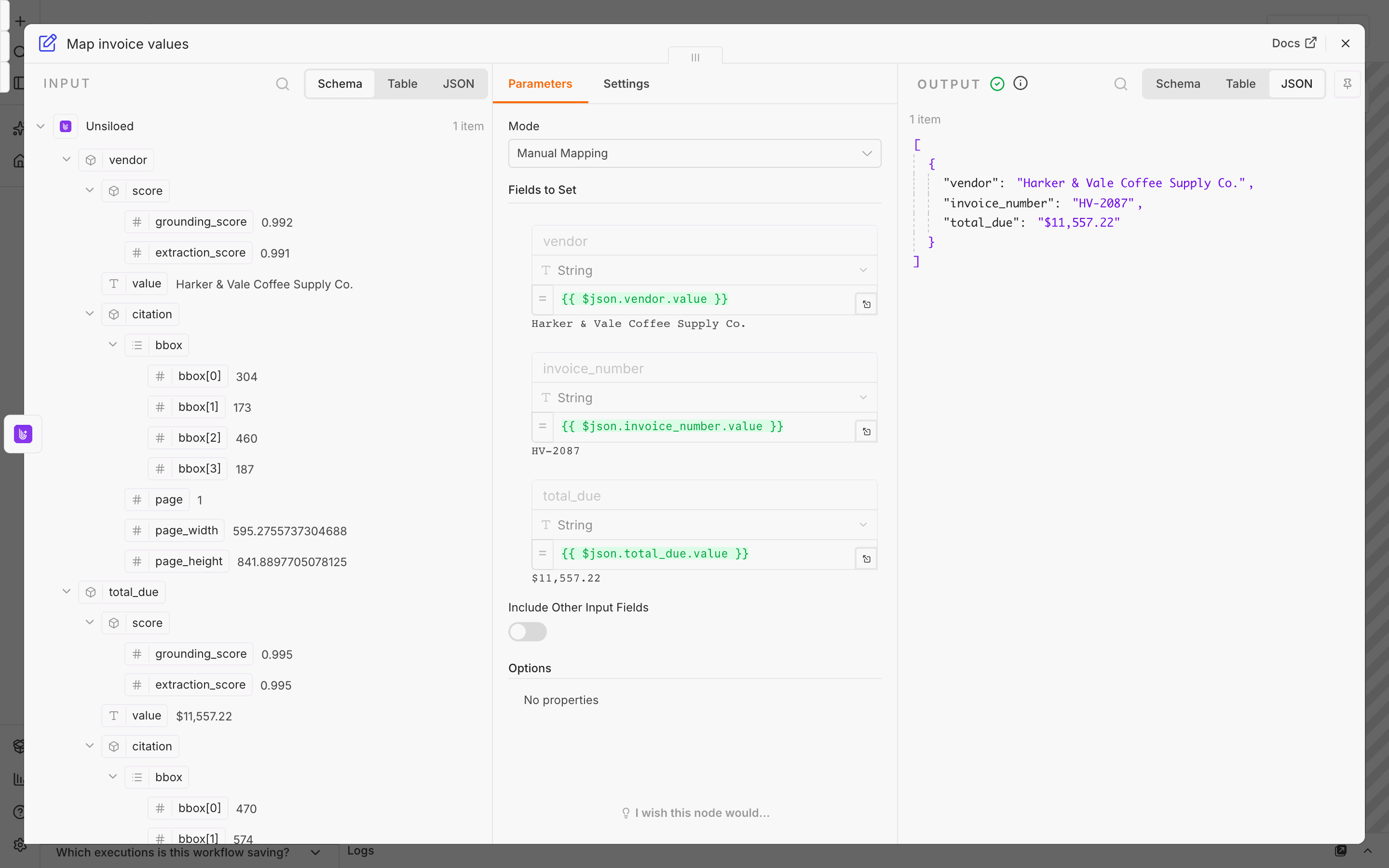
Leave Include Other Input Fields off to output only the mapped values.
Execute the step. For this sample, the output should contain the three
invoice values shown below. These can map directly to columns in a Google
Sheets or database node.
Extend the Document Workflow
The download and field mapping steps are where other n8n nodes connect. Connect external services using their own n8n credentials.Connect a Document Source
These nodes can supply documents before Unsiloed:
For Gmail, turn Simplify off in the trigger, then enable Download
Attachments under Options. With the default attachment prefix, files are
stored as
attachment_0, attachment_1, and so on.
If an email contains several attachments, split them into separate workflow items
before extraction, with one document in the binary field on each item.
Inspect the source node’s Binary output and set Input Binary Field to the
property containing the file. The property name may differ from data.
The Unsiloed node also accepts a publicly reachable document URL. Set Document
Source to URL and enter it in Document URL. Unsiloed fetches the file
directly; a local path or a URL that requires your browser session won’t work.
Send Results to Other Services
After Unsiloed, choose a destination for the result:Troubleshoot the n8n Workflow
The Unsiloed node doesn't appear
The Unsiloed node doesn't appear
Confirm that
n8n-nodes-unsiloed appears under Settings → Community nodes,
then reload the editor. Your instance administrator may need to enable
community packages.The input doesn't contain a binary file
The input doesn't contain a binary file
Execute the previous step and inspect its Binary tab. Its property name
must match Input Binary Field. For an HTTP Request node, set Response
Format to File and Put Output in Field to
data.Unsiloed rejects the API key
Unsiloed rejects the API key
Open the selected Unsiloed API credential and check its key and base URL.
Use the credential’s connection test to check whether Unsiloed accepts the key.
The document-processing URL is
https://prod.visionapi.unsiloed.ai, not the
dashboard URL.Extraction reports invalid JSON
Extraction reports invalid JSON
Check that Schema (JSON) contains valid JSON with double-quoted property
names and no trailing commas. Start with the schema above, then change the
property names and descriptions for your document.
The job doesn't finish within the time limit
The job doesn't finish within the time limit
The node polls up to 90 times, with four seconds between pending responses.
Try a shorter document. Rerunning the node submits a new processing job.
Related Guides
Unsiloed n8n Node
Node source, installation instructions, and example workflows.
Parse Documents
Parsing options and document output formats.
Extract Typed Fields
Define schemas and inspect extraction results.
Google Sheets Integration
Call Unsiloed directly from a spreadsheet with Apps Script.