

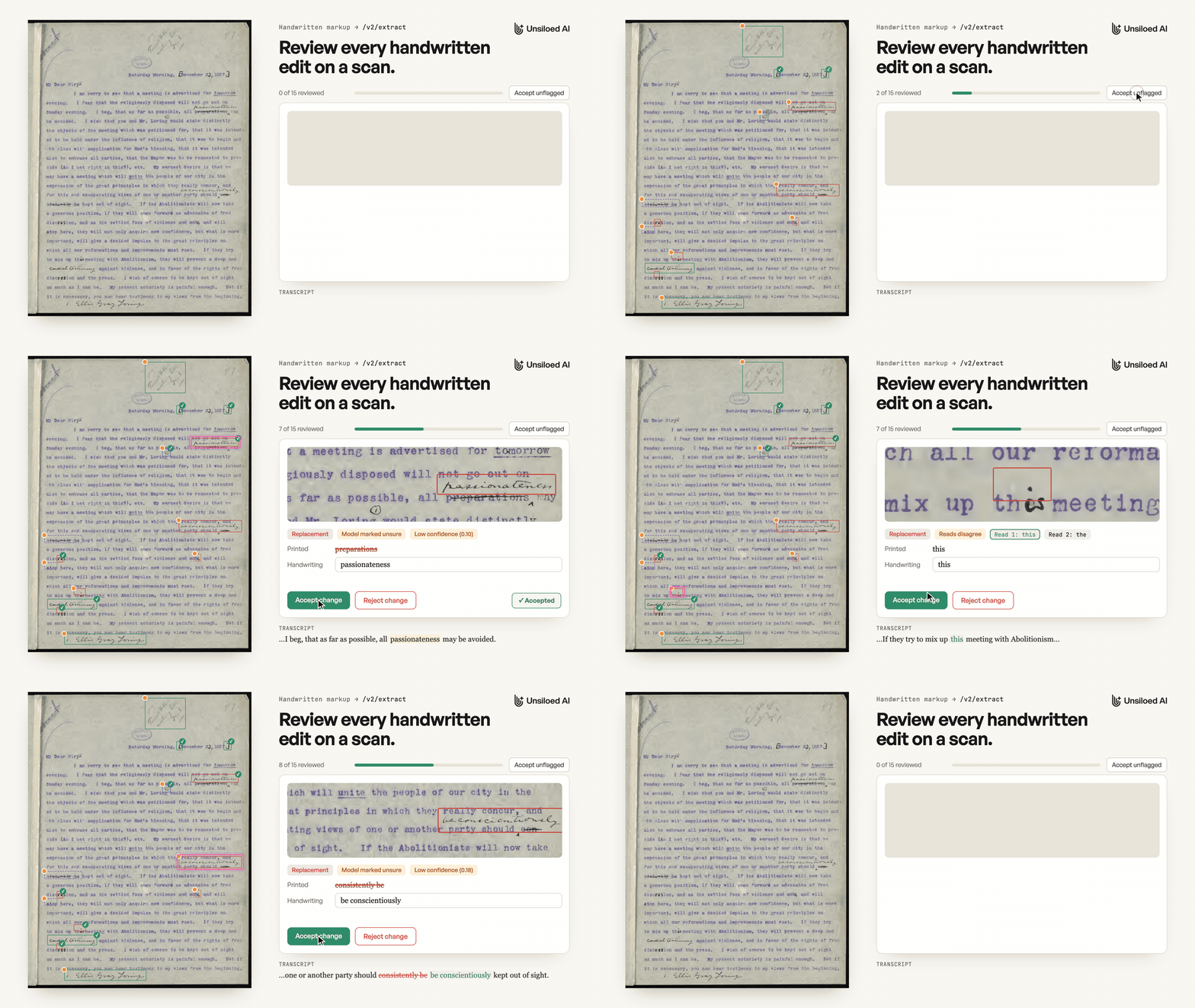
/v2/extract endpoint can keep that record. With the right schema, it returns each page as a tracked-changes transcript, with a bounding box for each detected change where a location is returned. Reading the page a second time and comparing the two reads shows which changes a person should check. This recipe explores those techniques through Markup Review, a small app in the Unsiloed cookbook repository, where a reviewer accepts or rejects each change against a close-up of the scan.
What We’ll Build
We’ll clone the app, review the sample letter that ships with it, and then process a scan of your own. The second half of the recipe, How It Works, walks through the code behind each technique:- Render each scan from the detailed image inside it, not at screen resolution.
- Ask
/v2/extractfor a redline: the whole page as one transcript, with every handwritten change marked inline. - Read the page twice and pair each change with its bounding box.
- Compare the two reads and flag the changes they disagree on, the ones that scored low, and the ones the model marked as unsure.
- Apply the reviewer’s decisions to produce the clean text.
Step 1: Run the App
The app is a small FastAPI server and a single HTML page, with no build step.1.1 Get an Unsiloed API Key
To get API access, sign up on Unsiloed AI.1.2 Clone and Install
You need Python 3.13 or higher. Clone the cookbook repository and install the app’s dependencies:.env and replace the placeholder with your API key:
.env
1.3 Start the Server
Start the app:Step 2: Review the Sample Letter
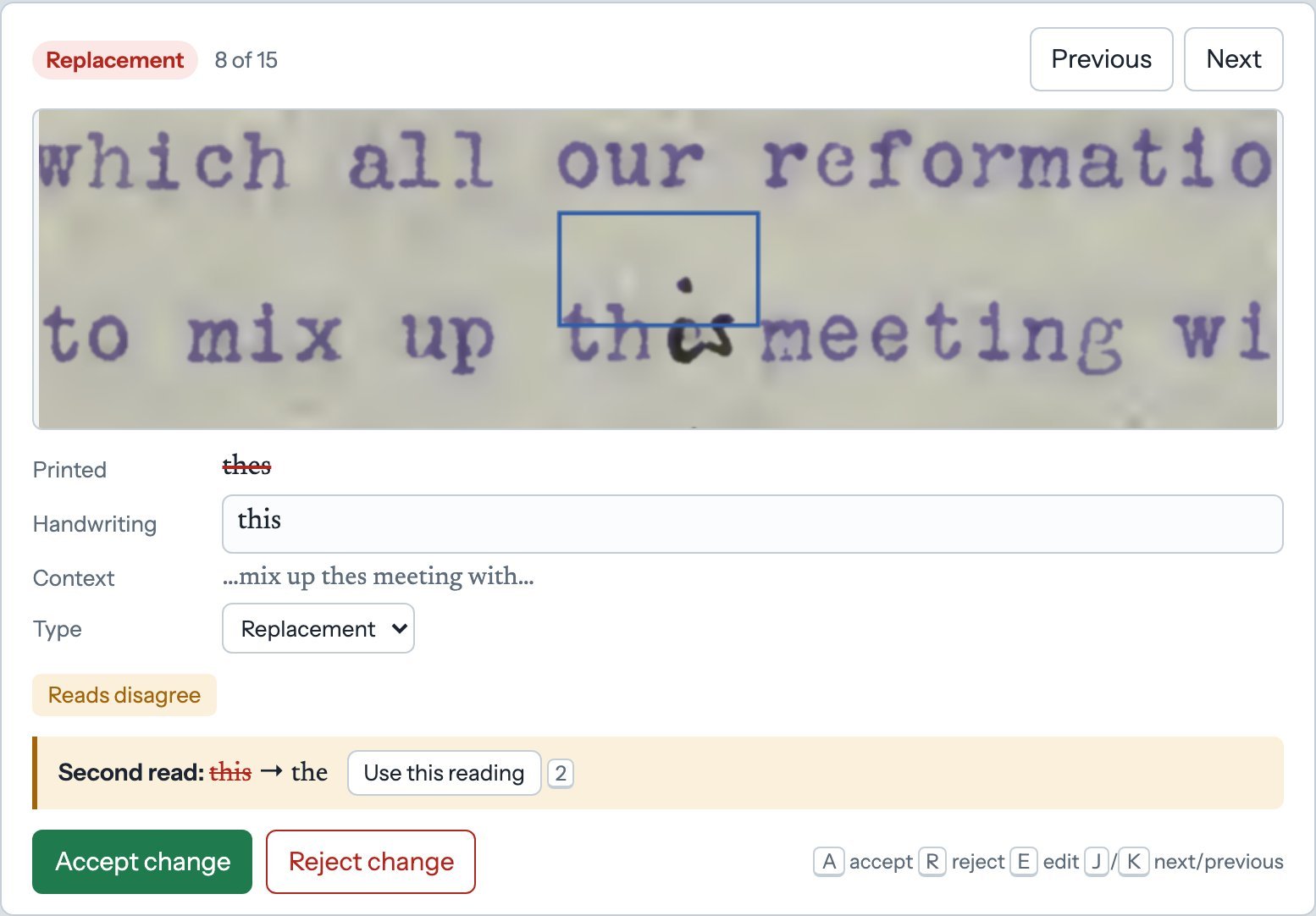
The scan on the left has a box over each detected change that has a location. The color shows the change type: red for a replacement or deletion, green for an insertion, and purple for a note. A dashed box is a mark that only the second read found. Click any box, or any change in the transcript, to open it in the review panel. Each change carries the flags that explain why it needs a look:- Reads disagree: the second read has a different version, shown under the flags
- Only the first read found this: the second read has no matching mark, so the change may not be there at all
- Only the second read found this: the first read’s transcript has no matching mark, so the change is listed separately with a dashed box
- Low confidence: the handwriting scored below 0.5
- Model marked unsure: Unsiloed set
needs_reviewon the change itself - No location returned: the change has no box, so find it on the scan from its context words
1
Accept the unflagged changes
Select Accept unflagged to accept every change with no flags.
2
Work through the flagged changes
For each one, compare the close-up with the handwriting. Correct the text or the change type if needed, or select Use this reading to take the second read’s handwriting and change type (the printed words stay as the first read has them). Then select Accept change or Reject change.A mark that only the second read found has no place in the transcript, so it can’t be accepted. Check it on the scan and select Mark as checked. If it’s a real edit, correct the exported text by hand. The review log records it as checked, not applied.
3
Check the clean text
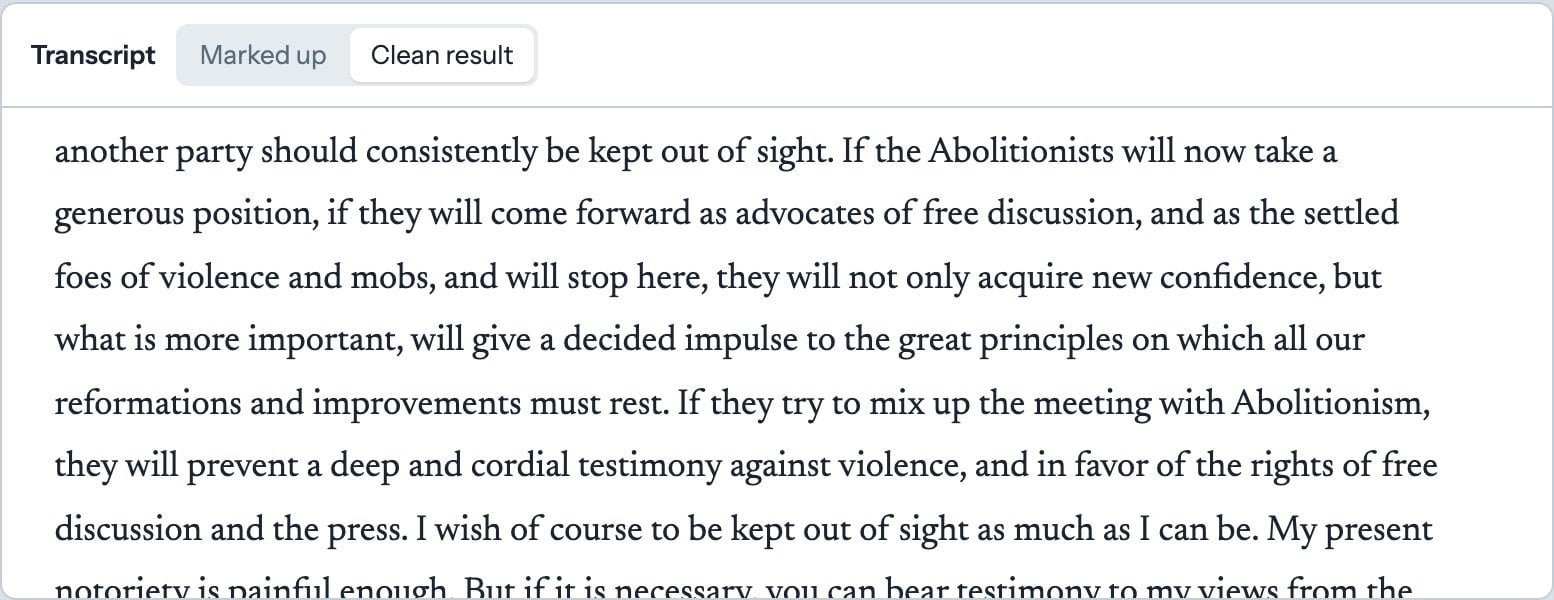
Switch the transcript to Clean result and read it against the scan once. The review lists detected changes only, so this catches any mark that neither read found.
4
Export
Select Export to download the clean text and a JSON log of every decision.
Step 3: Review Your Own Scan
Select Upload scan and choose a file. The app accepts PDFs and PNG, JPEG, TIFF, and WebP images, and processes every page. Each page makes two/v2/extract calls, one per read.
The app shows its progress while Unsiloed reads the document:
documents/: the page images, the raw /v2/extract responses, the review built from them, and the decisions. Opening the raw responses next to the review is a quick way to see exactly what Unsiloed returned for each mark.
How It Works
Every technique lives in thereview package, which has no dependency on the web app. The server in app.py runs it for each upload, and frontend/index.html only draws what the server returns, so the package is the part to carry into your own code.
Render the Scan From Its Embedded Image
Handwriting is much smaller and fainter than type, so a scan that looks fine on screen can be too coarse for a fine strike through a word to survive. Many PDF tools render pages at screen resolution and quietly throw away the detail in the scanned image inside the PDF.review/prepare.py renders each page from that embedded image instead:
review/prepare.py
Ask for a Redline
The/v2/extract endpoint fills in a JSON schema you supply, and the shape of the schema decides how useful the result is. For handwritten edits, the app asks for the whole page as one transcript with every change marked inline, rather than a separate set of fields for each edit. A transcript keeps each mark in the context of its sentence, so related marks stay together, and the printed text and the handwriting stay apart.
The transcript uses CriticMarkup, a plain-text notation for tracked changes:
The schema in
review/schema.json asks for the transcript in a redline field and for a changes array with one entry per mark:
review/schema.json
redline description holds the rules for the marks that are most often misread, like “A struck-through word must stay inside the markup, never silently dropped” and “Underlining alone is a comment, not a deletion”. Unsiloed can attach a bounding box to each field it returns, but the transcript string gets a single box covering the whole page, so the per-mark boxes come from the changes array.
The app uses /v2/extract rather than /parse for this. Parsing is built to return the text of the page, so it applies or drops the handwritten edits instead of recording them.
Read Each Page Twice
The redline is a single string, so the pipeline extracts each page on its own: every page goes into a one-page PDF, and each one-page PDF is read twice. The reviews for each page are then merged, with the page number added to each change’s ID and box. Each read is one extraction job. The request leaves the model on the defaultgamma tier and sets enable_citations=true, which turns on bounding boxes:
review/extract.py
/v2/extract endpoint also has a high_accuracy_mode option that cross-checks uncertain fields and reconciles them before returning a result. Reading twice is the alternative for a review workflow: instead of being resolved automatically, each disagreement goes to the reviewer with both versions side by side. The pipeline runs both reads in parallel:
review/extract.py
Pair Each Change With Its Box
Every field in an extraction result is wrapped in an envelope with the value, two scores, and a citation. Here’s theprinted_text field of the “preparations” change from the sample:
bbox is in PDF points, measured from the top-left corner of the page. The app converts it to fractions of the page, which the review screen can draw over an image of any size:
review/redline.py
review/redline.py splits the redline into plain text and changes with one regular expression per CriticMarkup tag, then pairs each change in the transcript with its entry in the changes array by matching the change type and text. That gives each change a box and a score. A change with no matching entry is flagged No location returned, and the reviewer finds it on the scan from its context words.
Use the scores to decide what to review first, not to accept or reject changes. Faint or cramped handwriting scores low even when the reading is right: “passionateness” is correct in the sample, and it scored 0.10. The app flags anything below 0.5 and never rejects a change for scoring low.
Compare the Reads
The first read’s transcript becomes the document. Each of its changes is matched against the second read by type, printed words, and handwriting, after normalizing case, punctuation, and words hyphenated across a line break:review/redline.py
Apply the Reviewer’s Decisions
A decision records the reviewer’s verdict and any corrections: the handwriting, the change type, and, for an insertion, whether it goes before or after the printed words. The clean text is the transcript with each change replaced by what its decision produces:review/redline.py
Where Handwritten Marks Are Hard to Read
Unsiloed places a box on the handwriting for each detected change it returns a location for, so any review step built on these results can show a person the exact mark. What a mark means is still a judgment call, and these are the cases that need the closest look, even when they aren’t flagged:- Marks near a caret: a caret next to a word can look like a strike, so a listed deletion may have no line through it
- Long strikes: a strike that runs across several words, or onto the next line, can be read as covering fewer words than it does
- Carets before a word: an insertion before a word can be read as a replacement of that word, which is why the app lets the reviewer change a change’s type and placement
- Margin notes: an archival or reviewer’s note in the margin can be read as an insertion, which would put it in the body text
- Marks neither read found: the review lists detected changes only, so the final clean text still needs one read against the scan
Where to Take This Next
Markup Review covers one workflow from scan to clean text. The techniques inside it carry over to other documents and other pipelines:- Change what the redline captures. The schema is the lever. Add your reviewers’ conventions to the
redlinedescription inreview/schema.json, like proofreading marks or legal shorthand, or point the same approach at contract markups and forms amended by hand. - Put the changes where your team already works. CriticMarkup is plain text, so the parsed changes can become tracked changes in your own editor or document system, instead of a separate review screen.
- Read twice wherever a mistake is costly. The two-read comparison isn’t specific to handwriting. Run any extraction twice and send only the fields the reads disagree on to a person, or set
high_accuracy_mode=truewhen you’d rather the service reconcile uncertain fields itself. - Show the evidence with every value. The citation boxes work for any
/v2/extractfield, so any human review step can show a close-up of the source next to each value, and an audit trail can keep that crop with the decision.
Extraction
How schemas drive extraction, including nested objects and arrays.
API Reference
The full request and response specs for
/v2/extract.