How to Make Any Scanned PDF Searchable (July 2026)
If your PDF came from a scanner, there's a good chance it's just an image wrapped in a PDF container: no searchable text, no selectable words, and no way to Ctrl+F your way to what you need. OCR is what closes that gap. It reads the image and produces a readable text layer that gets embedded directl

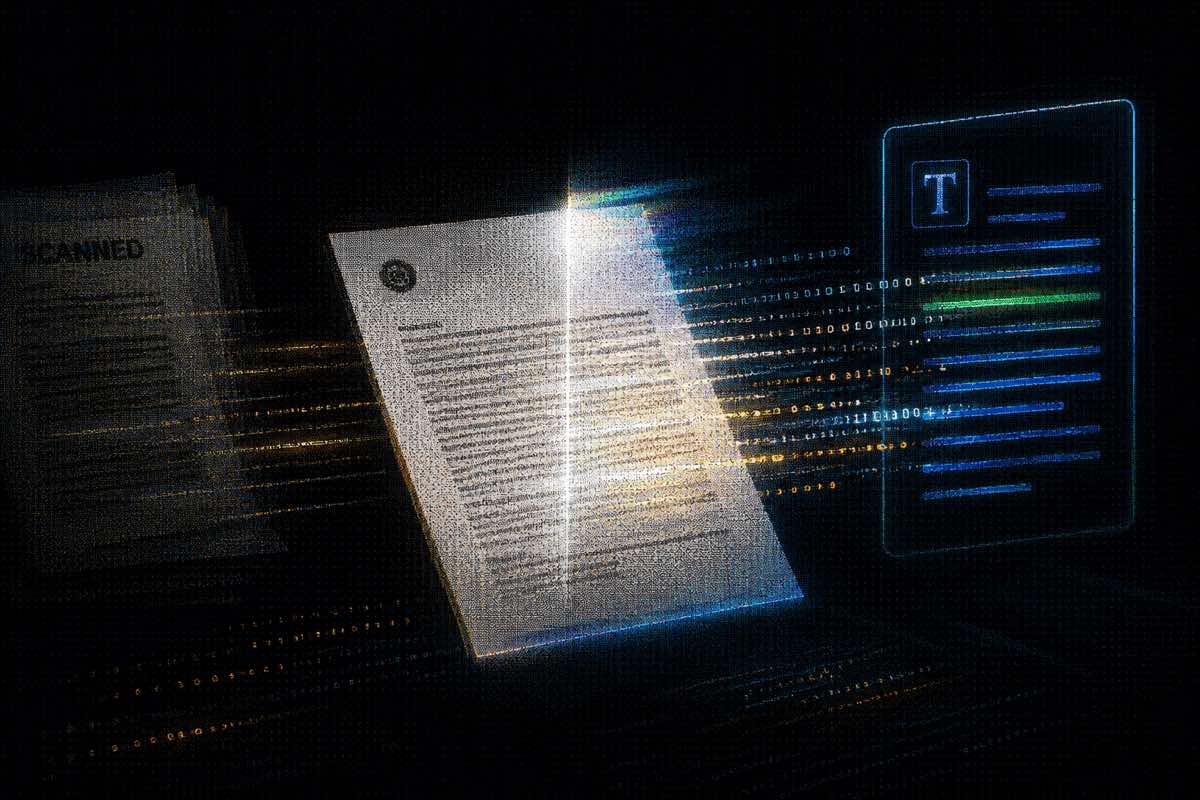
If your PDF came from a scanner, there's a good chance it's just an image wrapped in a PDF container: no searchable text, no selectable words, and no way to Ctrl+F your way to what you need. OCR is what closes that gap. It reads the image and produces a readable text layer that gets embedded directly into the file, turning a flat scan into a searchable PDF you can actually work with. The method you use depends on what you have available, so here's a breakdown of each option.
TL;DR
- Scanned PDFs store text as pixels, not characters, so Ctrl+F and search crawlers return nothing until OCR adds a text layer.
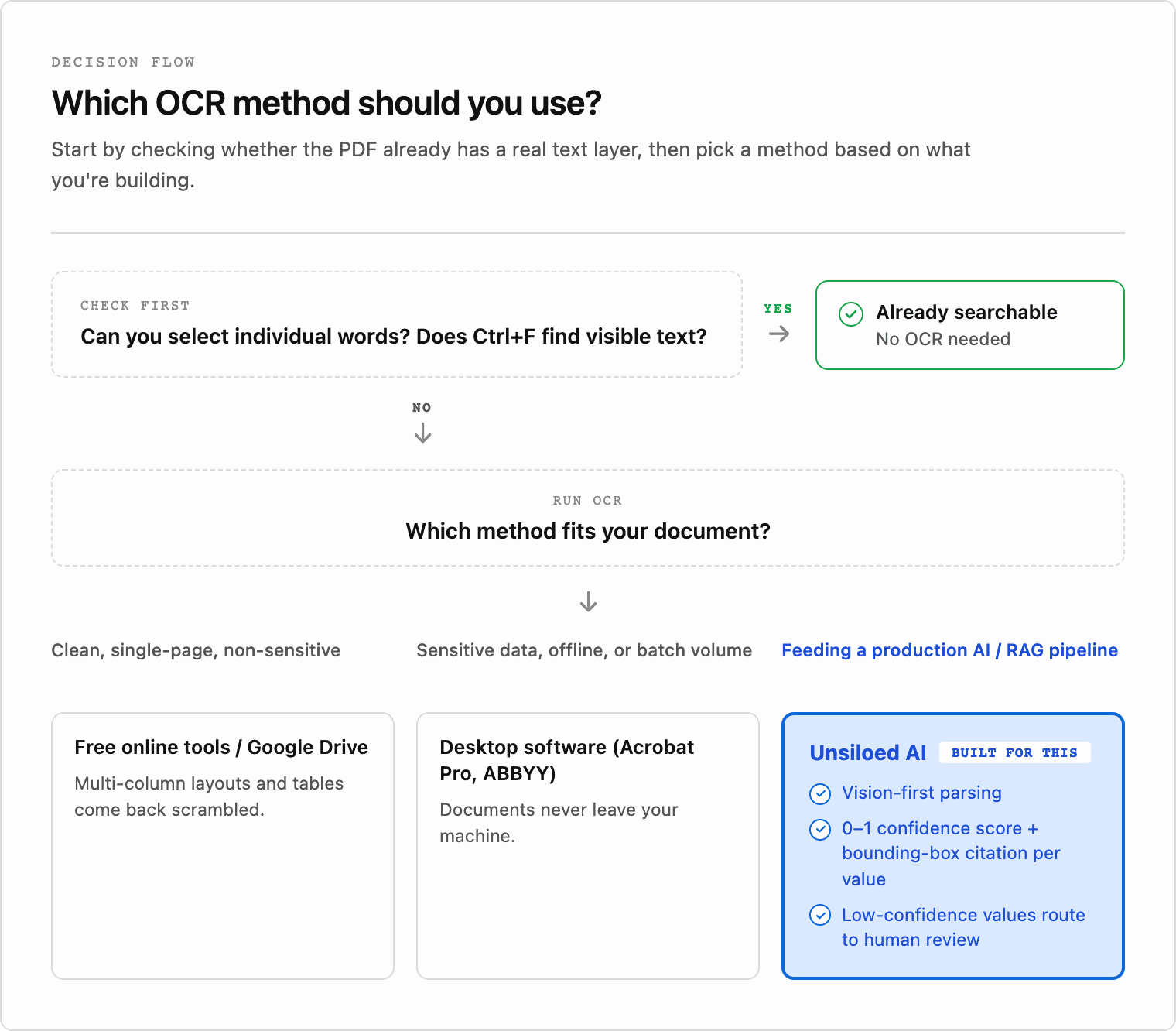
- Test searchability in seconds: try selecting individual words or run Ctrl+F for a term you can read on the page.
- Scan at 300 DPI minimum, deskew pages, and remove background noise before running OCR to get reliable output.
- Free online tools work for clean, single-page, non-sensitive documents; compliance-sensitive or high-volume workflows need desktop software.
- A searchable text layer alone is not enough for production pipelines. Unsiloed AI parses against the visual page image and returns a 0-to-1 confidence score with a bounding-box citation on every extracted value, routing low-confidence results to human review instead of passing bad data downstream.
What Makes a Scanned PDF Non-Searchable
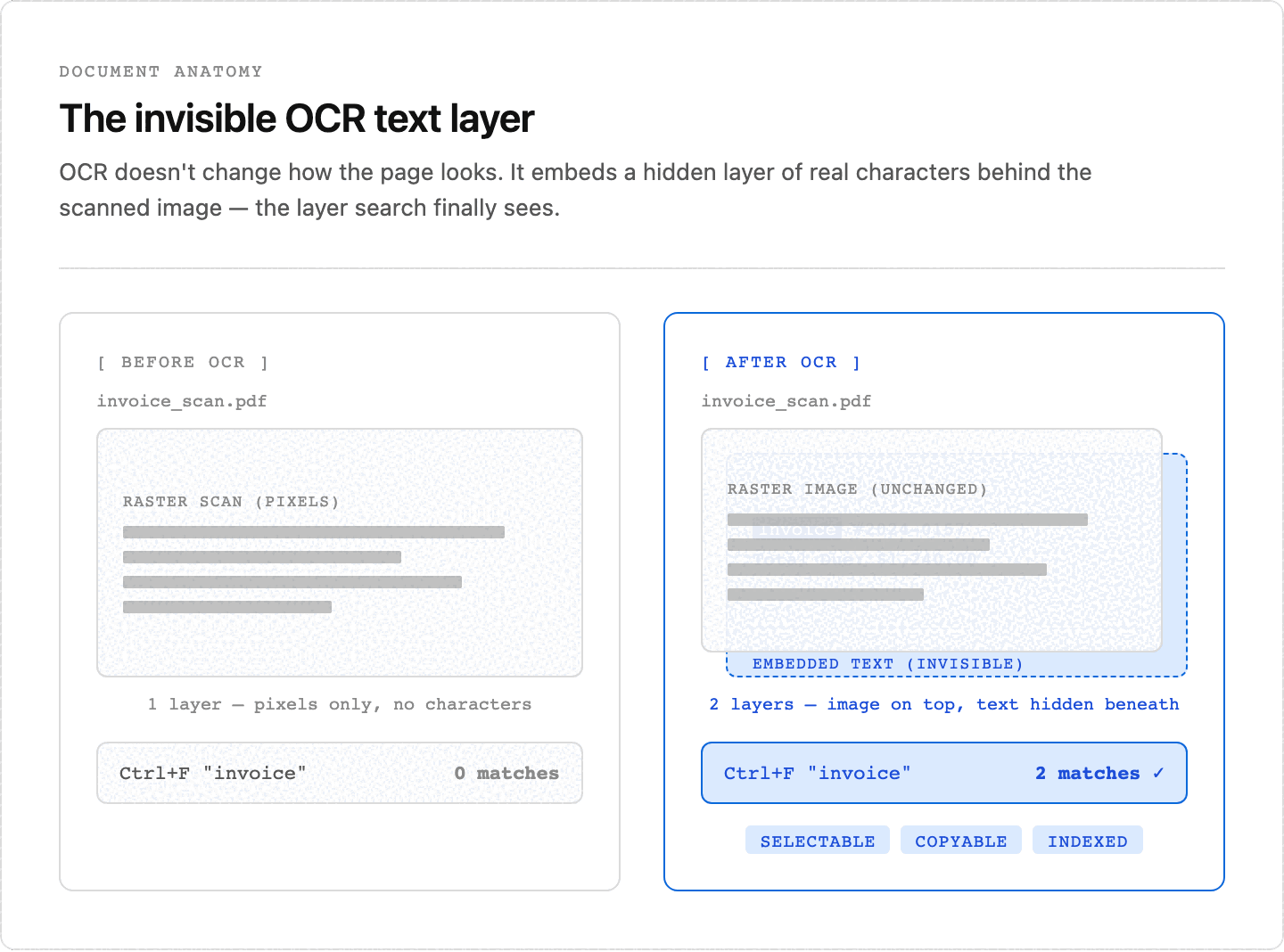
A scanned PDF is essentially a photograph of a document. When a scanner captures a physical page, it converts that page into a raster image (a grid of pixels) and wraps it inside a PDF container. The visual appearance is preserved, but no text characters are encoded anywhere in the file.
PDF viewers search by matching queries against encoded characters. When those characters don't exist, there is nothing to match. The text on screen is just pixels arranged to look like letters. A Ctrl+F lookup or a search engine crawler cannot parse them any more than it could parse a JPEG of the same page.
How to Tell If Your PDF Is Already Searchable
Two quick tests tell you whether OCR is worth running before you process anything.
Open the PDF and try to click and drag across text on the page. Individual word selection means the file already has an encoded text layer. If your cursor selects in a large rectangular block regardless of where you drag, or selects nothing at all, you are working with an image-based scan.
The second check: use Ctrl+F (Cmd+F on Mac) and search for a word you can read on the page. No matches confirms there is no text layer underneath.
One edge case to know: PDFs built from vector shapes, where fonts are drawn as paths instead of text characters. These files look sharp at any zoom level but fail the same selection test as a scan.
How OCR Converts an Image Into Searchable Text
OCR (optical character recognition) works by analyzing pixel patterns in a scanned image and mapping them to text characters. The process runs in three stages: the engine preprocesses the image to correct skew and improve contrast, segments the page into regions like lines, words, and characters, and then classifies each character against a trained model to produce a text string.
Once that text string exists, PDF software embeds it as an invisible layer behind the original image. The page still looks like a scan, but the underlying text is now selectable, copyable, and indexed by search engines.
How to Make a PDF Searchable With Adobe Acrobat
To OCR a document in Acrobat:
- Open the file in Adobe Acrobat.
- Select "Tools," then choose "Scan & OCR."
- Click "Recognize Text" and pick "In This File."
- Save the file once Acrobat finishes.
Acrobat embeds a hidden text layer behind the original image, making the PDF searchable without altering its visual appearance.
Choosing the Right Language Settings
Before running recognition, confirm the language setting matches the document's content. Acrobat uses this setting to select the correct character decoder, and a mismatch between the selected language and the actual text produces garbled output, particularly on proper nouns, accented characters, and numeric formats.
- Select "Edit" within the Recognize Text dialog to open recognition settings. From there, choose the document language and set the output style to "Searchable Image" to preserve the original scan visually while embedding the OCR layer underneath.
- For multi-language documents, Acrobat supports primary and secondary language selection, though accuracy drops on mixed-language pages where both character sets appear in close proximity.
How to Make a PDF Searchable With Google Drive
To convert a scan through Google Docs:
- Upload the scanned PDF to Google Drive.
- Right-click the file, select "Open with," and choose "Google Docs." Google Docs opens a new document with the OCR text extracted from the scan.
- Go to File > Download > PDF Document (.pdf) to get a searchable PDF back.
The downloaded file has a selectable, searchable text layer embedded from the conversion.
For single-column documents with clean, high-contrast scans, this workflow produces reliable results with almost no effort. Multi-column layouts, tables, and complex formatting are a different story: Google Docs frequently scrambles reading order across columns and drops table structure entirely, so anything more complex than a standard letter or simple form means budgeting time for manual cleanup. For a deeper look at how parsers handle layout, see this document parsing technical guide.
Free Online OCR Tools for Quick Conversions
Free online OCR tools work well for one-off conversions when you have a clean, single-page scan and no sensitive data involved. Tools like Adobe Acrobat Online (the browser-based counterpart to the desktop workflow above), Smallpdf, and iLovePDF accept an uploaded image or scanned PDF and return a searchable file within seconds.
The tradeoff is real, though. These tools cap file sizes, limit monthly conversions, and upload your documents to third-party servers. For industries with strict data-handling requirements or anything containing personal information, that last point alone rules them out.
Use them for low-stakes, occasional work. For volume or sensitive documents, they are the wrong fit.
Desktop OCR Software for Offline or Batch Processing
Desktop OCR software handles batch conversion and offline workflows where cloud-based tools are impractical. Adobe Acrobat, ABBYY FineReader, and Readiris are the most widely used desktop options for making scanned PDFs searchable on a local machine. For how traditional OCR tools like these compare architecturally with vision-first document data extraction software, see our technical comparison.
These tools embed a hidden text layer directly into the PDF during OCR processing, producing a searchable PDF without uploading files to an external server. That matters in legal, healthcare, and financial contexts where documents cannot leave a controlled environment.
| Tool | Best For | Language Support | Key Capability | Tradeoff |
| Adobe Acrobat Pro | Single files and folder-level batch processing | Manual language selection | Language detection, deskew correction built in | Accuracy drops on mixed-language pages |
| ABBYY FineReader | High-volume batch workflows, multilingual archives | Over 190 recognition languages | Purpose-built for language diversity at scale | Higher licensing cost than lighter tools |
| Readiris | Teams needing basic OCR output on a budget | Standard | Lighter footprint, lower licensing cost | Not suited for enterprise-scale or multilingual use |
The tradeoff across all three: accuracy on degraded scans depends heavily on the input quality. Handwriting, low-resolution images, and skewed pages reduce recognition confidence regardless of which tool you choose.
What Affects OCR Accuracy on Scanned PDFs
Scan quality sets the ceiling for every OCR output. A 300 DPI scan gives most OCR engines enough pixel density to resolve character shapes reliably; below 200 DPI, letter boundaries blur and error rates climb sharply. Skew matters too: pages captured at even a few degrees off-axis introduce misalignment that breaks word segmentation before recognition begins. For a thorough breakdown of scanning requirements, the University of Illinois OCR best practices guide covers resolution, brightness, and deskew settings in detail.
Font complexity and document condition compound the problem. Decorative typefaces, tight kerning, and degraded originals with ink bleed or torn edges all reduce character confidence. Handwritten annotations mixed into typed text are harder still, since most OCR models are trained on printed fonts.
Background Noise, Layout, and Language Edge Cases
Speckled backgrounds, watermarks, and low-contrast ink push recognition confidence down across the whole page. Multi-column layouts, embedded tables, and figures with caption text require the OCR engine to resolve reading order before extracting text, and engines that skip this step return scrambled output regardless of raw character accuracy.
Language and encoding edge cases close the list. Non-Latin scripts, mixed-language pages, and documents with specialized symbol sets need domain-aware models. A general-purpose OCR engine trained on English produces high word error rates on legal Arabic or chemical notation without explicit support for those character sets.
How to Improve OCR Results Before and After Processing
Most accuracy problems are cheaper to prevent than to correct, and the fixes happen before the engine runs. A few preparation steps make a measurable difference:
- Deskew and rotate pages before processing, so word segmentation starts from straight lines instead of tilted ones.
- Increase contrast on low-quality scans. Faded ink or uneven lighting causes the engine to misclassify characters it would otherwise read correctly.
- Remove noise and speckles. Salt-and-pepper artifacts around characters inflate error rates on documents that are otherwise legible.
When a clean 300 DPI scan still comes back with errors (dense microfilm, small-print legal records), the answer is usually a higher-resolution rescan; this breakdown of how DPI choices affect OCR accuracy covers when to go beyond the standard floor.
After OCR runs, validate output against expected formats where possible. Dates, currency values, and ID numbers follow predictable patterns, so a post-processing check can flag likely misreads before they propagate into your pipeline. For how production systems take this further, flagging low-confidence output for human review, see our document data extraction guide.
When a Searchable Text Layer Is Not Enough
OCR converts a scanned image into a text layer, but that text layer alone does not make a document ready for production AI pipelines. Extracted text loses the spatial relationships that give it meaning: a table flattened into a single stream scrambles row and column associations, multi-column layouts collapse into unreadable sequences, and headers lose their structural hierarchy.
These failures compound downstream. A RAG system retrieving from garbled OCR output returns answers built on misread context, and no prompt engineering corrects a malformed input.
Unsiloed AI: Structured Extraction Beyond the Text Layer
Unsiloed AI parses documents with a vision-first architecture, meaning extraction runs against the visual page image without assuming a text layer exists. This is the foundation of a sound document parsing API for RAG. When OCR alone misreads a field, the parser still returns a 0-to-1 confidence score and a bounding-box citation on every extracted value by default, giving your pipeline a spatial reference back to the exact source region on the page.
That auditability matters in accuracy-sensitive workflows. A confidence score below a set threshold routes a document to human review instead of silently passing bad data downstream. For related work on how documents feed into retrieval, see this guide on chunking strategy for RAG systems.
Final Thoughts on Making Scanned PDFs Searchable
Most OCR workflows get you 80% of the way there fast, but the remaining 20% is usually the part that matters most for production use. Tables, multi-column layouts, and degraded scans all expose the gap between a technically searchable file and one that is actually usable. If your documents feed anything accuracy-sensitive, that gap is where field-level confidence scores and source citations earn their keep, and Unsiloed AI is worth a closer look.
FAQ
How do I make a scanned PDF searchable without buying expensive software?
Google Drive handles this for free: upload the PDF, right-click it, open it with Google Docs, and download the result as a PDF document. Clean, single-column scans convert well. Multi-column layouts and tables come back scrambled, so complex documents still need manual cleanup or a dedicated tool.
What resolution should I scan at to make a PDF readable by OCR engines?
A resolution of 300 DPI is the reliable floor for standard print. Error rates climb sharply below 200 DPI, and serif fonts and small print are the first to break down.
Adobe Acrobat vs ABBYY FineReader for batch OCR: which handles multilingual document archives better?
ABBYY FineReader. With over 190 recognition languages and batch pipelines designed for language diversity, it is purpose-built for multilingual archives. Acrobat Pro depends on manually selecting a language per run and loses accuracy when multiple scripts share a page. For single-language batch work, either tool is fine.
Can a searchable PDF text layer alone feed a production RAG pipeline reliably?
No. A text layer makes a document searchable, not structured: row-column relationships, reading order, and heading hierarchy are all lost in a flat text stream, and retrieval built on that input returns answers no prompt engineering can repair. Production pipelines need extraction that preserves structure and flags its own uncertainty. That is the gap Unsiloed AI covers, parsing the page image directly and attaching a confidence score and bounding-box citation to each value so doubtful fields go to human review first.
What makes a readable image fail OCR even at 300 DPI?
Resolution is only one input. Skewed pages, speckled backgrounds, watermarks, decorative or tightly kerned typefaces, and degraded originals all cut accuracy on their own, and scripts or symbol sets the model was never trained on (legal Arabic, chemical notation) push word error rates up regardless of scan quality.