> ## Documentation Index
> Fetch the complete documentation index at: https://docs.unsiloed.ai/docs/llms.txt
> Use this file to discover all available pages before exploring further.
# Integrate Unsiloed with Muse
> Connect Unsiloed to Meta's Muse agent with one prompt and an API key, then let Muse parse your PDFs and other documents.
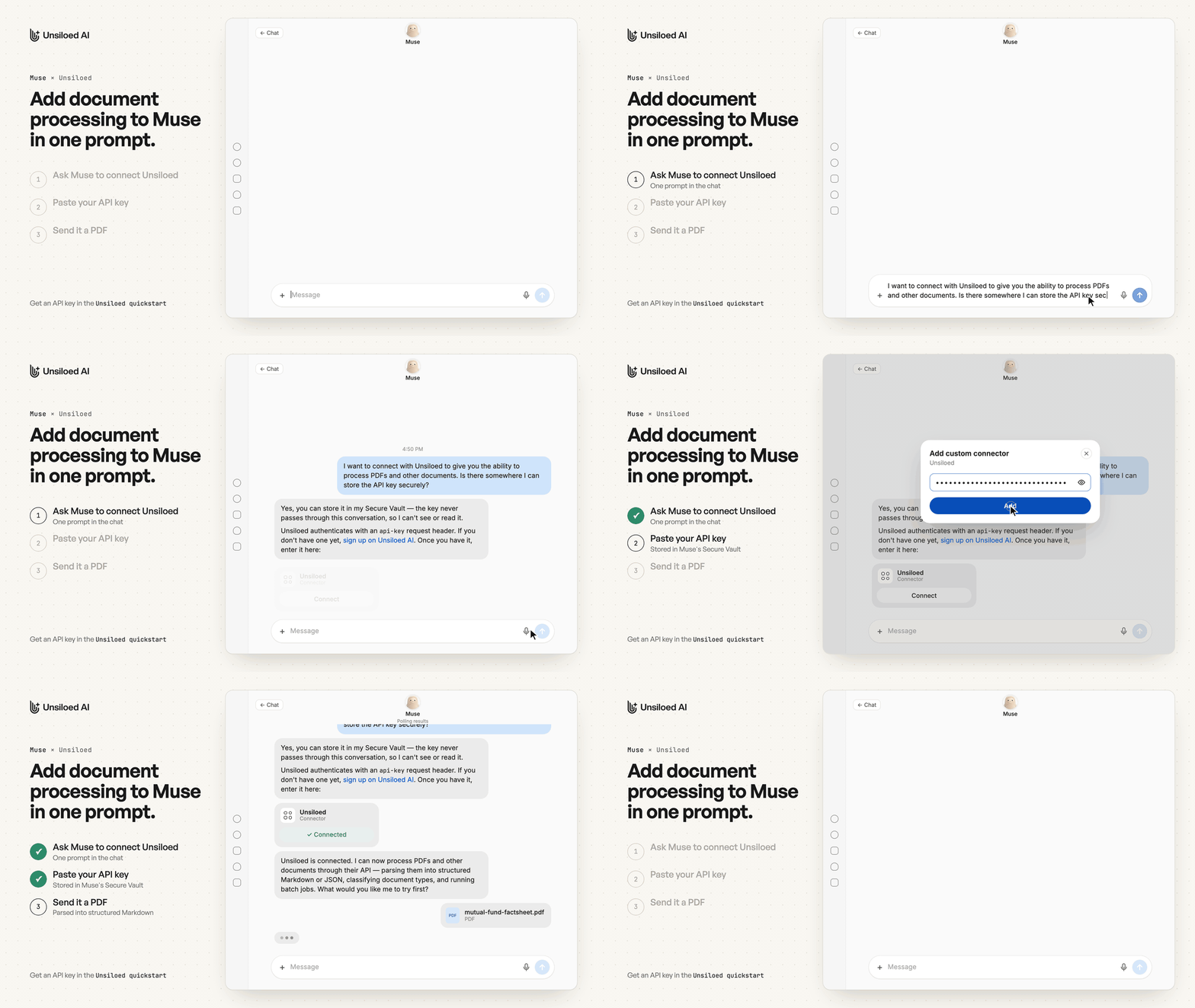
[Muse](https://muse.ai) is Meta's personal AI agent. It can call the Unsiloed
API through a custom connector, which you set up from the chat: ask Muse to
connect Unsiloed, then paste your API key into Muse's Secure Vault. Muse
doesn't see the key in the conversation.
 ## Prerequisites
* **A Muse account.** Log in or create an account at [muse.ai](https://muse.ai).
Muse is also available as a mobile app, a [Mac app](https://ai.meta.com/muse/download/),
and in WhatsApp. The screenshots in this guide are from the Mac app.
* **An Unsiloed API key.** Create one in the
[Unsiloed dashboard](https://app.unsiloed.ai/developer).
## Connect Unsiloed to Muse
Start a chat with Muse and send this prompt:
```text wrap theme={null}
Connect Unsiloed so you can process PDFs and other documents. I need somewhere secure to store the API key.
```
Muse replies with an **Unsiloed** connector card.
## Prerequisites
* **A Muse account.** Log in or create an account at [muse.ai](https://muse.ai).
Muse is also available as a mobile app, a [Mac app](https://ai.meta.com/muse/download/),
and in WhatsApp. The screenshots in this guide are from the Mac app.
* **An Unsiloed API key.** Create one in the
[Unsiloed dashboard](https://app.unsiloed.ai/developer).
## Connect Unsiloed to Muse
Start a chat with Muse and send this prompt:
```text wrap theme={null}
Connect Unsiloed so you can process PDFs and other documents. I need somewhere secure to store the API key.
```
Muse replies with an **Unsiloed** connector card.
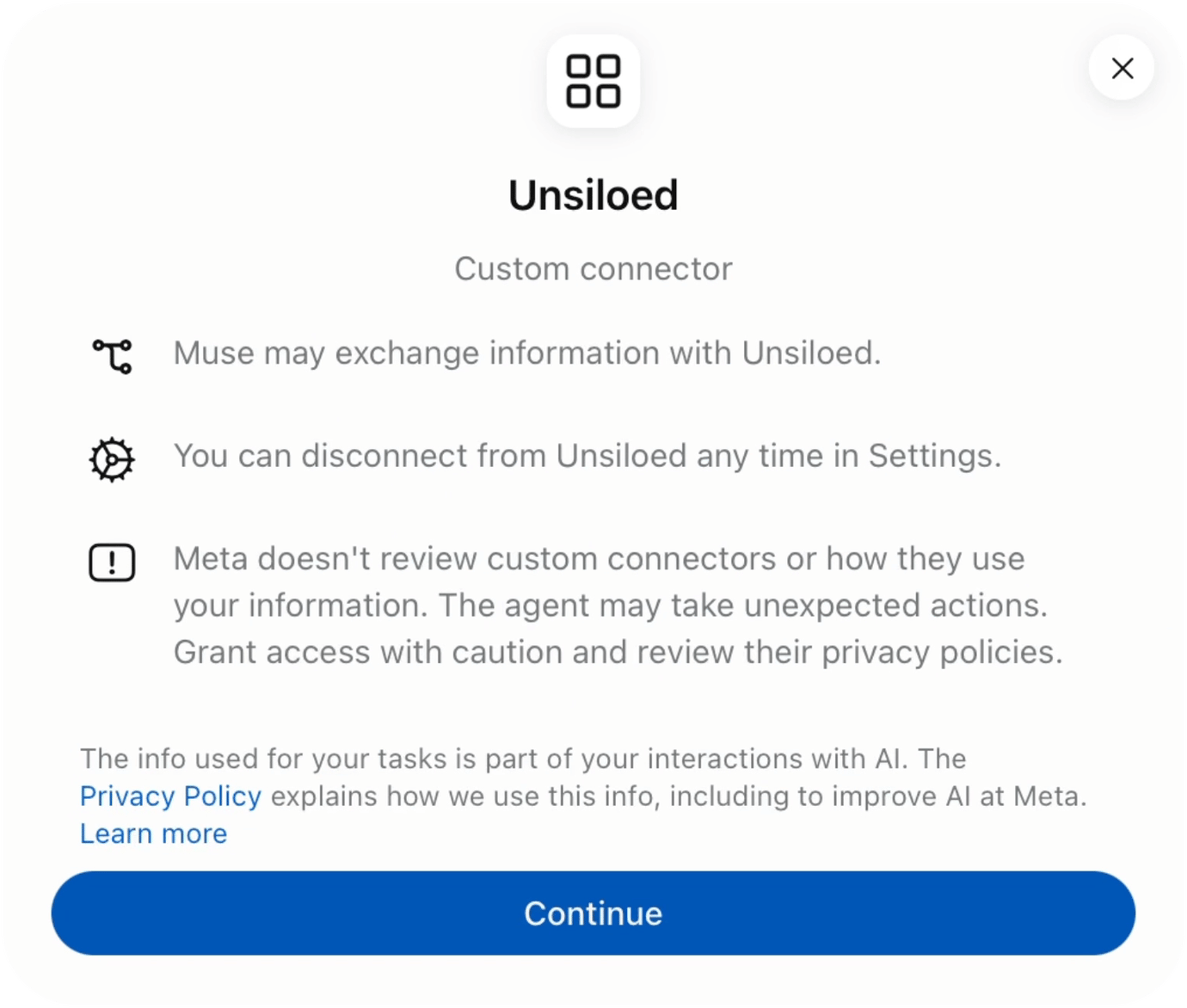
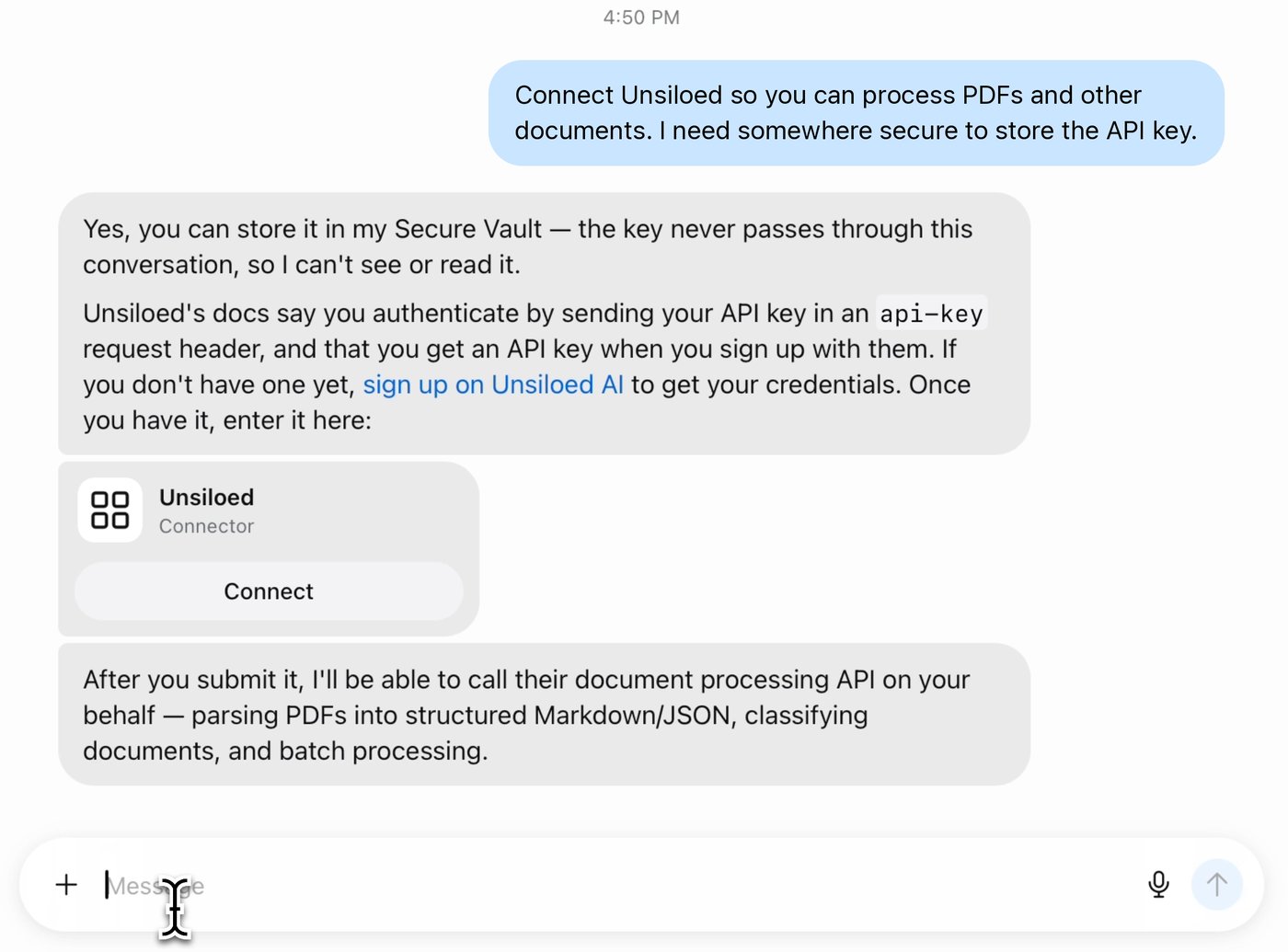 Click **Connect** on the connector card. Muse shows what the custom
connector can do. Click **Continue**.
Click **Connect** on the connector card. Muse shows what the custom
connector can do. Click **Continue**.
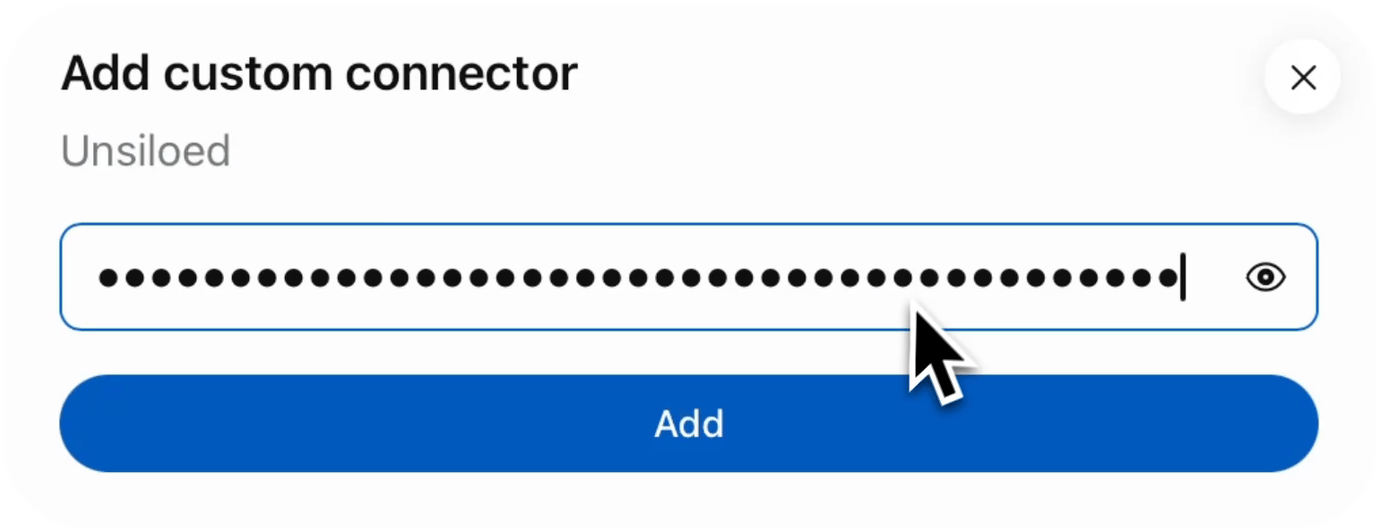
 Paste your Unsiloed API key into the **API key** field and click **Add**.
Muse confirms that Unsiloed is connected.
Paste your Unsiloed API key into the **API key** field and click **Add**.
Muse confirms that Unsiloed is connected.
 ## Process a Document
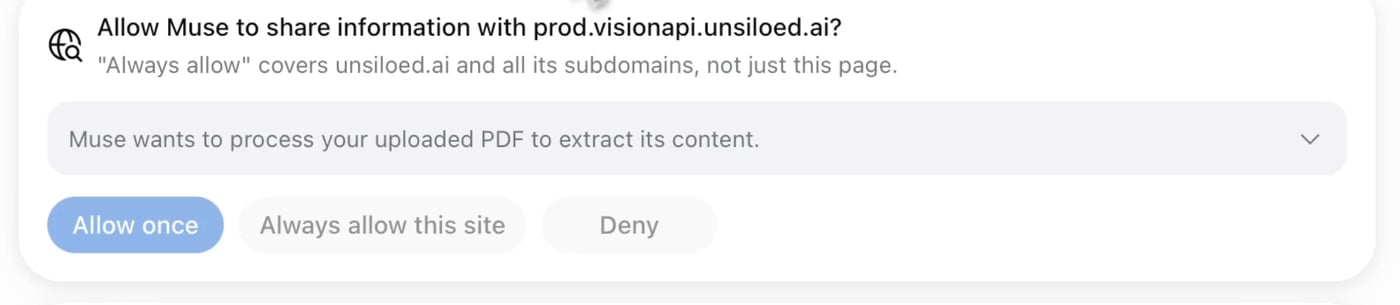
Attach a PDF to the chat and ask Muse to process it. The first time Muse
calls Unsiloed, it asks permission to share information with
`prod.visionapi.unsiloed.ai`. Choose **Allow once** or **Always allow this
site**.
## Process a Document
Attach a PDF to the chat and ask Muse to process it. The first time Muse
calls Unsiloed, it asks permission to share information with
`prod.visionapi.unsiloed.ai`. Choose **Allow once** or **Always allow this
site**.
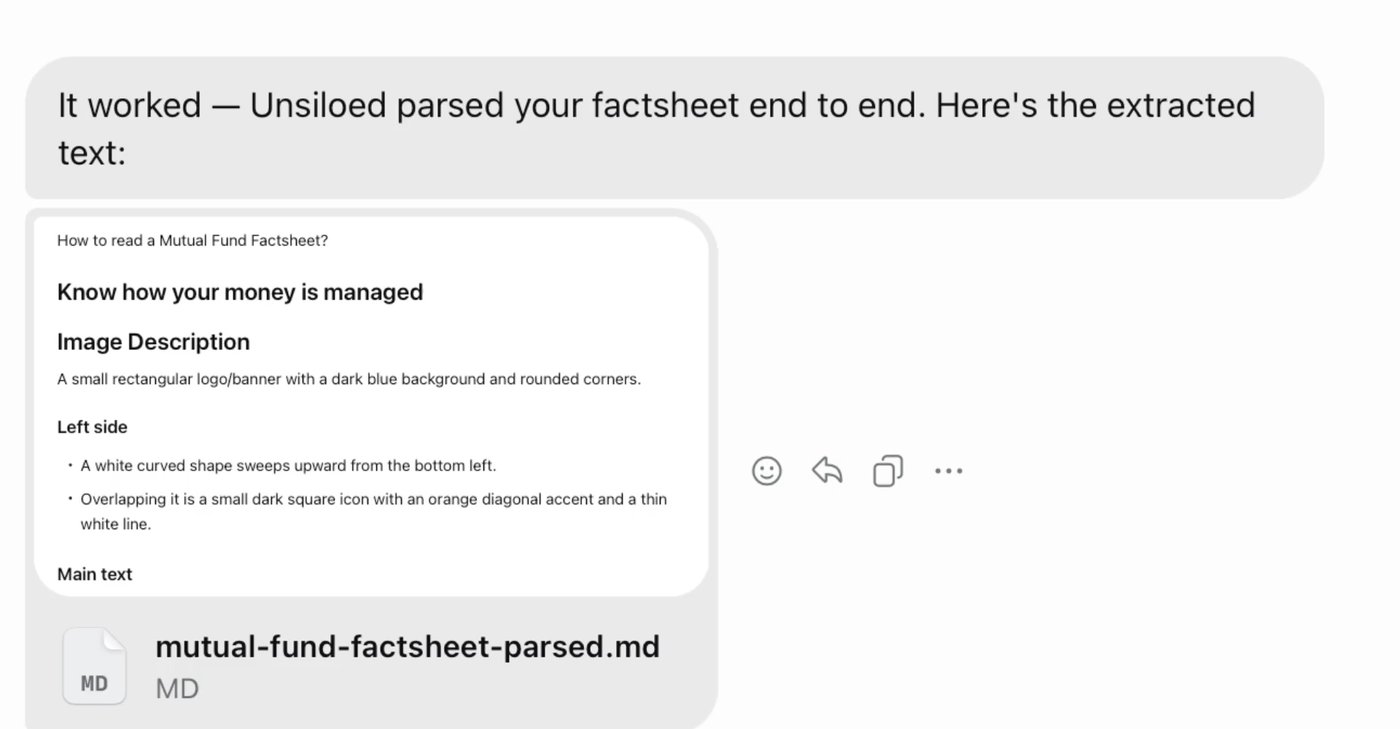
 Muse sends the document to Unsiloed and returns the parsed content as
Markdown, including the document's text, tables, and chart descriptions.
Muse sends the document to Unsiloed and returns the parsed content as
Markdown, including the document's text, tables, and chart descriptions.
 To disconnect Unsiloed, remove the connector in Muse's settings.
This documentation is built and hosted on [Mintlify](https://mintlify.com), a developer documentation platform.
To disconnect Unsiloed, remove the connector in Muse's settings.
This documentation is built and hosted on [Mintlify](https://mintlify.com), a developer documentation platform.