> ## Documentation Index
> Fetch the complete documentation index at: https://docs.unsiloed.ai/docs/llms.txt
> Use this file to discover all available pages before exploring further.
# Extract a Table from an Image in Google Sheets
> Extract a table from an image in Google Sheets and write it to a second sheet with Apps Script and the Unsiloed API.
Everything runs inside Google Sheets. After adding one Apps Script file and an
API key, you can extract tables with a spreadsheet menu command.
## Why Extract Tables in the Sheet
A table might arrive as a screenshot, a photo, or an image embedded in a report.
Retyping it is slow and introduces errors. In this guide, we'll add a menu command
that extracts the table from a selected image and writes it to a second sheet.
The script uses [`/parse`](/docs/document-processing/parsing/parsing) to identify the
document structure, including tables. It doesn't need a predefined schema for
each table layout.
## What We'll Build
A spreadsheet-bound Apps Script that:
1. Reads the image out of the selected cell.
2. Sends it to `/parse` and waits for the job to finish.
3. Finds the first table in the result and turns its HTML into rows.
4. Writes those rows to a new results sheet.
Build the script in [Step 2](#step-2-write-the-script), or copy the completed
version below.
Paste this into `Code.gs`, replacing its contents. The script reads the API key
from a script property configured in [Step 3](#step-3-store-your-api-key).
```javascript Code.gs theme={null}
const BASE_URL = "https://prod.visionapi.unsiloed.ai";
function unsiloedApiKey() {
const apiKey = PropertiesService.getScriptProperties()
.getProperty("UNSILOED_API_KEY");
if (!apiKey) throw new Error("Add UNSILOED_API_KEY to the script properties.");
return apiKey;
}
function onOpen() {
SpreadsheetApp.getUi().createMenu("Unsiloed")
.addItem("Extract Table From Image", "extractTable")
.addToUi();
}
function extractTable() {
const image = SpreadsheetApp.getActiveSheet().getActiveCell().getValue();
if (!image || image.valueType !== SpreadsheetApp.ValueType.IMAGE) {
throw new Error("Select a cell holding an image placed in the cell, not over the grid.");
}
const rows = tableRows(parseImage(imageBlob(image)));
const spreadsheet = SpreadsheetApp.getActiveSpreadsheet();
const sheetName = spreadsheet.getSheetByName("Extracted")
? "Extracted " + Date.now()
: "Extracted";
const sheet = spreadsheet.insertSheet(sheetName);
sheet.getRange(1, 1, rows.length, rows[0].length).setValues(rows);
}
// The cell holds a link to the image, not the bytes themselves.
function imageBlob(image) {
const blob = UrlFetchApp.fetch(image.getContentUrl()).getBlob();
const extensions = {
"image/png": "png",
"image/jpeg": "jpg",
"image/tiff": "tiff"
};
const extension = extensions[blob.getContentType()];
if (!extension) throw new Error("Use a PNG, JPEG, or TIFF image.");
return blob.setName("table." + extension);
}
function parseImage(blob) {
const headers = { "api-key": unsiloedApiKey() };
const started = UrlFetchApp.fetch(BASE_URL + "/parse", {
method: "post",
headers,
payload: { file: blob }
});
const jobId = JSON.parse(started.getContentText()).job_id;
for (let attempt = 0; attempt < 100; attempt++) {
Utilities.sleep(3000);
const response = UrlFetchApp.fetch(BASE_URL + "/parse/" + jobId, {
headers
});
const job = JSON.parse(response.getContentText());
if (job.status === "Succeeded") return job;
if (job.status === "Failed" || job.status === "Cancelled") {
throw new Error(job.message || "Parsing " + job.status.toLowerCase() + ".");
}
}
throw new Error("Parsing took too long.");
}
// No schema needed: /parse returns whatever table the image happens to hold.
function tableRows(job) {
const table = job.chunks
.flatMap(chunk => chunk.segments)
.find(segment => segment.segment_type === "Table");
if (!table) throw new Error("No table found in that image.");
if (!table.html) throw new Error("The detected table contained no HTML.");
const htmlRows = table.html.match(//gi);
if (!htmlRows) throw new Error("The detected table contained no rows.");
const rows = htmlRows.map(tr =>
(tr.match(//gi) || []).map(safeCellText));
if (!rows.some(row => row.length)) {
throw new Error("The detected table contained no cells.");
}
// setValues needs every row the same length, but spanning cells can make rows short.
const width = Math.max(...rows.map(row => row.length));
return rows.map(row => row.concat(Array(width - row.length).fill("")));
}
function safeCellText(cell) {
const text = cell
.replace(//gi, "\n")
.replace(/<[^>]+>/g, "")
.replace(/ /gi, " ")
.replace(/"/gi, '"')
.replace(/'|'/gi, "'")
.replace(/</gi, "<")
.replace(/>/gi, ">")
.replace(/&#(\d+);/g, (_, code) => String.fromCodePoint(Number(code)))
.replace(/&#x([0-9a-f]+);/gi, (_, code) => String.fromCodePoint(parseInt(code, 16)))
.replace(/&/gi, "&")
.trim();
// Prevent document text from becoming a spreadsheet formula.
return /^[=+\-@]/.test(text) ? "'" + text : text;
}
```
## Requirements for Extracting Tables in Google Sheets
Before you start, gather:
* A Google account and a spreadsheet you can edit.
* An Unsiloed API key from the [dashboard](https://app.unsiloed.ai).
* A PNG, JPEG, or TIFF image containing a table. This guide uses a
[fund performance page](https://www.unsiloed.ai/docs/images/fund-performance-original.png)
so you can follow along with the same numbers.
## Step 1: Put the Image in a Cell
Google Sheets can hold an image two ways. **Insert image in cell** makes the image
a cell value. **Insert image over cells** leaves it floating above the grid.
Pasting with Ctrl+V creates the floating kind.
The script can read only an in-cell image. The `OverGridImage` class used for
floating images doesn't expose the image bytes.
Select the cell you want the image in, then choose **Insert → Image → Insert
image in cell**.
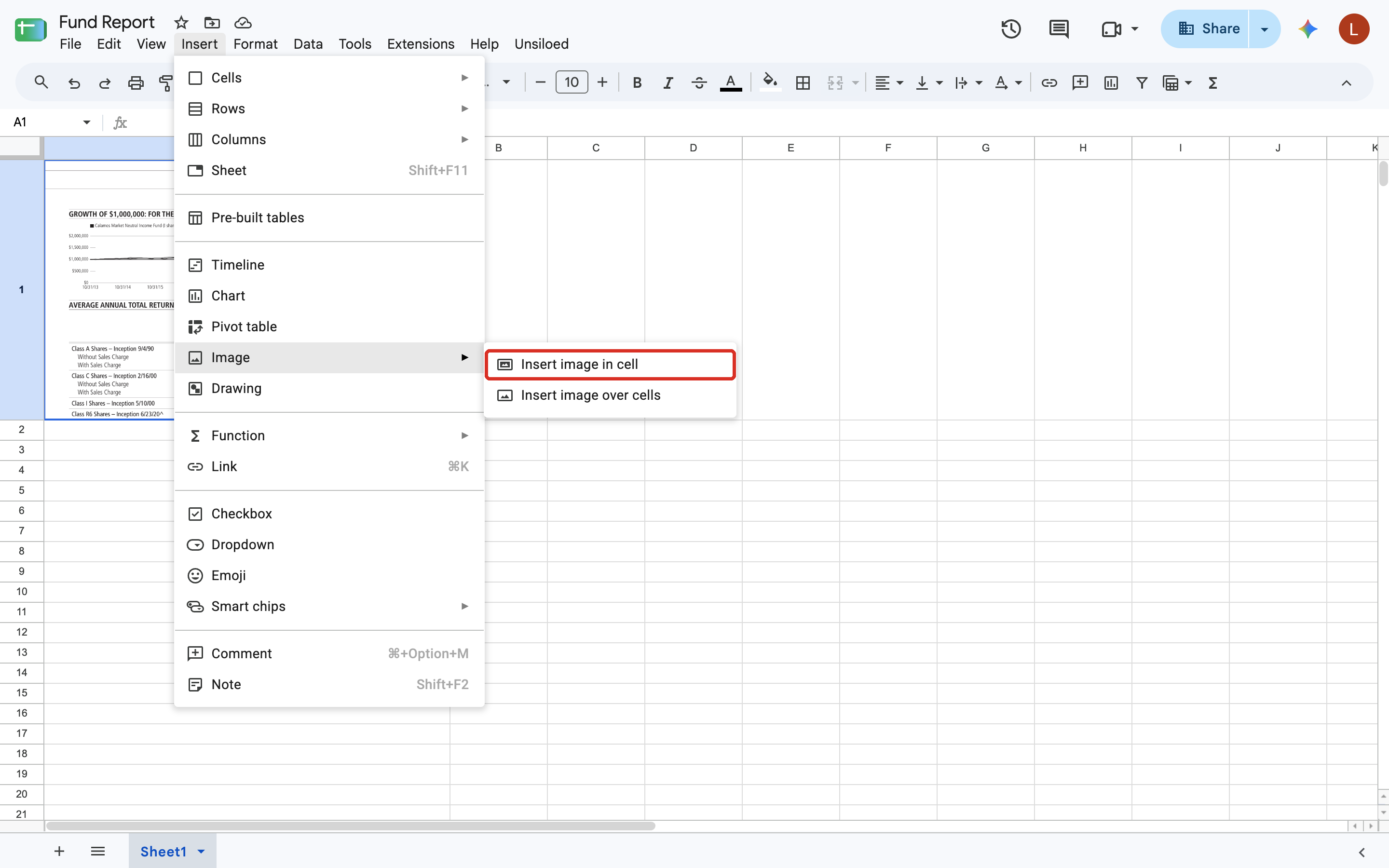 Paste the image URL, or upload a file, and click **Insert**.
The image should sit within the cell borders and resize with the row and
column.
Paste the image URL, or upload a file, and click **Insert**.
The image should sit within the cell borders and resize with the row and
column.
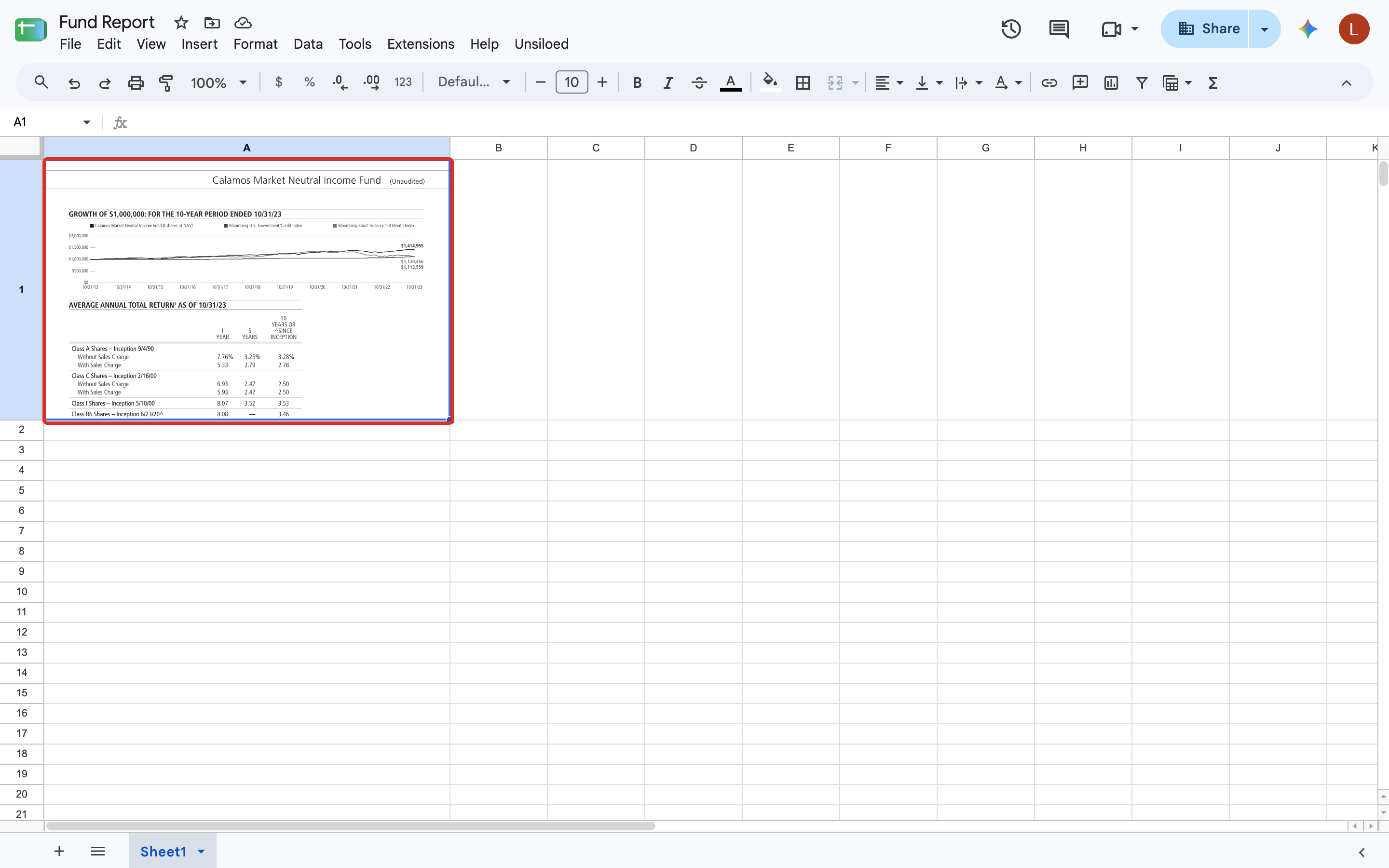 If it floats above the grid, open its three-dot menu and choose **Put image in
cell**.
## Step 2: Write the Script
We'll add the script in sections. If you copied the completed version above, use
this section as a reference.
### 2.1 Open the Script Editor
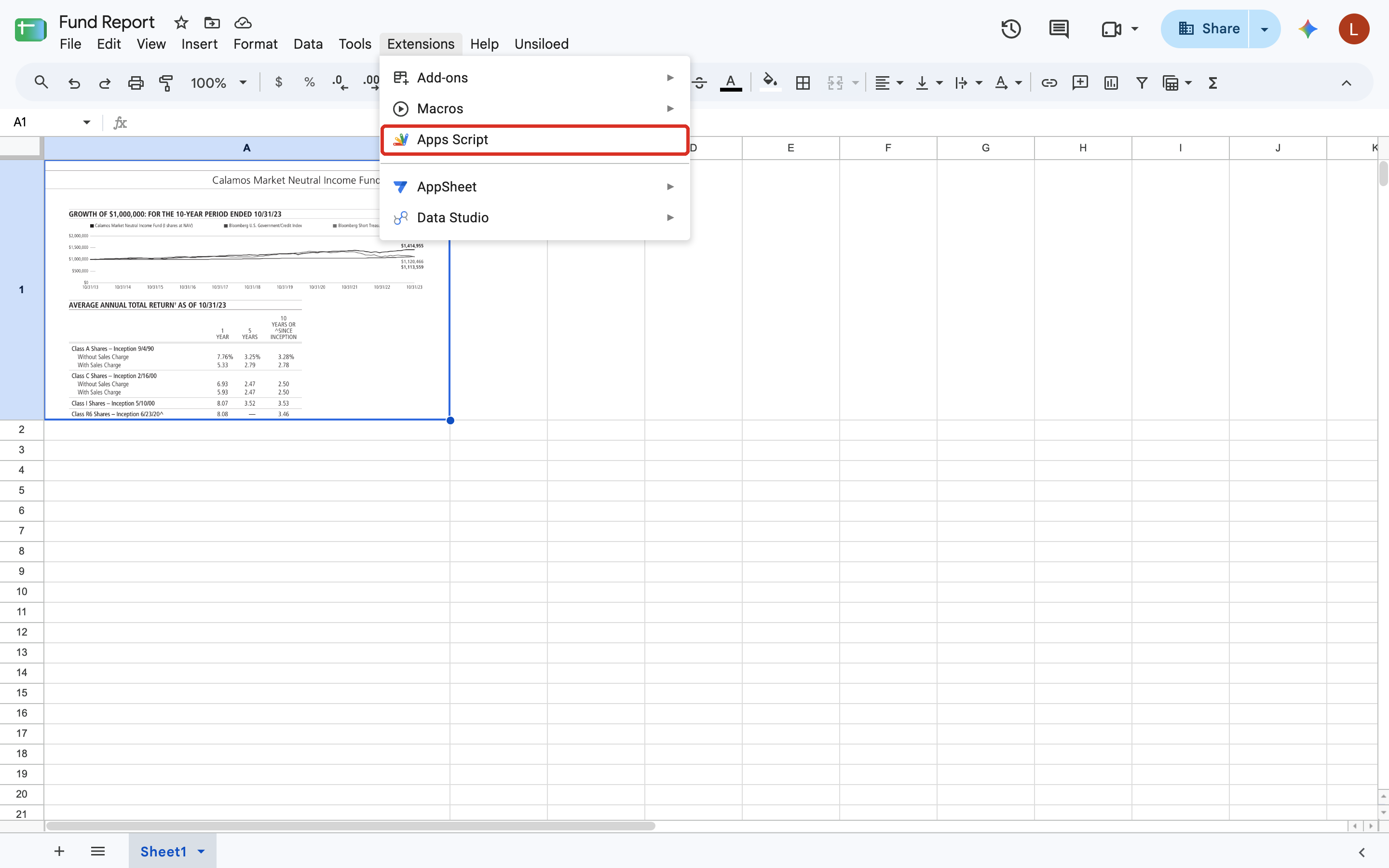
From the spreadsheet, choose **Extensions → Apps Script**. This creates a script
bound to this spreadsheet and opens it in a new tab.
If it floats above the grid, open its three-dot menu and choose **Put image in
cell**.
## Step 2: Write the Script
We'll add the script in sections. If you copied the completed version above, use
this section as a reference.
### 2.1 Open the Script Editor
From the spreadsheet, choose **Extensions → Apps Script**. This creates a script
bound to this spreadsheet and opens it in a new tab.
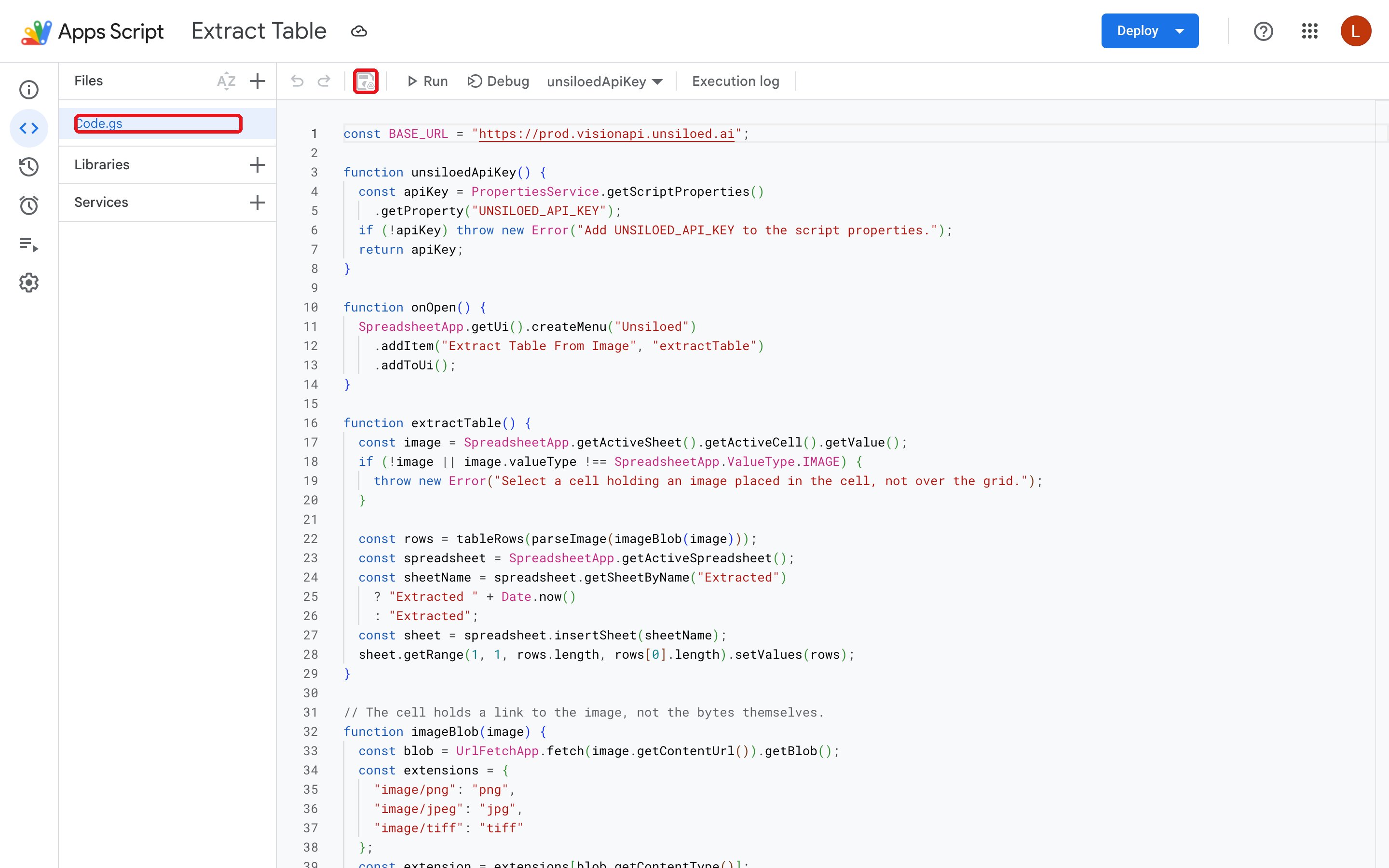
 The editor opens `Code.gs` with an empty `myFunction`. Delete it, then add each
code block below.
The editor opens `Code.gs` with an empty `myFunction`. Delete it, then add each
code block below.
 ### 2.2 Configuration and the Menu
In `Code.gs`, add the API configuration and spreadsheet menu:
```javascript Code.gs theme={null}
const BASE_URL = "https://prod.visionapi.unsiloed.ai";
function unsiloedApiKey() {
const apiKey = PropertiesService.getScriptProperties()
.getProperty("UNSILOED_API_KEY");
if (!apiKey) throw new Error("Add UNSILOED_API_KEY to the script properties.");
return apiKey;
}
function onOpen() {
SpreadsheetApp.getUi().createMenu("Unsiloed")
.addItem("Extract Table From Image", "extractTable")
.addToUi();
}
```
Apps Script runs the reserved `onOpen` function when the spreadsheet opens, which
adds the **Unsiloed** menu. The `unsiloedApiKey` helper reads the current key from
a script property and reports a clear error if it is missing. [Step
3](#step-3-store-your-api-key) configures that property.
### 2.3 Read the Image Out of the Cell
Add `imageBlob` below `onOpen`. The `getValue()` method returns a `CellImage`, so
the function fetches its bytes from a Google-hosted URL:
```javascript Code.gs theme={null}
// The cell holds a link to the image, not the bytes themselves.
function imageBlob(image) {
const blob = UrlFetchApp.fetch(image.getContentUrl()).getBlob();
const extensions = {
"image/png": "png",
"image/jpeg": "jpg",
"image/tiff": "tiff"
};
const extension = extensions[blob.getContentType()];
if (!extension) throw new Error("Use a PNG, JPEG, or TIFF image.");
return blob.setName("table." + extension);
}
```
Keep the `setName` call. The `/parse` endpoint chooses a decoder from the file
extension, so an unnamed blob is rejected. The MIME-type lookup accepts the three
supported image formats and gives the blob a matching filename.
A blob without an extension still returns `200` and a job ID, but the job later
fails with `Unsupported file type`. Check the job status, not only the
submission response.
### 2.4 Send the Image to Parse
Add `parseImage` below `imageBlob`. Because `/parse` is asynchronous, the function
submits the image and polls the job endpoint until parsing succeeds or fails:
```javascript Code.gs theme={null}
function parseImage(blob) {
const headers = { "api-key": unsiloedApiKey() };
const started = UrlFetchApp.fetch(BASE_URL + "/parse", {
method: "post",
headers,
payload: { file: blob }
});
const jobId = JSON.parse(started.getContentText()).job_id;
for (let attempt = 0; attempt < 100; attempt++) {
Utilities.sleep(3000);
const response = UrlFetchApp.fetch(BASE_URL + "/parse/" + jobId, {
headers
});
const job = JSON.parse(response.getContentText());
if (job.status === "Succeeded") return job;
if (job.status === "Failed" || job.status === "Cancelled") {
throw new Error(job.message || "Parsing " + job.status.toLowerCase() + ".");
}
}
throw new Error("Parsing took too long.");
}
```
The `UrlFetchApp` service builds a multipart request from the blob in `payload`
and uses the blob name as its filename.
Menu-driven scripts can run for six minutes, while spreadsheet custom functions
stop after 30 seconds. In our tests, a single-page image usually finishes in
about 20 seconds, but processing time varies. A menu command leaves more room
for slower jobs.
### 2.5 Turn the Table Into Rows
Add `tableRows` below `parseImage`. It finds the first `Table` segment and converts
its `html` field into rows:
```javascript Code.gs theme={null}
// No schema needed: /parse returns whatever table the image happens to hold.
function tableRows(job) {
const table = job.chunks
.flatMap(chunk => chunk.segments)
.find(segment => segment.segment_type === "Table");
if (!table) throw new Error("No table found in that image.");
if (!table.html) throw new Error("The detected table contained no HTML.");
const htmlRows = table.html.match(//gi);
if (!htmlRows) throw new Error("The detected table contained no rows.");
const rows = htmlRows.map(tr =>
(tr.match(//gi) || []).map(safeCellText));
if (!rows.some(row => row.length)) {
throw new Error("The detected table contained no cells.");
}
// setValues needs every row the same length, but spanning cells can make rows short.
const width = Math.max(...rows.map(row => row.length));
return rows.map(row => row.concat(Array(width - row.length).fill("")));
}
function safeCellText(cell) {
const text = cell
.replace(//gi, "\n")
.replace(/<[^>]+>/g, "")
.replace(/ /gi, " ")
.replace(/"/gi, '"')
.replace(/'|'/gi, "'")
.replace(/</gi, "<")
.replace(/>/gi, ">")
.replace(/&#(\d+);/g, (_, code) => String.fromCodePoint(Number(code)))
.replace(/&#x([0-9a-f]+);/gi, (_, code) => String.fromCodePoint(parseInt(code, 16)))
.replace(/&/gi, "&")
.trim();
// Prevent document text from becoming a spreadsheet formula.
return /^[=+\-@]/.test(text) ? "'" + text : text;
}
```
Two details matter here:
* The parser validates that the result contains rows and cells, preserves line
breaks, and decodes common named and numeric HTML entities.
* Formula-leading text gets an apostrophe prefix before `setValues`, preventing
extracted document content from executing as a spreadsheet formula.
* Spanning cells can make some rows shorter. Because `setValues` rejects uneven
rows, the function pads missing cells at the end. It doesn't reproduce complex
`rowspan` or middle-column `colspan` layouts.
`find` takes the first table on the page. See
[Extend the Google Sheets Integration](#extend-the-google-sheets-integration) for
handling several.
### 2.6 Write the Rows to the Sheet
Add `extractTable` below `tableRows`. This menu handler validates the selection,
runs the helpers, and writes the result:
```javascript Code.gs theme={null}
function extractTable() {
const image = SpreadsheetApp.getActiveSheet().getActiveCell().getValue();
if (!image || image.valueType !== SpreadsheetApp.ValueType.IMAGE) {
throw new Error("Select a cell holding an image placed in the cell, not over the grid.");
}
const rows = tableRows(parseImage(imageBlob(image)));
const spreadsheet = SpreadsheetApp.getActiveSpreadsheet();
const sheetName = spreadsheet.getSheetByName("Extracted")
? "Extracted " + Date.now()
: "Extracted";
const sheet = spreadsheet.insertSheet(sheetName);
sheet.getRange(1, 1, rows.length, rows[0].length).setValues(rows);
}
```
The `valueType` check accepts only in-cell images. Each run creates a new sheet,
using a timestamp in the name when `Extracted` already exists, so it never clears
an earlier result. A single `setValues` call writes the full table without making
a separate Sheets request for every cell.
Save `Code.gs`.
## Step 3: Store Your API Key
Store the API key outside the source code so it isn't included when you share or
copy the script.
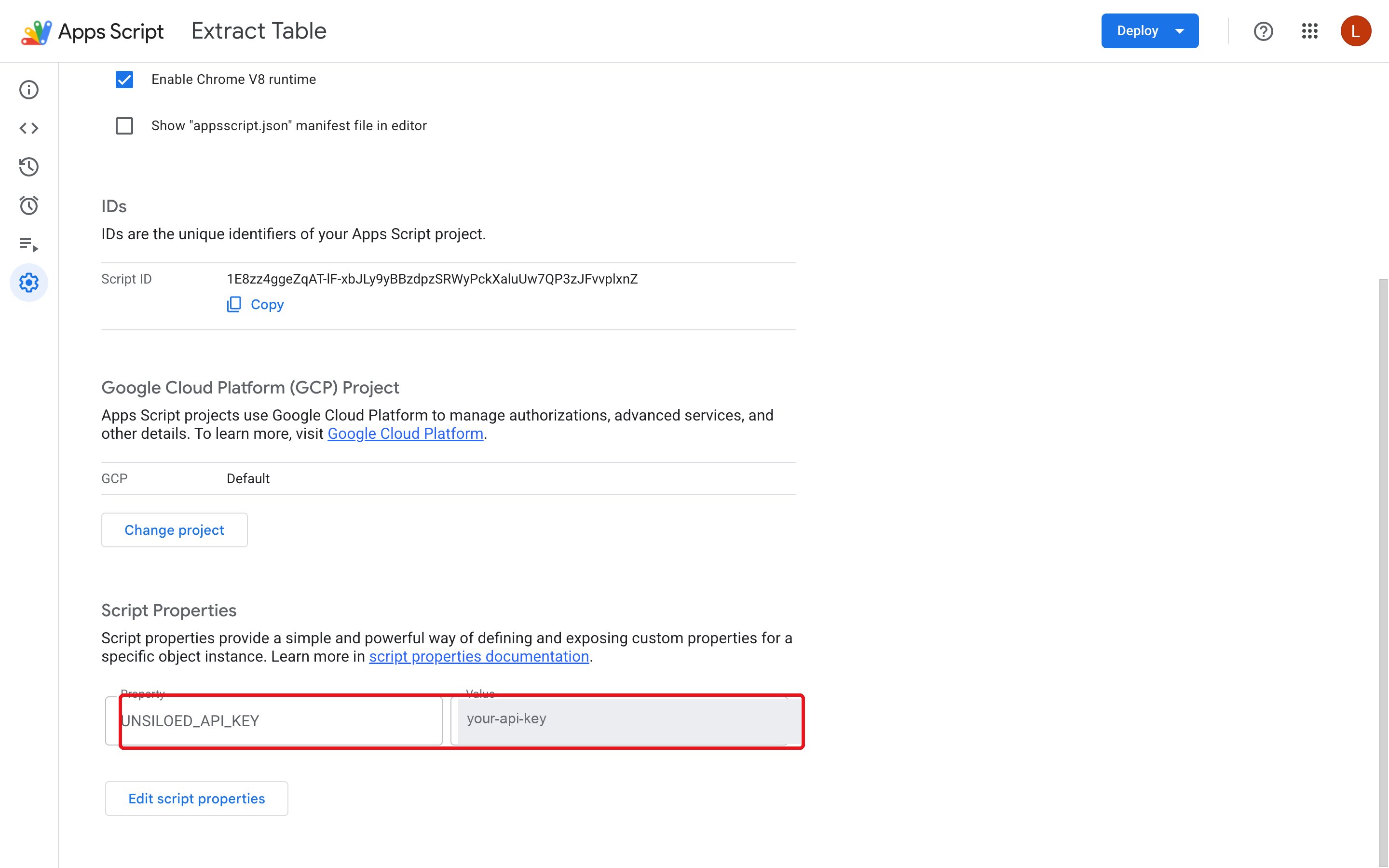
In the Apps Script editor, open **Project Settings** from the left sidebar and
scroll to **Script Properties**. Click **Add script property**. If the project
already has properties, click **Edit script properties** first.
Name it `UNSILOED_API_KEY` and paste your key as the value.
### 2.2 Configuration and the Menu
In `Code.gs`, add the API configuration and spreadsheet menu:
```javascript Code.gs theme={null}
const BASE_URL = "https://prod.visionapi.unsiloed.ai";
function unsiloedApiKey() {
const apiKey = PropertiesService.getScriptProperties()
.getProperty("UNSILOED_API_KEY");
if (!apiKey) throw new Error("Add UNSILOED_API_KEY to the script properties.");
return apiKey;
}
function onOpen() {
SpreadsheetApp.getUi().createMenu("Unsiloed")
.addItem("Extract Table From Image", "extractTable")
.addToUi();
}
```
Apps Script runs the reserved `onOpen` function when the spreadsheet opens, which
adds the **Unsiloed** menu. The `unsiloedApiKey` helper reads the current key from
a script property and reports a clear error if it is missing. [Step
3](#step-3-store-your-api-key) configures that property.
### 2.3 Read the Image Out of the Cell
Add `imageBlob` below `onOpen`. The `getValue()` method returns a `CellImage`, so
the function fetches its bytes from a Google-hosted URL:
```javascript Code.gs theme={null}
// The cell holds a link to the image, not the bytes themselves.
function imageBlob(image) {
const blob = UrlFetchApp.fetch(image.getContentUrl()).getBlob();
const extensions = {
"image/png": "png",
"image/jpeg": "jpg",
"image/tiff": "tiff"
};
const extension = extensions[blob.getContentType()];
if (!extension) throw new Error("Use a PNG, JPEG, or TIFF image.");
return blob.setName("table." + extension);
}
```
Keep the `setName` call. The `/parse` endpoint chooses a decoder from the file
extension, so an unnamed blob is rejected. The MIME-type lookup accepts the three
supported image formats and gives the blob a matching filename.
A blob without an extension still returns `200` and a job ID, but the job later
fails with `Unsupported file type`. Check the job status, not only the
submission response.
### 2.4 Send the Image to Parse
Add `parseImage` below `imageBlob`. Because `/parse` is asynchronous, the function
submits the image and polls the job endpoint until parsing succeeds or fails:
```javascript Code.gs theme={null}
function parseImage(blob) {
const headers = { "api-key": unsiloedApiKey() };
const started = UrlFetchApp.fetch(BASE_URL + "/parse", {
method: "post",
headers,
payload: { file: blob }
});
const jobId = JSON.parse(started.getContentText()).job_id;
for (let attempt = 0; attempt < 100; attempt++) {
Utilities.sleep(3000);
const response = UrlFetchApp.fetch(BASE_URL + "/parse/" + jobId, {
headers
});
const job = JSON.parse(response.getContentText());
if (job.status === "Succeeded") return job;
if (job.status === "Failed" || job.status === "Cancelled") {
throw new Error(job.message || "Parsing " + job.status.toLowerCase() + ".");
}
}
throw new Error("Parsing took too long.");
}
```
The `UrlFetchApp` service builds a multipart request from the blob in `payload`
and uses the blob name as its filename.
Menu-driven scripts can run for six minutes, while spreadsheet custom functions
stop after 30 seconds. In our tests, a single-page image usually finishes in
about 20 seconds, but processing time varies. A menu command leaves more room
for slower jobs.
### 2.5 Turn the Table Into Rows
Add `tableRows` below `parseImage`. It finds the first `Table` segment and converts
its `html` field into rows:
```javascript Code.gs theme={null}
// No schema needed: /parse returns whatever table the image happens to hold.
function tableRows(job) {
const table = job.chunks
.flatMap(chunk => chunk.segments)
.find(segment => segment.segment_type === "Table");
if (!table) throw new Error("No table found in that image.");
if (!table.html) throw new Error("The detected table contained no HTML.");
const htmlRows = table.html.match(//gi);
if (!htmlRows) throw new Error("The detected table contained no rows.");
const rows = htmlRows.map(tr =>
(tr.match(//gi) || []).map(safeCellText));
if (!rows.some(row => row.length)) {
throw new Error("The detected table contained no cells.");
}
// setValues needs every row the same length, but spanning cells can make rows short.
const width = Math.max(...rows.map(row => row.length));
return rows.map(row => row.concat(Array(width - row.length).fill("")));
}
function safeCellText(cell) {
const text = cell
.replace(//gi, "\n")
.replace(/<[^>]+>/g, "")
.replace(/ /gi, " ")
.replace(/"/gi, '"')
.replace(/'|'/gi, "'")
.replace(/</gi, "<")
.replace(/>/gi, ">")
.replace(/&#(\d+);/g, (_, code) => String.fromCodePoint(Number(code)))
.replace(/&#x([0-9a-f]+);/gi, (_, code) => String.fromCodePoint(parseInt(code, 16)))
.replace(/&/gi, "&")
.trim();
// Prevent document text from becoming a spreadsheet formula.
return /^[=+\-@]/.test(text) ? "'" + text : text;
}
```
Two details matter here:
* The parser validates that the result contains rows and cells, preserves line
breaks, and decodes common named and numeric HTML entities.
* Formula-leading text gets an apostrophe prefix before `setValues`, preventing
extracted document content from executing as a spreadsheet formula.
* Spanning cells can make some rows shorter. Because `setValues` rejects uneven
rows, the function pads missing cells at the end. It doesn't reproduce complex
`rowspan` or middle-column `colspan` layouts.
`find` takes the first table on the page. See
[Extend the Google Sheets Integration](#extend-the-google-sheets-integration) for
handling several.
### 2.6 Write the Rows to the Sheet
Add `extractTable` below `tableRows`. This menu handler validates the selection,
runs the helpers, and writes the result:
```javascript Code.gs theme={null}
function extractTable() {
const image = SpreadsheetApp.getActiveSheet().getActiveCell().getValue();
if (!image || image.valueType !== SpreadsheetApp.ValueType.IMAGE) {
throw new Error("Select a cell holding an image placed in the cell, not over the grid.");
}
const rows = tableRows(parseImage(imageBlob(image)));
const spreadsheet = SpreadsheetApp.getActiveSpreadsheet();
const sheetName = spreadsheet.getSheetByName("Extracted")
? "Extracted " + Date.now()
: "Extracted";
const sheet = spreadsheet.insertSheet(sheetName);
sheet.getRange(1, 1, rows.length, rows[0].length).setValues(rows);
}
```
The `valueType` check accepts only in-cell images. Each run creates a new sheet,
using a timestamp in the name when `Extracted` already exists, so it never clears
an earlier result. A single `setValues` call writes the full table without making
a separate Sheets request for every cell.
Save `Code.gs`.
## Step 3: Store Your API Key
Store the API key outside the source code so it isn't included when you share or
copy the script.
In the Apps Script editor, open **Project Settings** from the left sidebar and
scroll to **Script Properties**. Click **Add script property**. If the project
already has properties, click **Edit script properties** first.
Name it `UNSILOED_API_KEY` and paste your key as the value.
 Click **Save script properties**.
Spreadsheet editors can view and modify its bound Apps Script project. Use a
dedicated API key, restrict edit access to trusted collaborators, and rotate
the key if the spreadsheet is shared unexpectedly.
## Step 4: Authorize the Script
The first run asks for permission to edit the spreadsheet and call the Unsiloed
API.
Back in the spreadsheet, reload the page. A new **Unsiloed** menu appears in
the menu bar. Select the cell holding your image and choose **Unsiloed →
Extract Table From Image**.
Google Sheets shows **Authorization required**.
Click **Save script properties**.
Spreadsheet editors can view and modify its bound Apps Script project. Use a
dedicated API key, restrict edit access to trusted collaborators, and rotate
the key if the spreadsheet is shared unexpectedly.
## Step 4: Authorize the Script
The first run asks for permission to edit the spreadsheet and call the Unsiloed
API.
Back in the spreadsheet, reload the page. A new **Unsiloed** menu appears in
the menu bar. Select the cell holding your image and choose **Unsiloed →
Extract Table From Image**.
Google Sheets shows **Authorization required**.
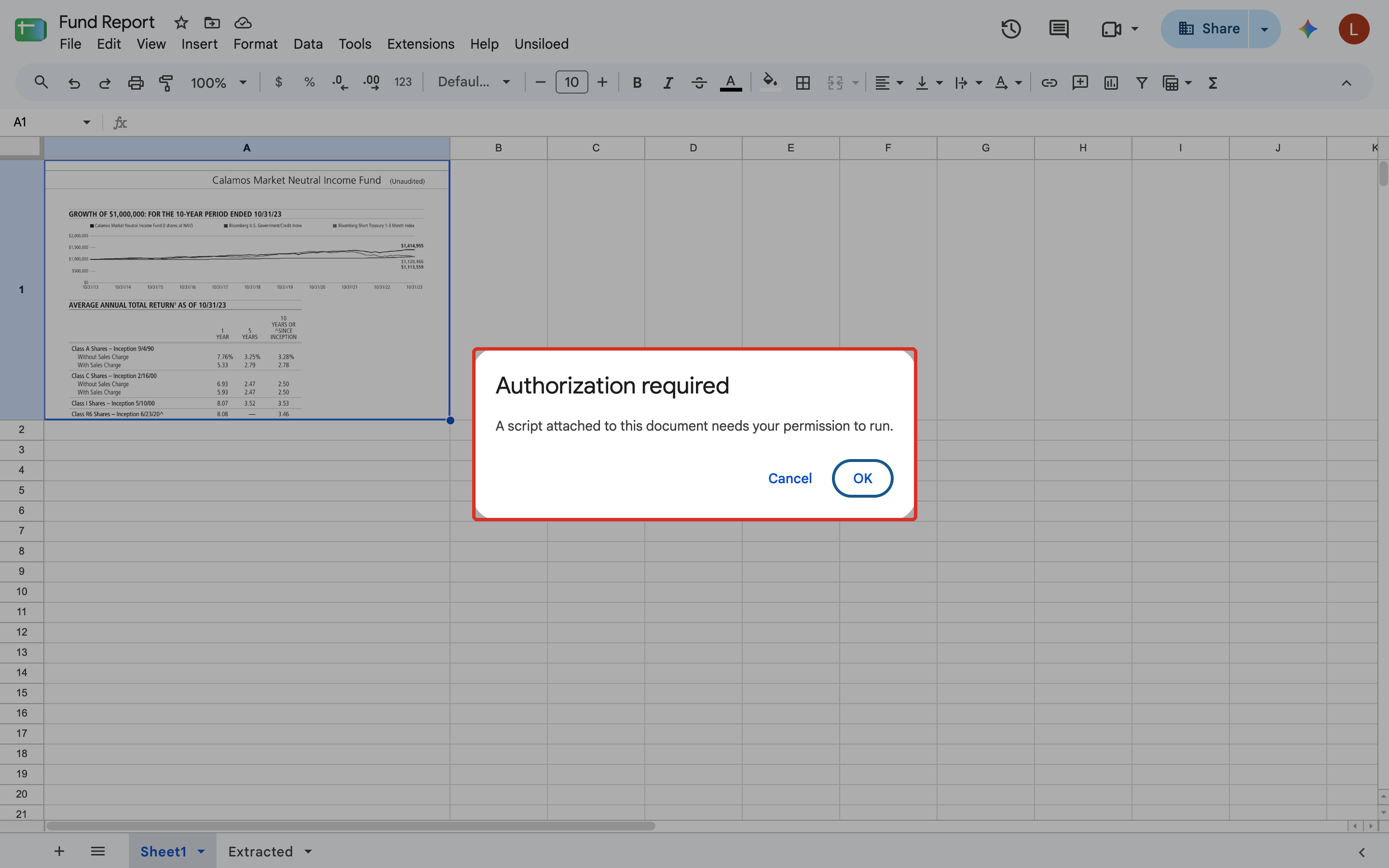 Click **OK**, then pick your Google account in the window that opens.
Google warns that it hasn't verified the app because this is your unpublished
script. Click **Advanced**, then **Go to \ (unsafe)**.
Review the two permissions it asks for and click **Allow**:
* Spreadsheet access to read the image and write the rows
* External service access to call the Unsiloed API
## Step 5: Extract the Table
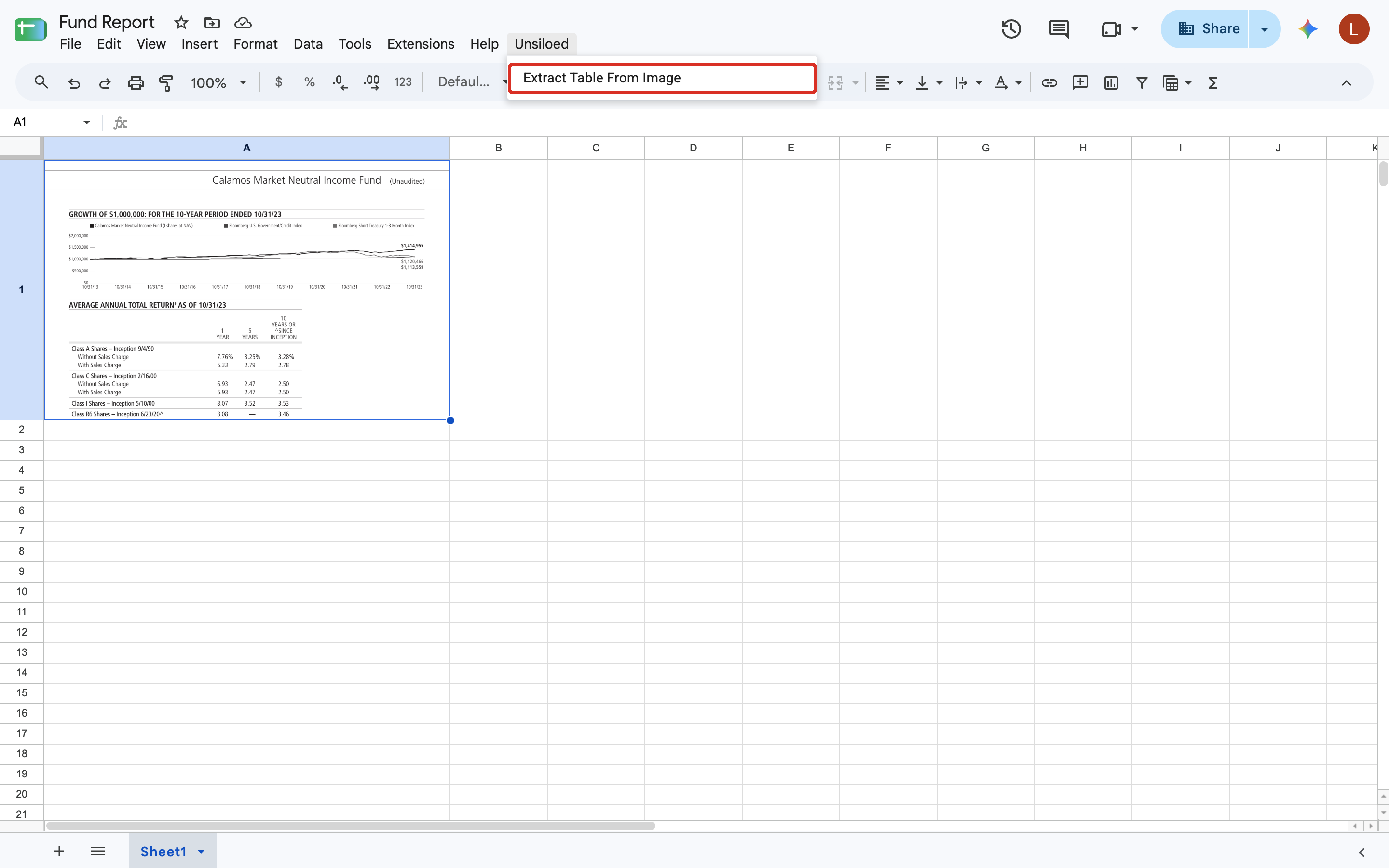
With the script authorized, the menu command is the whole workflow. Select the
cell holding the image and choose **Unsiloed → Extract Table From Image**.
Click **OK**, then pick your Google account in the window that opens.
Google warns that it hasn't verified the app because this is your unpublished
script. Click **Advanced**, then **Go to \ (unsafe)**.
Review the two permissions it asks for and click **Allow**:
* Spreadsheet access to read the image and write the rows
* External service access to call the Unsiloed API
## Step 5: Extract the Table
With the script authorized, the menu command is the whole workflow. Select the
cell holding the image and choose **Unsiloed → Extract Table From Image**.
 In our tests, the script writes the rows in about 20 seconds for a single-page
image. Processing time varies with the image and current service load.
### Sample Output
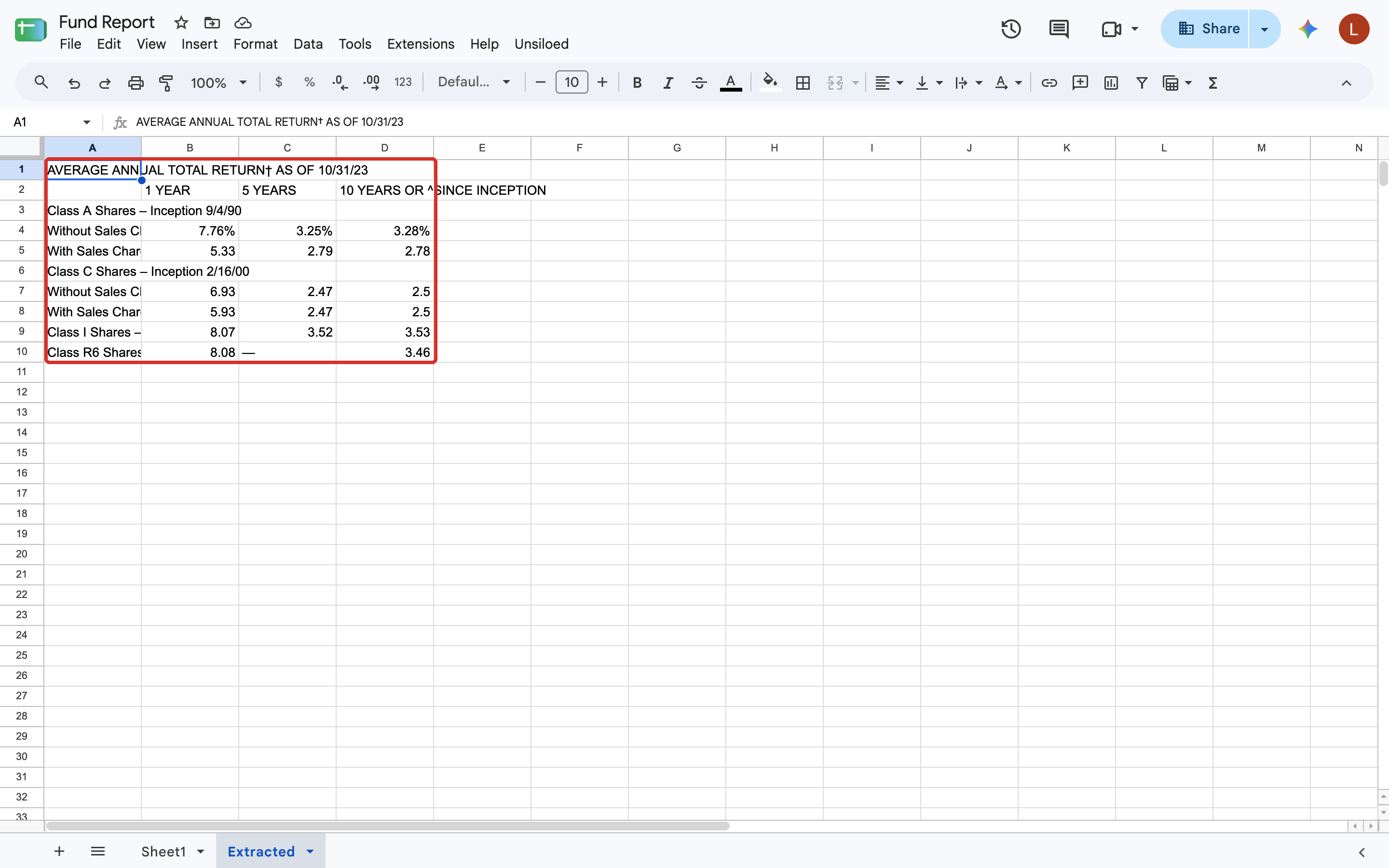
For the sample fund performance page, the `Extracted` sheet preserves the group
rows and the em dash for the missing five-year return:
In our tests, the script writes the rows in about 20 seconds for a single-page
image. Processing time varies with the image and current service load.
### Sample Output
For the sample fund performance page, the `Extracted` sheet preserves the group
rows and the em dash for the missing five-year return:
 ## What to Expect From the Output
The rows preserve the table text rather than normalizing it:
* **Values arrive as text.** `7.76%` keeps its percent sign, and an em dash remains
an em dash. Formula-leading values are escaped before writing. Convert the
values in Sheets if you need numbers.
* **Layout rows come through.** A grouping row like `Class A Shares` arrives as a
label with empty cells beside it, exactly as it sits on the page.
* **Row grouping can vary.** A label and its values might share a row or split
across two rows. Don't write formulas that assume a fixed row offset.
If you need typed values and a fixed set of columns, use
[`/v2/extract`](/docs/document-processing/extraction/extraction) with a schema instead.
This requires a schema but returns typed values in predictable columns.
## Troubleshoot the Script
The selected cell has no in-cell image. Either the wrong cell is selected, or
the image is floating over the grid rather than in a cell. See
[Step 1](#step-1-put-the-image-in-a-cell).
`/parse` found no table. Try a larger or sharper image, especially if the
layout has no ruling lines or consistent columns.
Use a PNG, JPEG, or TIFF image. The script rejects other MIME types before
submission and gives supported blobs a matching file extension.
Reload the spreadsheet to run `onOpen` and rebuild the menu. If it still shows
old items, run `onOpen` once from the Apps Script editor.
The API key is missing or wrong. Check the `UNSILOED_API_KEY` script property,
then run the command again.
## Extend the Google Sheets Integration
The script takes the first table it finds. To pull every table out of a
multi-table page, collect all the `Table` segments instead of calling `find`, and
write each one below the last.
To process many images, place one image per row, loop over the range, and write
each result to its own sheet. Keep enough margin below the six-minute Apps Script
limit for slower jobs and retries. For larger batches, submit every job first,
then poll them together so they run concurrently.
What `/parse` returns for a document, segment by segment.
The full list of segment types, including `Table`.
Pull typed fields against a schema when you need numbers rather than text.
The full request and response specs for `/parse`.
## What to Expect From the Output
The rows preserve the table text rather than normalizing it:
* **Values arrive as text.** `7.76%` keeps its percent sign, and an em dash remains
an em dash. Formula-leading values are escaped before writing. Convert the
values in Sheets if you need numbers.
* **Layout rows come through.** A grouping row like `Class A Shares` arrives as a
label with empty cells beside it, exactly as it sits on the page.
* **Row grouping can vary.** A label and its values might share a row or split
across two rows. Don't write formulas that assume a fixed row offset.
If you need typed values and a fixed set of columns, use
[`/v2/extract`](/docs/document-processing/extraction/extraction) with a schema instead.
This requires a schema but returns typed values in predictable columns.
## Troubleshoot the Script
The selected cell has no in-cell image. Either the wrong cell is selected, or
the image is floating over the grid rather than in a cell. See
[Step 1](#step-1-put-the-image-in-a-cell).
`/parse` found no table. Try a larger or sharper image, especially if the
layout has no ruling lines or consistent columns.
Use a PNG, JPEG, or TIFF image. The script rejects other MIME types before
submission and gives supported blobs a matching file extension.
Reload the spreadsheet to run `onOpen` and rebuild the menu. If it still shows
old items, run `onOpen` once from the Apps Script editor.
The API key is missing or wrong. Check the `UNSILOED_API_KEY` script property,
then run the command again.
## Extend the Google Sheets Integration
The script takes the first table it finds. To pull every table out of a
multi-table page, collect all the `Table` segments instead of calling `find`, and
write each one below the last.
To process many images, place one image per row, loop over the range, and write
each result to its own sheet. Keep enough margin below the six-minute Apps Script
limit for slower jobs and retries. For larger batches, submit every job first,
then poll them together so they run concurrently.
What `/parse` returns for a document, segment by segment.
The full list of segment types, including `Table`.
Pull typed fields against a schema when you need numbers rather than text.
The full request and response specs for `/parse`.