> ## Documentation Index
> Fetch the complete documentation index at: https://docs.unsiloed.ai/docs/llms.txt
> Use this file to discover all available pages before exploring further.
# Extract a Table from an Image or PDF in Microsoft Excel
> Build an Excel task-pane add-in that sends an image or PDF to Unsiloed and writes the first detected table to a worksheet.
This guide uses Excel for the web, so you can follow it on macOS without
installing the Microsoft Office desktop apps.
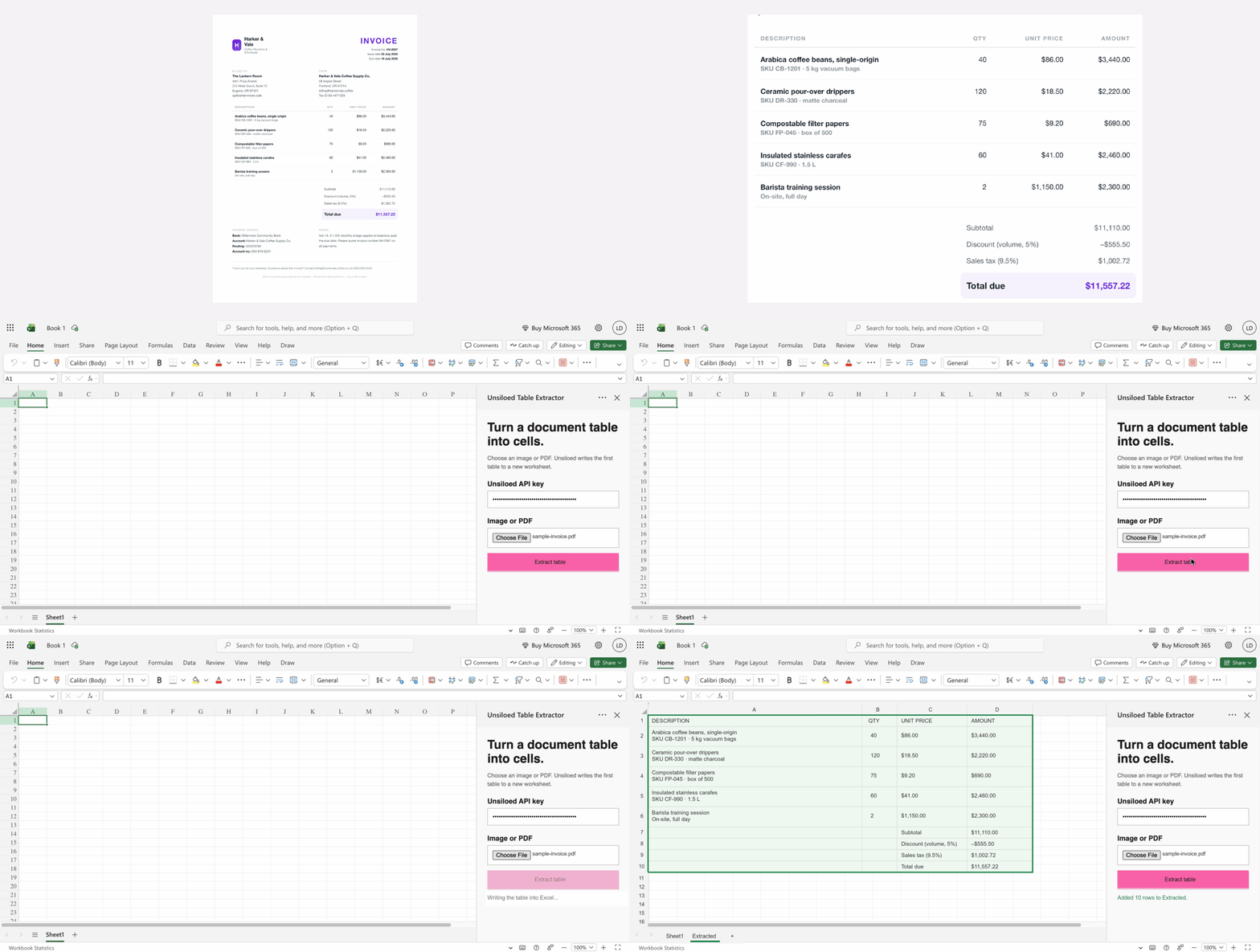
In this guide, we'll build an **Unsiloed Table Extractor** task pane for Excel.
You choose an image or PDF, enter an Unsiloed API key, and click **Extract
table**. The add-in writes the first detected table into a new worksheet.
The finished add-in turns an invoice table into editable Excel cells:
 The project has four parts: a local HTTPS server, an HTML task pane, its
JavaScript behavior, and the XML manifest that connects the page to Excel.
## What You Need
Before you start, gather:
* Node.js 22.12 or higher
* A Microsoft account that can upload custom add-ins in [Excel for the web](https://excel.cloud.microsoft)
* An Unsiloed API key from the [Unsiloed dashboard](https://app.unsiloed.ai)
* The [sample invoice PDF](/docs/images/excel/sample-invoice.pdf)
The account requirement matters because an organization administrator can
disable custom add-in uploads. This guide uses a personal Microsoft account and
Chrome on macOS.
## What We'll Build
The integration follows four operations:
1. Office.js confirms that the page is running inside Excel.
2. The task pane uploads the selected document to Unsiloed and polls the parse job.
3. JavaScript converts the returned table HTML into rows and columns.
4. Office.js writes the resulting array to a new worksheet in one operation.
Build each part in the guide below, or copy the complete project first.
If you want to run the integration without following each explanation, run:
```bash theme={null}
mkdir unsiloed-excel-addin
cd unsiloed-excel-addin
npm init -y
npm install --save-dev vite office-addin-dev-certs
```
Then create the following four files. You can also give this section to a coding
agent and ask it to create the project.
**`vite.config.mjs`**
```javascript vite.config.mjs theme={null}
import { defineConfig } from "vite";
import devCerts from "office-addin-dev-certs";
export default defineConfig(async ({ command }) => {
if (command === "serve") {
const https = await devCerts.getHttpsServerOptions();
return {
server: {
host: "localhost",
port: 3000,
strictPort: true,
https,
},
};
}
return {};
});
```
**`index.html`**
```html index.html theme={null}
Unsiloed Table Extractor
The project has four parts: a local HTTPS server, an HTML task pane, its
JavaScript behavior, and the XML manifest that connects the page to Excel.
## What You Need
Before you start, gather:
* Node.js 22.12 or higher
* A Microsoft account that can upload custom add-ins in [Excel for the web](https://excel.cloud.microsoft)
* An Unsiloed API key from the [Unsiloed dashboard](https://app.unsiloed.ai)
* The [sample invoice PDF](/docs/images/excel/sample-invoice.pdf)
The account requirement matters because an organization administrator can
disable custom add-in uploads. This guide uses a personal Microsoft account and
Chrome on macOS.
## What We'll Build
The integration follows four operations:
1. Office.js confirms that the page is running inside Excel.
2. The task pane uploads the selected document to Unsiloed and polls the parse job.
3. JavaScript converts the returned table HTML into rows and columns.
4. Office.js writes the resulting array to a new worksheet in one operation.
Build each part in the guide below, or copy the complete project first.
If you want to run the integration without following each explanation, run:
```bash theme={null}
mkdir unsiloed-excel-addin
cd unsiloed-excel-addin
npm init -y
npm install --save-dev vite office-addin-dev-certs
```
Then create the following four files. You can also give this section to a coding
agent and ask it to create the project.
**`vite.config.mjs`**
```javascript vite.config.mjs theme={null}
import { defineConfig } from "vite";
import devCerts from "office-addin-dev-certs";
export default defineConfig(async ({ command }) => {
if (command === "serve") {
const https = await devCerts.getHttpsServerOptions();
return {
server: {
host: "localhost",
port: 3000,
strictPort: true,
https,
},
};
}
return {};
});
```
**`index.html`**
```html index.html theme={null}
Unsiloed Table Extractor
Turn a document table into cells.
Choose an image or PDF. Unsiloed writes the first table to a new worksheet.
```
**`taskpane.js`**
```javascript taskpane.js theme={null}
const API_URL = "https://prod.visionapi.unsiloed.ai";
const form = document.querySelector("#form");
const keyInput = document.querySelector("#api-key");
const fileInput = document.querySelector("#file");
const button = document.querySelector("#extract");
const statusMessage = document.querySelector("#status");
let excelReady = false;
let isBusy = false;
Office.onReady((info) => {
excelReady = info.host === Office.HostType.Excel;
updateButton();
if (!excelReady) {
showStatus("Open this page as an Excel add-in.", "error");
}
});
keyInput.addEventListener("input", updateButton);
fileInput.addEventListener("change", updateButton);
form.addEventListener("submit", async (event) => {
event.preventDefault();
const file = fileInput.files[0];
const apiKey = keyInput.value.trim();
if (!file || !apiKey || !excelReady || isBusy) {
return;
}
isBusy = true;
updateButton();
showStatus("Sending the document to Unsiloed…");
try {
const job = await parseDocument(file, apiKey);
const rows = tableRows(job);
showStatus("Writing the table into Excel…");
const sheetName = await writeRows(rows);
showStatus(`Added ${rows.length} rows to ${sheetName}.`, "success");
} catch (error) {
const message =
error instanceof Error
? error.message
: "The table could not be extracted.";
showStatus(message, "error");
} finally {
isBusy = false;
updateButton();
}
});
async function parseDocument(file, apiKey) {
const formData = new FormData();
formData.append("file", file, file.name);
const response = await apiFetch(`${API_URL}/parse`, apiKey, {
method: "POST",
body: formData,
});
const submission = await response.json();
if (!submission.job_id) {
throw new Error("Unsiloed returned no job ID.");
}
return waitForParse(submission.job_id, apiKey);
}
async function waitForParse(jobId, apiKey) {
const timeout = AbortSignal.timeout(5 * 60 * 1000);
try {
while (true) {
await wait(2500, timeout);
const result = await apiFetch(
`${API_URL}/parse/${encodeURIComponent(jobId)}`,
apiKey,
{ signal: timeout },
);
const job = await result.json();
if (job.status === "Succeeded") {
return job;
}
if (job.status === "Failed" || job.status === "Cancelled") {
throw new Error(job.message || `Parsing ${job.status.toLowerCase()}.`);
}
}
} catch (error) {
if (timeout.aborted) {
throw new Error("Parsing took longer than five minutes.");
}
throw error;
}
}
async function apiFetch(url, apiKey, options = {}) {
const response = await fetch(url, {
...options,
headers: {
...options.headers,
"api-key": apiKey,
},
});
if (response.ok) {
return response;
}
const text = await response.text();
let message = text;
try {
const body = JSON.parse(text);
message = body.error?.message || body.message || body.detail || text;
} catch {
// Keep the plain-text response when the API does not return JSON.
}
throw new Error(message || `Unsiloed returned HTTP ${response.status}.`);
}
function wait(milliseconds, signal) {
return new Promise((resolve, reject) => {
if (signal.aborted) {
reject(signal.reason);
return;
}
const finish = () => {
signal.removeEventListener("abort", cancel);
resolve();
};
const cancel = () => {
clearTimeout(timer);
reject(signal.reason);
};
const timer = setTimeout(finish, milliseconds);
signal.addEventListener("abort", cancel, { once: true });
});
}
function tableRows(job) {
const segments = (job.chunks || []).flatMap(
(chunk) => chunk.segments || [],
);
const table = segments.find(
(segment) => segment.segment_type === "Table",
);
if (!table?.html) {
throw new Error("Unsiloed did not find a table.");
}
return htmlTableRows(table.html);
}
function htmlTableRows(html) {
const document = new DOMParser().parseFromString(html, "text/html");
const rowElements = [...document.querySelectorAll("tr")];
const grid = [];
const pending = new Map();
for (const [rowIndex, rowElement] of rowElements.entries()) {
const row = [];
let columnIndex = 0;
const consumePending = () => {
while (pending.has(`${rowIndex}:${columnIndex}`)) {
row[columnIndex] = pending.get(`${rowIndex}:${columnIndex}`);
columnIndex += 1;
}
};
consumePending();
for (const cell of rowElement.querySelectorAll(
":scope > th, :scope > td",
)) {
consumePending();
for (const lineBreak of cell.querySelectorAll("br")) {
lineBreak.replaceWith("\n");
}
const value = safeCellText(cell.textContent || "");
const colspan = positiveSpan(cell.getAttribute("colspan"));
const rowspan = positiveSpan(cell.getAttribute("rowspan"));
for (let x = 0; x < colspan; x += 1) {
row[columnIndex + x] = x === 0 ? value : "";
for (let y = 1; y < rowspan; y += 1) {
pending.set(`${rowIndex + y}:${columnIndex + x}`, "");
}
}
columnIndex += colspan;
}
consumePending();
grid.push(row);
}
const width = Math.max(0, ...grid.map((row) => row.length));
if (width === 0) {
throw new Error("The detected table contained no cells.");
}
return grid.map((row) =>
Array.from({ length: width }, (_, index) => row[index] ?? ""),
);
}
function positiveSpan(rawValue) {
const value = Number.parseInt(rawValue || "1", 10);
return Number.isFinite(value) && value > 0 ? value : 1;
}
function safeCellText(value) {
const text = value.replace(/\u00a0/g, " ").trim();
// A leading apostrophe prevents extracted text from becoming an Excel formula.
return /^[=+\-@]/.test(text) ? `'${text}` : text;
}
async function writeRows(rows) {
return Excel.run(async (context) => {
const sheets = context.workbook.worksheets;
sheets.load("items/name");
await context.sync();
const existingNames = new Set(
sheets.items.map((sheet) => sheet.name.toLowerCase()),
);
let sheetName = "Extracted";
let suffix = 2;
while (existingNames.has(sheetName.toLowerCase())) {
sheetName = `Extracted ${suffix}`;
suffix += 1;
}
const sheet = sheets.add(sheetName);
const range = sheet.getRangeByIndexes(
0,
0,
rows.length,
rows[0].length,
);
range.numberFormat = rows.map((row) => row.map(() => "@"));
range.values = rows;
range.format.autofitColumns();
range.format.autofitRows();
sheet.activate();
range.select();
await context.sync();
return sheetName;
});
}
function updateButton() {
const missingInput = !keyInput.value.trim() || !fileInput.files.length;
button.disabled = isBusy || !excelReady || missingInput;
}
function showStatus(message, type = "") {
statusMessage.textContent = message;
statusMessage.className = type;
}
```
**`manifest.xml`**
```xml manifest.xml theme={null}
e8d967ef-5e99-4e86-88fd-57efb72c6ae8
1.0.0.0
Unsiloed AI
en-US
ReadWriteDocument
```
Continue at [Step 5](#step-5-start-the-add-in) to run and load the completed
add-in.
## Step 1: Create the Project
Open Terminal and run:
```bash theme={null}
mkdir unsiloed-excel-addin
cd unsiloed-excel-addin
npm init -y
npm install --save-dev vite office-addin-dev-certs
```
Vite serves the task-pane page while we develop it. The certificate helper
creates a local certificate that Office trusts, because Office add-ins must use
HTTPS even during local development.
## Step 2: Serve the Add-in over HTTPS
Create `vite.config.mjs` in the `unsiloed-excel-addin` directory:
```javascript vite.config.mjs theme={null}
import { defineConfig } from "vite";
import devCerts from "office-addin-dev-certs";
export default defineConfig(async ({ command }) => {
if (command === "serve") {
const https = await devCerts.getHttpsServerOptions();
return {
server: {
host: "localhost",
port: 3000,
strictPort: true,
https,
},
};
}
return {};
});
```
The `command === "serve"` check limits certificate setup to the development
server. A production build doesn't need the local certificate. `strictPort`
keeps the URL predictable: if port 3000 is busy, Vite reports the conflict
instead of choosing a different URL that no longer matches the manifest.
## Step 3: Build the Task Pane
The task pane separates presentation from behavior. We'll first assemble
`index.html`, then build `taskpane.js` in the same order that data moves
through the integration.
### 3.1 Create the HTML Page
Create `index.html` beside `vite.config.mjs`:
```html index.html theme={null}
Unsiloed Table Extractor
Turn a document table into cells.
Choose an image or PDF. Unsiloed writes the first table to a new worksheet.
```
The first script loads Office.js from Microsoft's content delivery network. It
supplies the `Office` and `Excel` objects used later. The final script loads our
code as a JavaScript module after the form exists in the page.
The API key uses a password input, but the browser still holds its value in
memory. This recipe doesn't put the key in the workbook or browser storage.
### 3.2 Add Task-Pane Styles
Inside the `` element of `index.html`, add this `
```
An Office task pane is a narrow browser window. The fixed content width and
full-width controls keep the form usable when the reader resizes the pane. The
`error` and `success` classes let the JavaScript report progress without
using browser alerts.
### 3.3 Connect the Interface to Excel
Create `taskpane.js` beside `index.html` and add:
```javascript taskpane.js theme={null}
const API_URL = "https://prod.visionapi.unsiloed.ai";
const form = document.querySelector("#form");
const keyInput = document.querySelector("#api-key");
const fileInput = document.querySelector("#file");
const button = document.querySelector("#extract");
const statusMessage = document.querySelector("#status");
let excelReady = false;
let isBusy = false;
```
The constants keep stable references to the controls. The two booleans track
whether Office.js has connected to Excel and whether an extraction is already
running.
Below those declarations in `taskpane.js`, add the Office readiness and input
listeners:
```javascript taskpane.js theme={null}
Office.onReady((info) => {
excelReady = info.host === Office.HostType.Excel;
updateButton();
if (!excelReady) {
showStatus("Open this page as an Excel add-in.", "error");
}
});
keyInput.addEventListener("input", updateButton);
fileInput.addEventListener("change", updateButton);
```
A task pane is a web page, but the Excel APIs aren't ready when the browser first
parses it. `Office.onReady` runs after Office connects the page to its host. We
enable extraction only when that host is Excel and both form fields have values.
### 3.4 Coordinate the Extraction
Continue `taskpane.js` with the form's submit handler:
```javascript taskpane.js theme={null}
form.addEventListener("submit", async (event) => {
event.preventDefault();
const file = fileInput.files[0];
const apiKey = keyInput.value.trim();
if (!file || !apiKey || !excelReady || isBusy) {
return;
}
isBusy = true;
updateButton();
showStatus("Sending the document to Unsiloed…");
try {
const job = await parseDocument(file, apiKey);
const rows = tableRows(job);
showStatus("Writing the table into Excel…");
const sheetName = await writeRows(rows);
showStatus(`Added ${rows.length} rows to ${sheetName}.`, "success");
} catch (error) {
const message =
error instanceof Error
? error.message
: "The table could not be extracted.";
showStatus(message, "error");
} finally {
isBusy = false;
updateButton();
}
});
```
This function contains orchestration rather than API details. Reading the
`try` block from top to bottom shows the application flow: parse the file,
convert a table to rows, and write those rows to Excel. Each operation lives in
a focused helper function below.
The `isBusy` guard prevents a second submission while the first job is running.
The `finally` block clears it after either success or failure, so the reader can
retry without reloading the add-in.
### 3.5 Send and Poll the Parse Job
Add the function that uploads the file:
```javascript taskpane.js theme={null}
async function parseDocument(file, apiKey) {
const formData = new FormData();
formData.append("file", file, file.name);
const response = await apiFetch(`${API_URL}/parse`, apiKey, {
method: "POST",
body: formData,
});
const submission = await response.json();
if (!submission.job_id) {
throw new Error("Unsiloed returned no job ID.");
}
return waitForParse(submission.job_id, apiKey);
}
```
The `FormData` object creates the `multipart/form-data` request expected by
`POST /parse`. Unsiloed returns a job ID rather than the completed document,
because parsing can take longer than a single HTTP request should remain open.
The final line hands that ID to a separate polling function. Below
`parseDocument`, add the bounded polling loop:
```javascript taskpane.js theme={null}
async function waitForParse(jobId, apiKey) {
const timeout = AbortSignal.timeout(5 * 60 * 1000);
try {
while (true) {
await wait(2500, timeout);
const result = await apiFetch(
`${API_URL}/parse/${encodeURIComponent(jobId)}`,
apiKey,
{ signal: timeout },
);
const job = await result.json();
if (job.status === "Succeeded") {
return job;
}
if (job.status === "Failed" || job.status === "Cancelled") {
throw new Error(job.message || `Parsing ${job.status.toLowerCase()}.`);
}
}
} catch (error) {
if (timeout.aborted) {
throw new Error("Parsing took longer than five minutes.");
}
throw error;
}
}
```
The loop checks `GET /parse/{job_id}` every 2.5 seconds. It returns the job as
soon as Unsiloed reports `Succeeded`, surfaces terminal failures immediately,
and passes one abort signal to both the delays and network requests. That signal
ends the entire polling phase after five minutes, including a stalled request.
Continue `taskpane.js` with the authenticated request and abortable delay
helpers:
```javascript taskpane.js theme={null}
async function apiFetch(url, apiKey, options = {}) {
const response = await fetch(url, {
...options,
headers: {
...options.headers,
"api-key": apiKey,
},
});
if (response.ok) {
return response;
}
const text = await response.text();
let message = text;
try {
const body = JSON.parse(text);
message = body.error?.message || body.message || body.detail || text;
} catch {
// Keep the plain-text response when the API does not return JSON.
}
throw new Error(message || `Unsiloed returned HTTP ${response.status}.`);
}
function wait(milliseconds, signal) {
return new Promise((resolve, reject) => {
if (signal.aborted) {
reject(signal.reason);
return;
}
const finish = () => {
signal.removeEventListener("abort", cancel);
resolve();
};
const cancel = () => {
clearTimeout(timer);
reject(signal.reason);
};
const timer = setTimeout(finish, milliseconds);
signal.addEventListener("abort", cancel, { once: true });
});
}
```
Every Unsiloed request needs the `api-key` header. Centralizing that header in
`apiFetch` avoids repeating authentication code in the upload and polling
functions. The helper also turns unsuccessful responses into JavaScript errors,
which the submit handler already knows how to display. The delay helper listens
to the same abort signal as `fetch`, so the deadline covers both waiting and
network activity.
### 3.6 Convert Table HTML into a Grid
Add the table conversion functions:
```javascript taskpane.js theme={null}
function tableRows(job) {
const segments = (job.chunks || []).flatMap(
(chunk) => chunk.segments || [],
);
const table = segments.find(
(segment) => segment.segment_type === "Table",
);
if (!table?.html) {
throw new Error("Unsiloed did not find a table.");
}
return htmlTableRows(table.html);
}
function htmlTableRows(html) {
const document = new DOMParser().parseFromString(html, "text/html");
const rowElements = [...document.querySelectorAll("tr")];
const grid = [];
const pending = new Map();
for (const [rowIndex, rowElement] of rowElements.entries()) {
const row = [];
let columnIndex = 0;
const consumePending = () => {
while (pending.has(`${rowIndex}:${columnIndex}`)) {
row[columnIndex] = pending.get(`${rowIndex}:${columnIndex}`);
columnIndex += 1;
}
};
consumePending();
for (const cell of rowElement.querySelectorAll(
":scope > th, :scope > td",
)) {
consumePending();
for (const lineBreak of cell.querySelectorAll("br")) {
lineBreak.replaceWith("\n");
}
const value = safeCellText(cell.textContent || "");
const colspan = positiveSpan(cell.getAttribute("colspan"));
const rowspan = positiveSpan(cell.getAttribute("rowspan"));
for (let x = 0; x < colspan; x += 1) {
row[columnIndex + x] = x === 0 ? value : "";
for (let y = 1; y < rowspan; y += 1) {
pending.set(`${rowIndex + y}:${columnIndex + x}`, "");
}
}
columnIndex += colspan;
}
consumePending();
grid.push(row);
}
const width = Math.max(0, ...grid.map((row) => row.length));
if (width === 0) {
throw new Error("The detected table contained no cells.");
}
return grid.map((row) =>
Array.from({ length: width }, (_, index) => row[index] ?? ""),
);
}
function positiveSpan(rawValue) {
const value = Number.parseInt(rawValue || "1", 10);
return Number.isFinite(value) && value > 0 ? value : 1;
}
function safeCellText(value) {
const text = value.replace(/\u00a0/g, " ").trim();
// A leading apostrophe prevents extracted text from becoming an Excel formula.
return /^[=+\-@]/.test(text) ? `'${text}` : text;
}
```
The parse response organizes content as chunks containing segments. We flatten
those segments, select the first `Table`, and use the browser's `DOMParser`
to read its HTML rows and cells.
The `pending` map reserves positions covered by `rowspan`, while the nested
loops expand `colspan` into empty placeholders. Replacing `
` elements with
newlines preserves multiline descriptions in a single Excel cell. The final
mapping pads every row to the same width.
The `safeCellText` function prefixes values beginning with `=`, `+`, `-`, or
`@` with an apostrophe. Excel then treats untrusted document content as text
instead of a formula.
### 3.7 Write the Grid and Finish the Interface
Continue `taskpane.js` with:
```javascript taskpane.js theme={null}
async function writeRows(rows) {
return Excel.run(async (context) => {
const sheets = context.workbook.worksheets;
sheets.load("items/name");
await context.sync();
const existingNames = new Set(
sheets.items.map((sheet) => sheet.name.toLowerCase()),
);
let sheetName = "Extracted";
let suffix = 2;
while (existingNames.has(sheetName.toLowerCase())) {
sheetName = `Extracted ${suffix}`;
suffix += 1;
}
const sheet = sheets.add(sheetName);
const range = sheet.getRangeByIndexes(
0,
0,
rows.length,
rows[0].length,
);
range.numberFormat = rows.map((row) => row.map(() => "@"));
range.values = rows;
range.format.autofitColumns();
range.format.autofitRows();
sheet.activate();
range.select();
await context.sync();
return sheetName;
});
}
```
Office.js uses a queued object model. `sheets.load("items/name")` requests the
existing worksheet names, and the first `context.sync()` retrieves them. We
use those names to avoid overwriting a previous extraction.
Setting every destination cell's number format to `@` makes Excel preserve
values such as `00124`, `$86.00`, and `02 July 2026` as extracted text.
Assigning `rows` to `range.values` then queues the complete table as a single
write. The second `context.sync()` sends the write, formatting, activation, and
selection operations to Excel together.
Finish `taskpane.js` with the interface helpers:
```javascript taskpane.js theme={null}
function updateButton() {
const missingInput = !keyInput.value.trim() || !fileInput.files.length;
button.disabled = isBusy || !excelReady || missingInput;
}
function showStatus(message, type = "") {
statusMessage.textContent = message;
statusMessage.className = type;
}
```
The button stays disabled when Excel isn't ready, either input is missing, or
an extraction is already running. At this point, `taskpane.js` should match the
complete version at the top of the guide.
## Step 4: Describe the Add-in to Excel
Excel doesn't discover a local web page by itself. The manifest identifies the
add-in, declares where it can run, points Excel to the task pane, and requests
workbook access.
### 4.1 Add the Identity and Display Details
Create `manifest.xml` beside the other project files and add:
```xml manifest.xml theme={null}
e8d967ef-5e99-4e86-88fd-57efb72c6ae8
1.0.0.0
Unsiloed AI
en-US
```
The first line declares an XML file encoded as UTF-8. The two namespace URLs
identify Microsoft's Office manifest vocabulary and the XML Schema Instance
vocabulary; Excel uses the latter to interpret `xsi:type="TaskPaneApp"`. The
URLs are identifiers, not pages the add-in downloads at runtime.
The remaining elements describe the add-in:
* `Id` is a stable UUID that distinguishes this add-in from others. Keep this
value for the recipe, or generate a new UUID with `uuidgen` when adapting it.
* `Version` tracks releases of the add-in rather than the Office.js version.
* `ProviderName` and `DefaultLocale` identify the publisher and fallback language.
* `DisplayName` and `Description` appear in Excel's add-in interface.
* `IconUrl` and `SupportUrl` provide the metadata expected by Microsoft's
distribution validator.
The root element remains open because we'll add Excel-specific settings next.
`IconUrl` and `SupportUrl` are formally optional for local sideloading, but
Microsoft's distribution validator expects them. They do not affect the
localhost connection.
### 4.2 Grant Excel Access and Load the Page
Append the rest of the manifest:
```xml manifest.xml theme={null}
ReadWriteDocument
```
The `Workbook` host restricts this add-in to Excel. `SourceLocation` must
match the HTTPS host and port in `vite.config.mjs`; it tells Excel which page
to place in the task pane. `ReadWriteDocument` allows Office.js to create the
worksheet and write the extracted values.
The manifest contains no API credentials. Excel uses it only to register the
add-in and decide what workbook access to grant.
## Step 5: Start the Add-in
From `unsiloed-excel-addin`, run:
```bash theme={null}
npx vite
```
The first run may ask for your macOS password to trust the localhost
certificate. Keep this Terminal window open.
Open this page in Chrome and confirm that it doesn't show a certificate warning:
```text theme={null}
https://localhost:3000/index.html
```
The page says **Open this page as an Excel add-in** when viewed directly. That is
expected because Office.js isn't connected to a workbook yet.
When Excel loads the localhost task pane, Chrome may ask whether Excel can
connect to devices on your local network. Click **Allow**. Chrome treats a
public site loading a loopback URL as local network access.
## Step 6: Load the Add-in in Excel
Open [Excel for the web](https://excel.cloud.microsoft), sign in, and create a
blank workbook.
Microsoft uses different labels for the custom add-in menu across account
types. If **Manage My Add-ins** isn't present, look for **More Settings** or
**Advanced**. The [Microsoft sideloading guide](https://learn.microsoft.com/en-us/office/dev/add-ins/testing/sideload-office-add-ins-for-testing)
documents the current routes. If none of these options appears, your
organization may have disabled custom add-ins; use a personal account or ask
your administrator to enable sideloading.
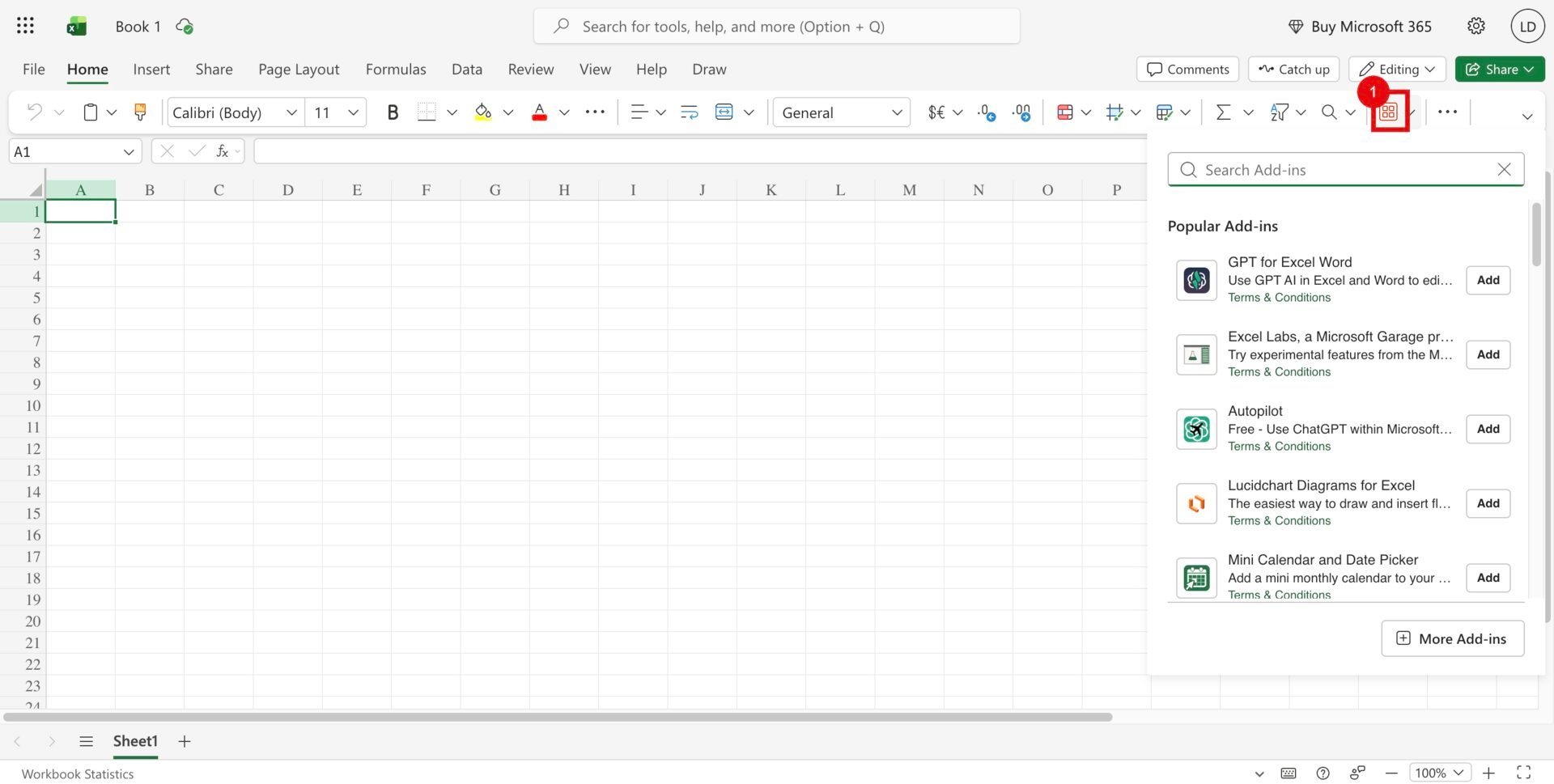
On the **Home** tab, click **Add-ins** (1).
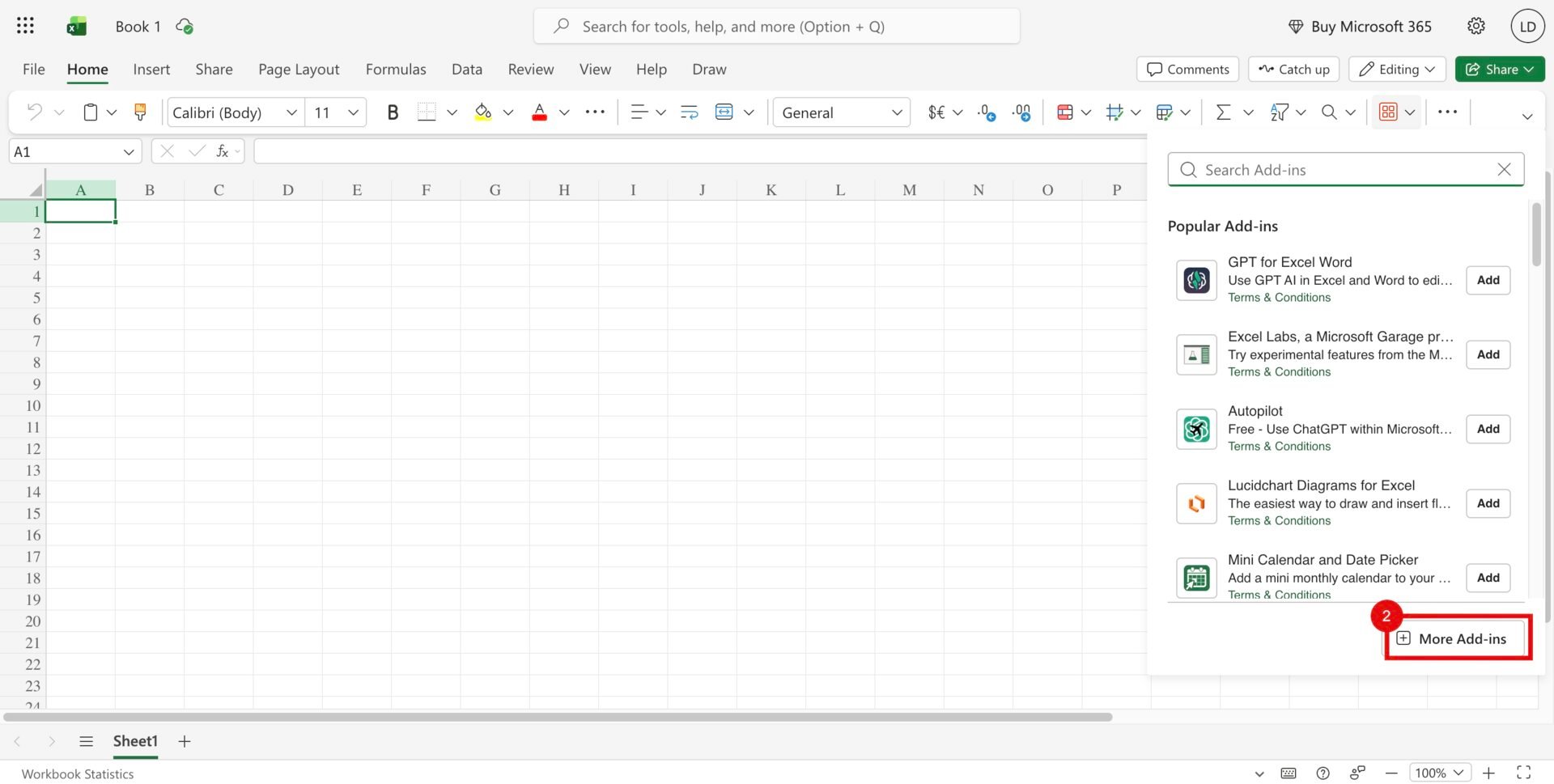
 In the panel that opens, click **More Add-ins** (2).
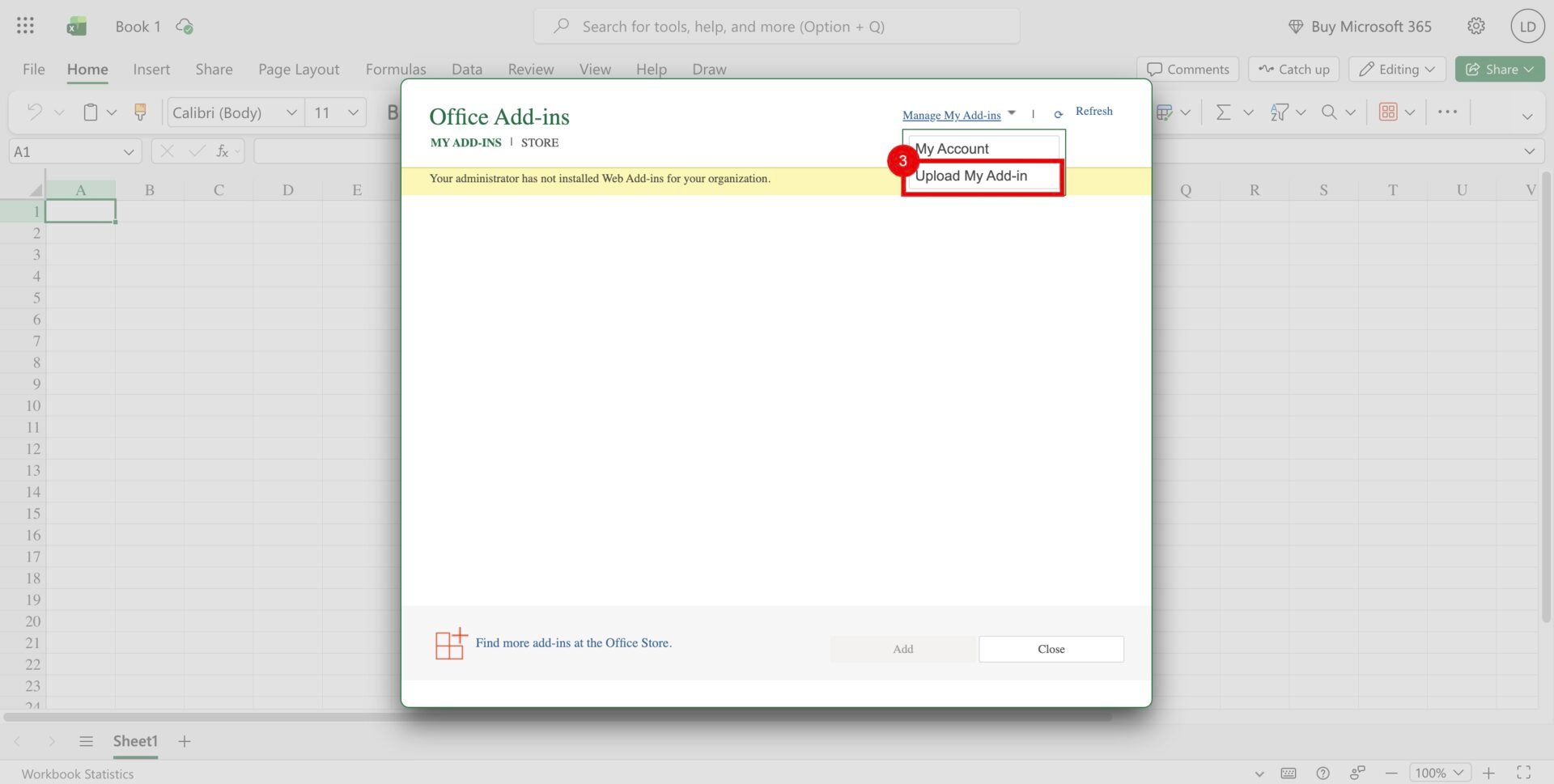
 Open **Manage My Add-ins** and choose **Upload My Add-in** (3).
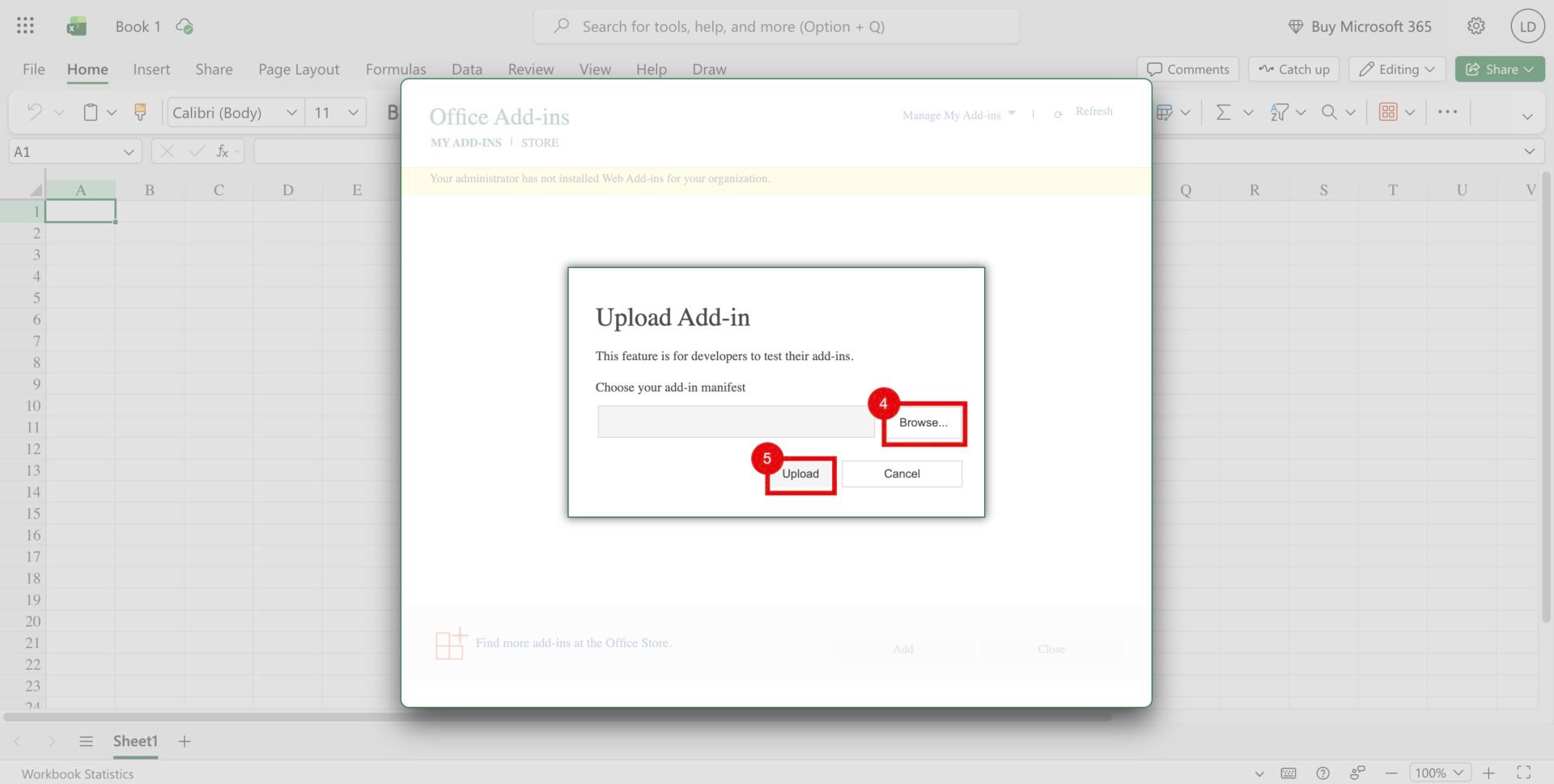
 Click **Browse** (4), select `unsiloed-excel-addin/manifest.xml`, and then
click **Upload** (5). The Upload button becomes available after you select
the file.
Click **Browse** (4), select `unsiloed-excel-addin/manifest.xml`, and then
click **Upload** (5). The Upload button becomes available after you select
the file.
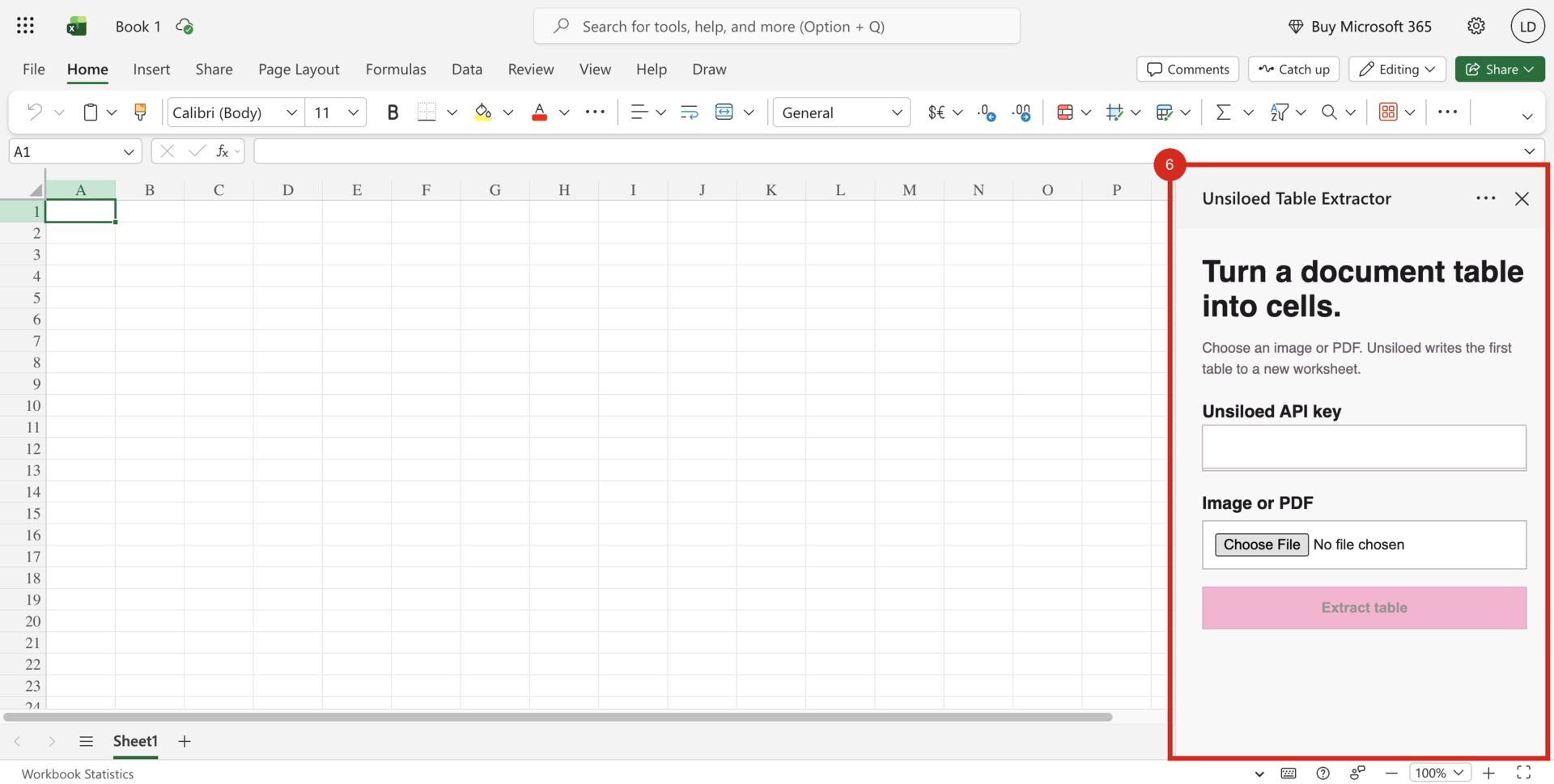
 The **Unsiloed Table Extractor** pane should open on the right side of the
workbook (6).
The **Unsiloed Table Extractor** pane should open on the right side of the
workbook (6).
 Excel for the web stores this sideloaded manifest in the current browser
profile. Upload it again if you clear the browser data or switch browsers.
## Step 7: Extract a Table
Use the task pane to process the sample document:
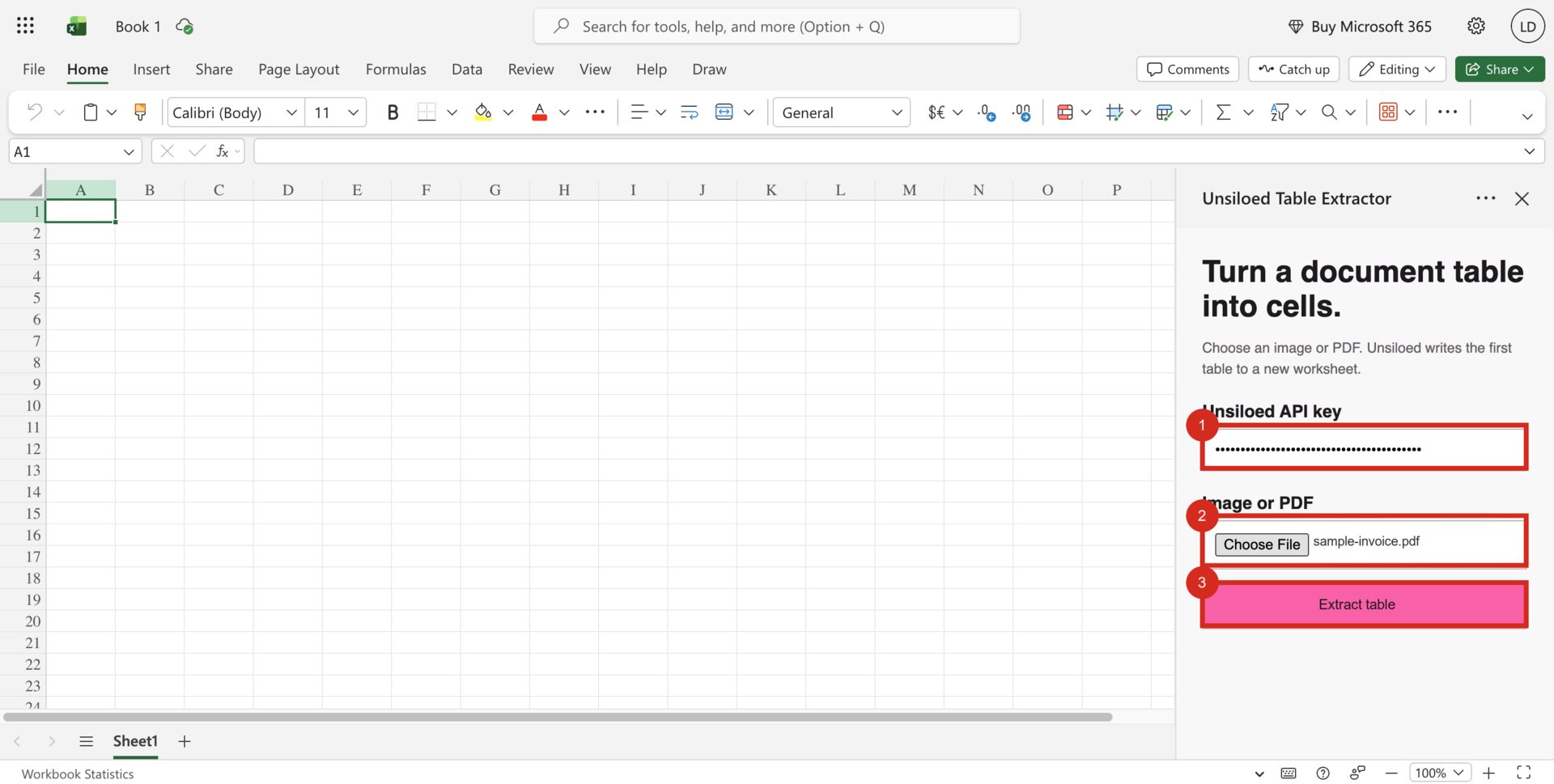
1. Enter your Unsiloed API key.
2. Click **Choose File** and select the downloaded `sample-invoice.pdf` file.
3. Click **Extract table**.
The numbered controls in the task pane follow the same order:
Excel for the web stores this sideloaded manifest in the current browser
profile. Upload it again if you clear the browser data or switch browsers.
## Step 7: Extract a Table
Use the task pane to process the sample document:
1. Enter your Unsiloed API key.
2. Click **Choose File** and select the downloaded `sample-invoice.pdf` file.
3. Click **Extract table**.
The numbered controls in the task pane follow the same order:
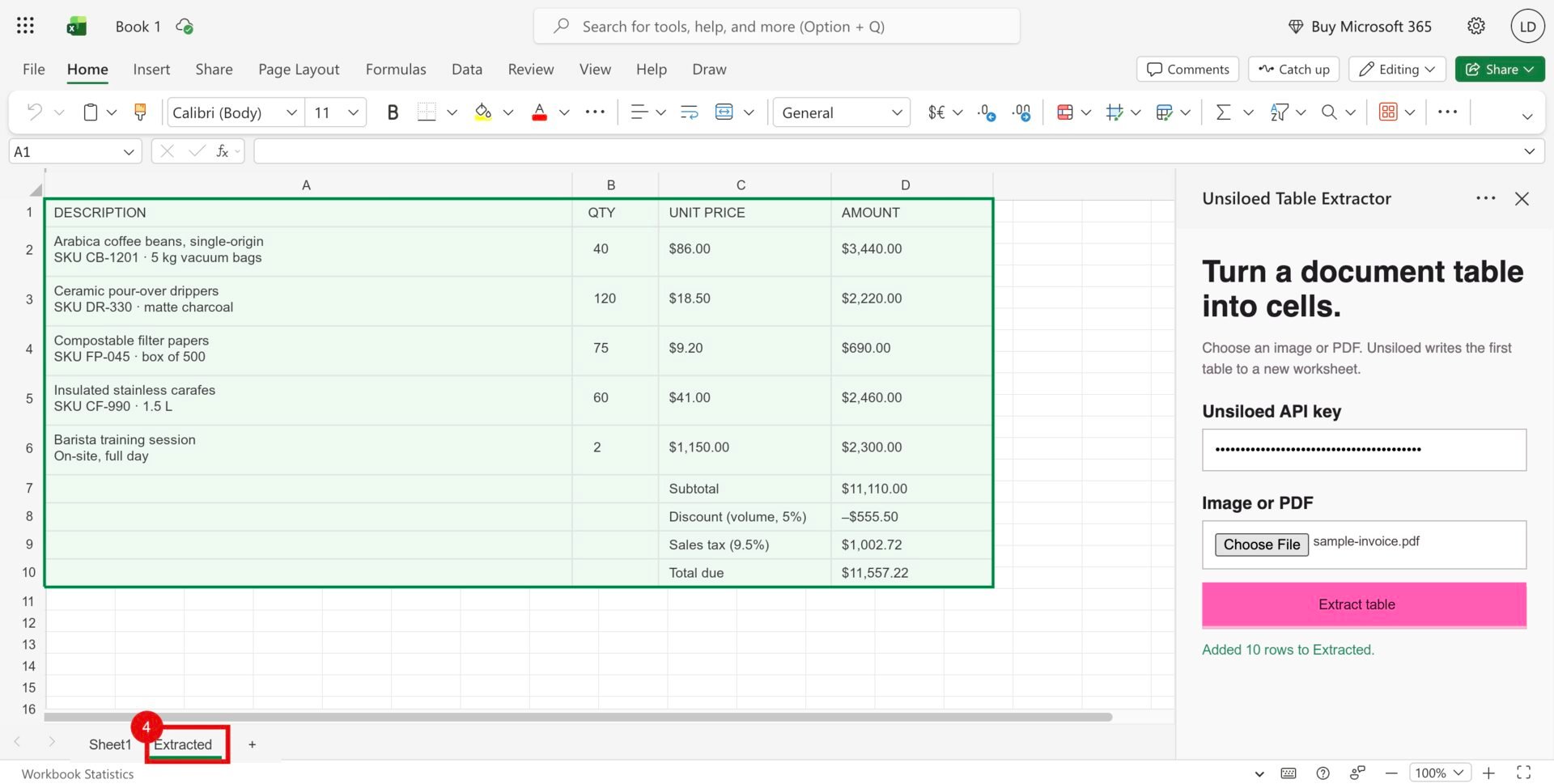
 Unsiloed parses the document, and Excel creates an `Extracted` worksheet (4).
The sample produces 10 rows and four columns. The header row should contain
`DESCRIPTION`, `QTY`, `UNIT PRICE`, and `AMOUNT`; the final row should contain
`Total due` and `$11,557.22`. Running the add-in again creates `Extracted 2`,
preserving the earlier result.
Unsiloed parses the document, and Excel creates an `Extracted` worksheet (4).
The sample produces 10 rows and four columns. The header row should contain
`DESCRIPTION`, `QTY`, `UNIT PRICE`, and `AMOUNT`; the final row should contain
`Total due` and `$11,557.22`. Running the add-in again creates `Extracted 2`,
preserving the earlier result.
 The code formats the destination range as text before assigning values, which
preserves currency symbols, leading zeros, dates, percentages, and table
labels. Use [schema-based extraction](/docs/document-processing/extraction/extraction)
when you need typed fields in fixed columns.
## Troubleshoot the Add-in
Confirm that `npx vite` is still running and that
`https://localhost:3000/index.html` opens in the same browser without a
certificate warning. In Chrome's site settings for `excel.cloud.microsoft`,
set **Local network access** to **Allow**, reload the workbook, and upload
`manifest.xml` again.
Open **Home → Add-ins** and select **Unsiloed Table Extractor**. If it isn't
listed, use **Upload My Add-in** to load the manifest again.
Confirm that the table has visible rows or aligned columns, then try a
larger or sharper image. The recipe stops instead of writing ordinary text
segments when the parse result contains no `Table` segment.
Re-enter the Unsiloed API key. The add-in doesn't save the key between task
pane sessions.
## Limitations and Next Steps
This example has a few limitations:
* It writes the first `Table` segment. For documents with several tables, add a
preview or selector before calling `writeRows`.
* It writes every cell as text. Use typed schema extraction when downstream
formulas need numbers or dates.
* It processes one local file at a time and stops polling after five minutes.
* It keeps the API key in task-pane memory. That works for a personal local
tool, but a distributed add-in should use per-user authentication or a
backend that keeps shared credentials out of browser code.
The parsing and element-type references below are the best places to extend
the example without changing its Office.js foundation.
Review the asynchronous parse workflow and response structure.
See the segment types returned by parsing, including `Table`.
The code formats the destination range as text before assigning values, which
preserves currency symbols, leading zeros, dates, percentages, and table
labels. Use [schema-based extraction](/docs/document-processing/extraction/extraction)
when you need typed fields in fixed columns.
## Troubleshoot the Add-in
Confirm that `npx vite` is still running and that
`https://localhost:3000/index.html` opens in the same browser without a
certificate warning. In Chrome's site settings for `excel.cloud.microsoft`,
set **Local network access** to **Allow**, reload the workbook, and upload
`manifest.xml` again.
Open **Home → Add-ins** and select **Unsiloed Table Extractor**. If it isn't
listed, use **Upload My Add-in** to load the manifest again.
Confirm that the table has visible rows or aligned columns, then try a
larger or sharper image. The recipe stops instead of writing ordinary text
segments when the parse result contains no `Table` segment.
Re-enter the Unsiloed API key. The add-in doesn't save the key between task
pane sessions.
## Limitations and Next Steps
This example has a few limitations:
* It writes the first `Table` segment. For documents with several tables, add a
preview or selector before calling `writeRows`.
* It writes every cell as text. Use typed schema extraction when downstream
formulas need numbers or dates.
* It processes one local file at a time and stops polling after five minutes.
* It keeps the API key in task-pane memory. That works for a personal local
tool, but a distributed add-in should use per-user authentication or a
backend that keeps shared credentials out of browser code.
The parsing and element-type references below are the best places to extend
the example without changing its Office.js foundation.
Review the asynchronous parse workflow and response structure.
See the segment types returned by parsing, including `Table`.